

Settings
Configure Kimchi Studio globally: appearance, defaults for chats and code sessions, your account, and notifications.
Open Settings from the sidebar to configure Studio globally. The settings that have a lot to them get their own pages: skills, MCP servers and connectors, and updates. This page covers the rest.
| Section | What it controls |
|---|---|
| General | Appearance (System, Dark, or Light), import from other AI apps, debug logging |
| Chat | Default permission mode and model for new chats |
| Code | Default permission mode, model, and interface (Chat UI or Kimchi TUI) for new code tasks |
| Account | Your Kimchi account |
| Notifications | Desktop notification preferences, covered on this page |
| Skills | Manage installed skills. See Skills in Kimchi Studio |
| MCP Servers | Harness-wide MCP server configuration. See MCP servers and connectors |
| Connectors | One-click OAuth connections to services like Slack, Atlassian, and Granola. See MCP servers and connectors |
| Updates | Check for and install application updates. See Updating and uninstalling |
General
App-wide preferences:
- Appearance: choose System, Dark, or Light. System follows your operating system's appearance.
- Import from other apps: re-scan this computer and bring over skills and MCP servers from other AI coding tools. Also offered on first launch; existing settings are kept. See Add a skill and MCP servers and connectors.
- Debug: turn on verbose logging and debug output from the Kimchi TUI.
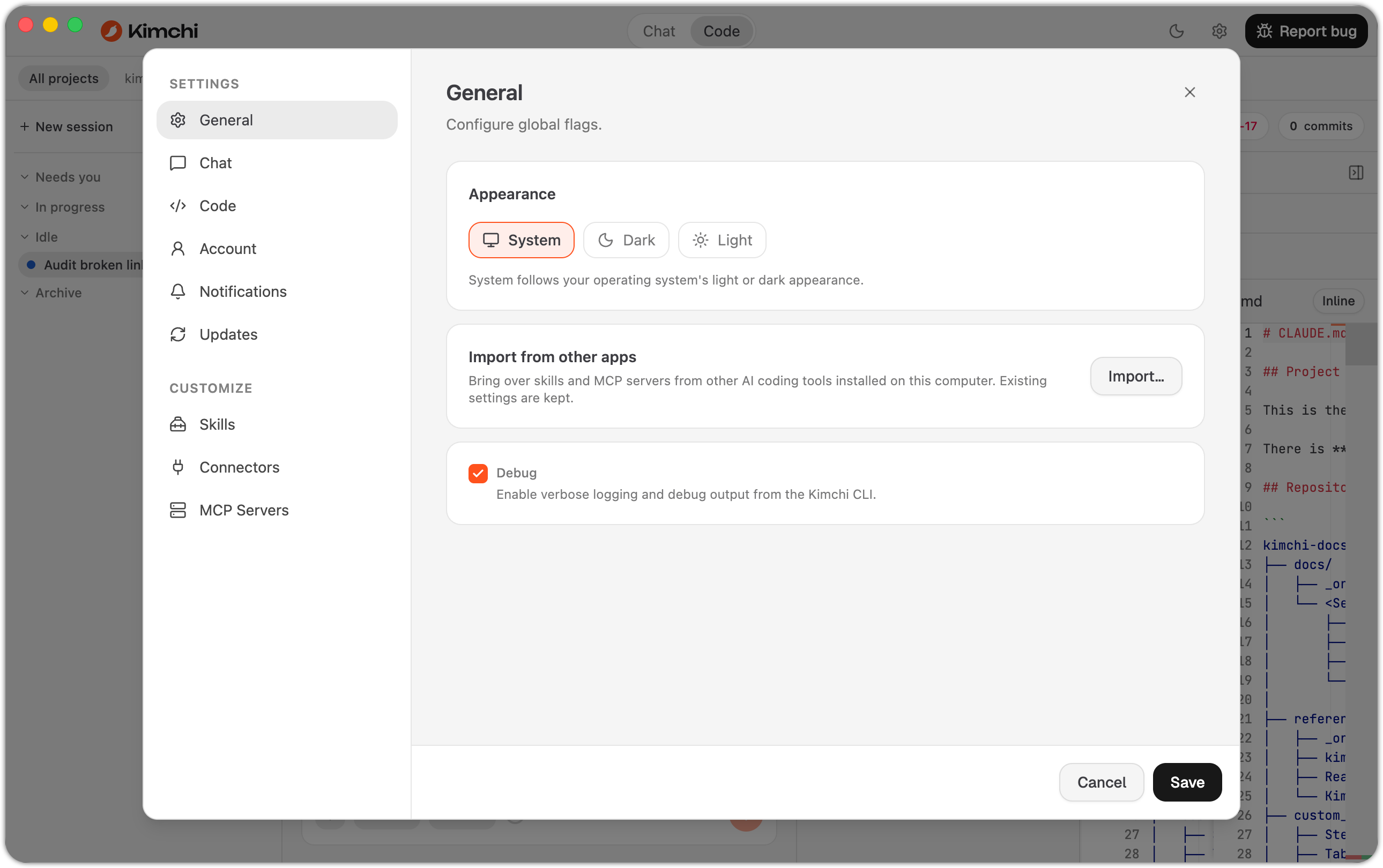
Settings → General: appearance, import from other apps, and debug logging.
Chat
The defaults each new chat session starts with:
- Permission mode: how much the agent can do before it checks with you.
- Model: the model the agent runs on.
These are only starting points. You can change them per session from the selectors next to the chat input. See Chat mode.
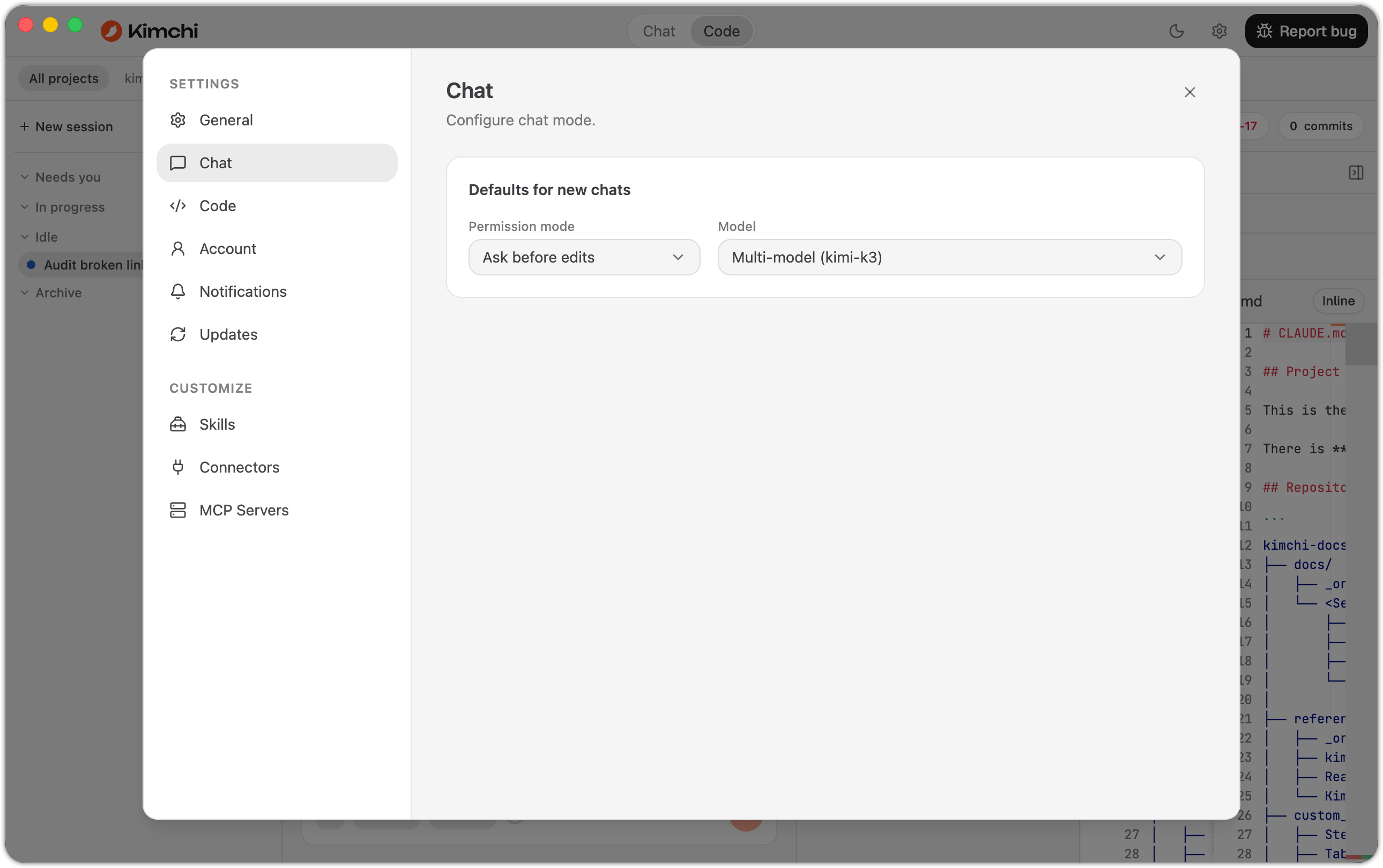
Settings → Chat sets the starting permission mode and model for new chat sessions.
Code
The defaults each new code session starts with:
- Permission mode and Model: the agent's starting autonomy and model.
- Interface: the Chat UI or the Kimchi TUI.
You can override the model and permission mode per session and switch the interface at any time. See Code mode.
Account
The Kimchi account you're signed in with. The Kimchi TUI and the VS Code extension share the same account on the machine. Signing in or out in one place carries to the others.
Notifications
Desktop notifications are what make parallel sessions practical. Instead of watching five agent tasks at once, let Studio tell you when one needs you. These live under Settings → Notifications.
| Setting | Effect |
|---|---|
| Enable desktop notifications | Turns notifications on or off entirely. These are native OS notifications, so they show up even when Studio isn't the focused window. |
| Only when app is in background | Suppresses notifications while Studio is the focused window. |
Choose which agent events send a notification:
| Event | When it fires |
|---|---|
| Notify on turn complete | The agent finished its current turn, so the task output is ready for review. |
| Notify on approval needed | The agent is paused on a permission prompt, for example writing a file or running a command. |
| Notify on input needed | The agent asked a question and is waiting for your answer before it can continue. |
| Notify on errors | Something in the session failed. |
All four events work independently. A common setup: turn on Notify on approval needed and Notify on input needed (the blockers) and leave the rest off to limit noise.
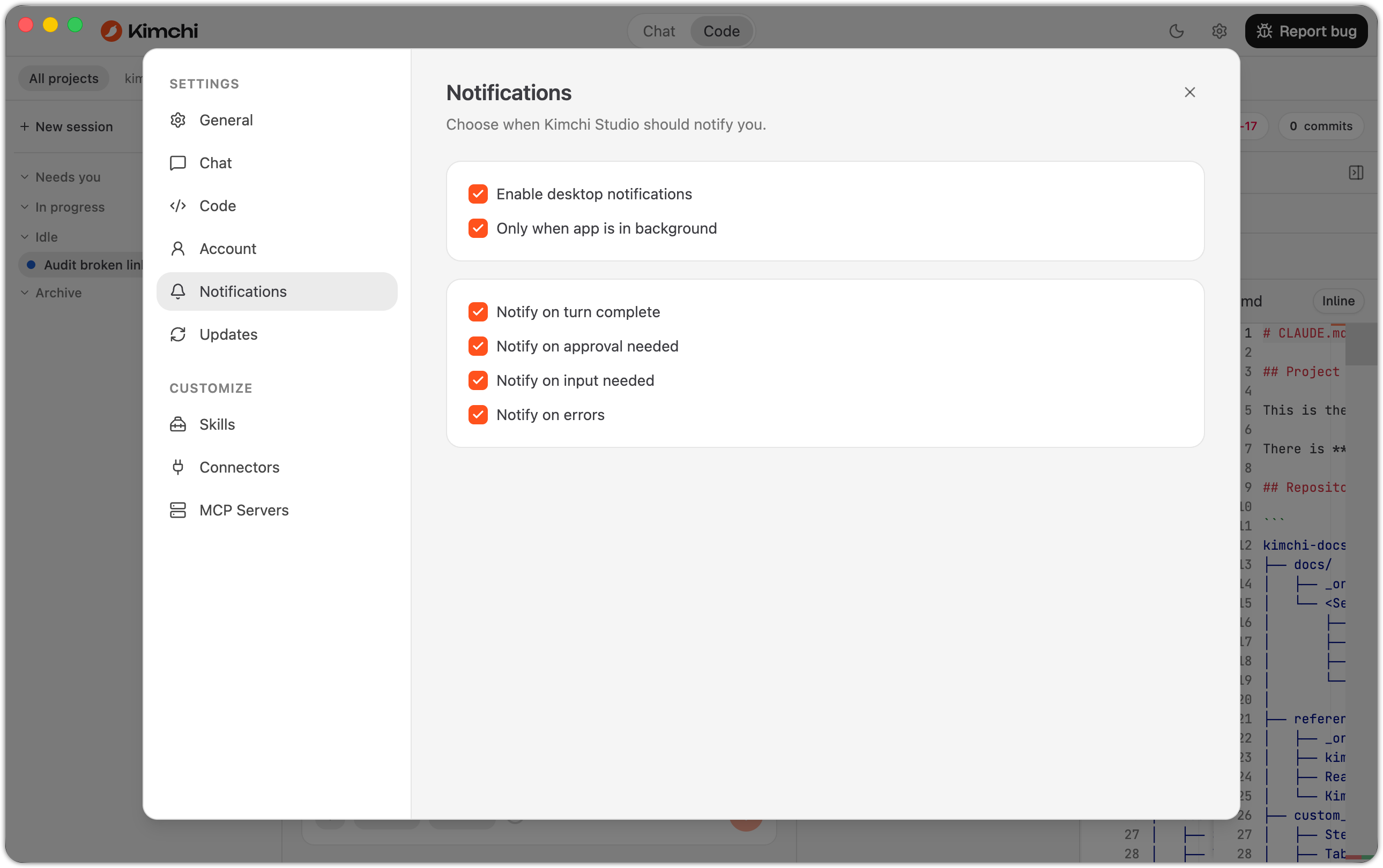
Settings → Notifications: the master toggles and the four agent-event notifications.
A common loop: start several sessions from the sessions sidebar, then switch to something else. Studio interrupts you only for the events you chose. Open the session that notified, handle the approval or question, and move to the next.
What's next
Updated 6 days ago