Repository navigation
Directory for $PSHome when updating on Windows with MSI #5226
Description

On Windows, when we do an update install with an MSI, the directory of $PSHome gets changed to reflect the version number. For example, C:\Program Files\PowerShell\6.0.0-beta.8 gets changed to C:\Program Files\PowerShell\6.0.0-beta.9.
Unfortunately, this breaks any user-created shortcuts that are hard-coded to the exact path of PowerShell. Similarly, apps like VS Code get hardcoded to that path and will break after an update install.
AFAICT, there's a couple of paths forward here:
- It might not matter at all once we move to
pwshand add $PSHome to the PATH. Anyone who wants stability should build their shortcuts, VS Code preferences, and shell/batch scripts againstpwshand not the full path. - We change behavior to only use the major and minor versions (e.g.
6.0and6.1and not the revision number). That way, when we update to 6.1 we can keep them side-by-side. However, that might not be desirable if we maintain strict semantic versioning (i.e. don't make breaking changes between minor versions). - We change behavior to only use the major version (e.g.
6). This is similar to the Office or VS Code approach (e.g.Office12vs.Office13). This may be overoptimizing if we never do a PowerShell 7, or it might be the right solution if we maintain strict semantic versioning.
My main goal here is not to over-optimize for an uncertain future. That's why I'm leaning towards 1, but I want to get people's thoughts.
Activity
markekraus commentedon Oct 25, 2017
I have managed versions and SxS with other languages ins linux by having a symlinks. Something like
/path/to/project.latestwhich is a symlink to/path/to/project.1.0.2.3/when a new version is added, the symlink just gets updated to the new path. Perhaps something similar could be done with junctions?C:\Program Files\PowerShell\Latest->C:\Program Files\PowerShell\6.0.0-beta.9rkeithhill commentedon Oct 26, 2017
Furthermore, any shortcuts that get created by pinning the PowerShell launched from the installer, will have the "Start in" directory set to the install location rather than
%USERPROFILE%. So when I start these shortcuts they start up in the install dir rather than my home dir. This might be as simple as making the installer "Launch PowerShell" command set the working directory to the current user's home dir.bergmeister commentedon Jan 4, 2018
Joey Aiello (@joeyaiello) PR 5101 already added
$PSHometo the pathKeith Hill (@rkeithhill) It might sound easy but making any change in WiX is a pain. I tried it once but I can give it another go. I am glad that at least people find the
Launch PowerShellcheckbox useful that I added to the installer. :-)lwsrbrts commentedon Jan 27, 2018
I think it's worth mentioning #5919 here for this discussion.
Windows only but relevant.
SteveL-MSFT commentedon Feb 2, 2018
My preference is to go with single major version for the folder name. If the user cares about the actual version, it's in the product. If the user wants side-by-side, they should use the .zip anyways.
SwarfegaGit commentedon Feb 2, 2018
Just to add from duplicate issue #6088.
Do we need to keep the version details on the shortcut (and shortcut folder) that is placed into the Start Menu? Why can't it just be 'PowerShell' rather than 'PowerShell-6.0.1' as it is now?
bergmeister commentedon Feb 2, 2018
Andrew Palmer (@SwarfegaGit) The start menu folder already got renamed to
PowerShellin PR 5891SwarfegaGit commentedon Feb 2, 2018
Christoph Bergmeister (@bergmeister) that's good news! I see the version number still remains on the shortcut though. I see there's mention of this being for side-by-side installations but as Steve Lee (@SteveL-MSFT) mentioned above ideally these people should be using the .zip version. I would sooner see the shortcut just be called 'PowerShell' like every other application (aside from Office xxxx) on my Start Menu.
bergmeister commentedon May 12, 2018
Keith Hill (@rkeithhill) Recently a
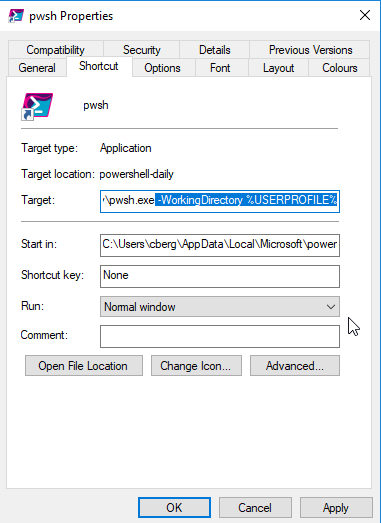
-WorkingDirectoryoption was added topwshin6.1.0-preview.2, therefore you can now change the shortcut to start in your user directory by appending-WorkingDirectory %USERPROFILE%(right-click -> Properties)Personally, Normally, I hate 'Add shortcut' checkboxes in installers but this special case would warrant having 2 checkbox (unchecked by default) to add such shortcuts to the Taskbar/Desktop. WDYT?
SteveL-MSFT commentedon Jul 20, 2018
This should be fixed as we now install to
$env:ProgramFiles\PowerShell\6and$env:ProgramFiles\PowerShell\6-preview