Repository navigation
Resize: enable opting-out for alpha premultiplication #1498
Description
Activity
Can you post a side by side comparison of the two outputs?
I have updated the post.
I’m sorry but I still do not understand what the issue you are trying to highlight is? Is that second image showing the ImageSharp output image as black/white?
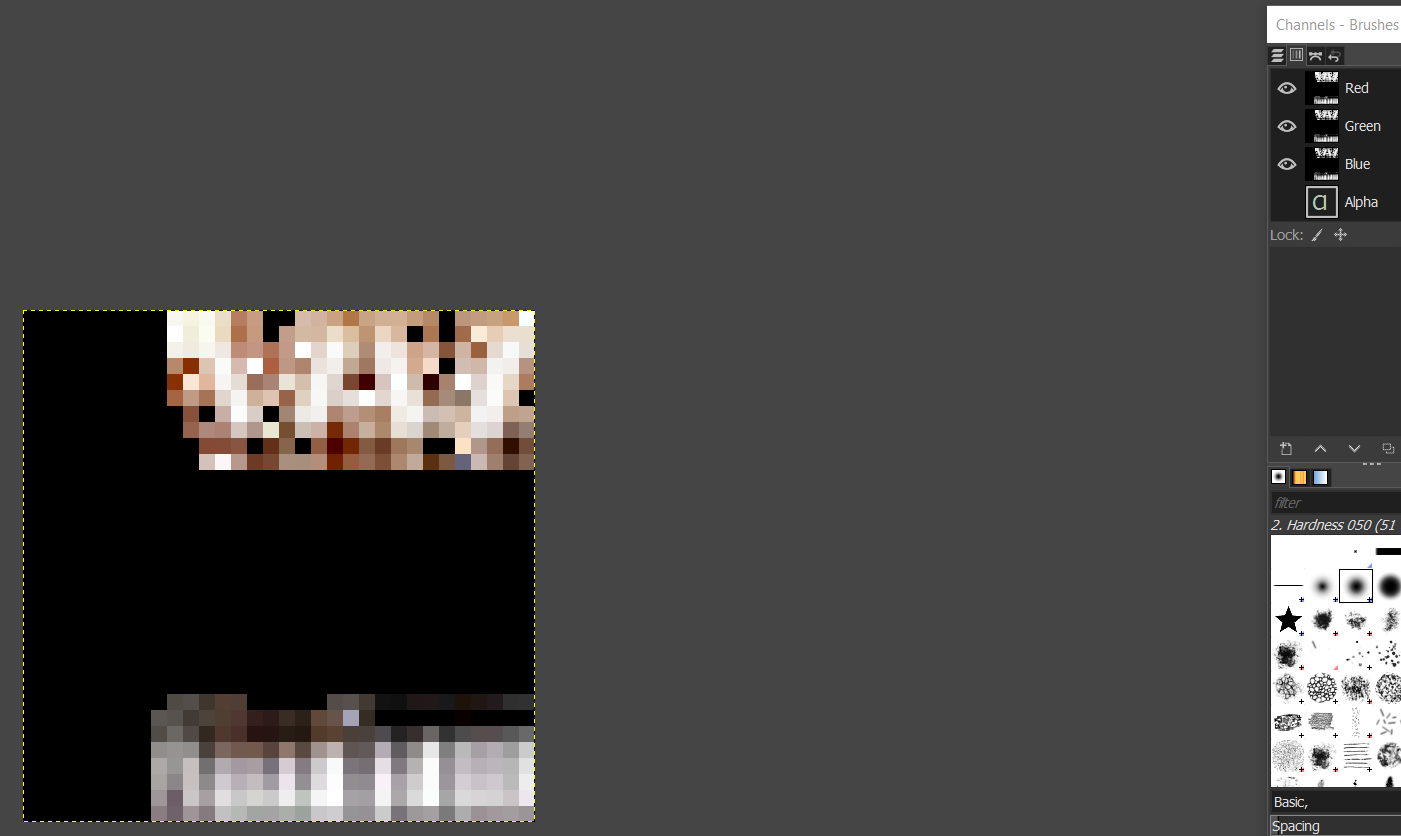
The second image is the output I get from image sharp (yes, highlighting the issue) when using the following code:
using (var img = Image<Rgba32>.Load(@"input.tga"))
{
    img.Mutate(op => op.Resize(img.Width / 2, img.Height / 2));
    img.SaveAsPng(@"resizeOutput.png");
}
Is that a yes?
Yes it is highlighting the issue. No, it is not black and white, but full 8-bit RGB display in GIMP.
Reacted by James Jackson-SouthOk.... So that input image contains data that has an alpha component of zero. GIMP however is displaying that to you, ignoring that component so you can see the color data. (Looking at the top/right panel it looks like you have explicitly told it to do so?)
Here's the input image opened with Paint.NET. As you can see, the color picker highlights the pixel component values.
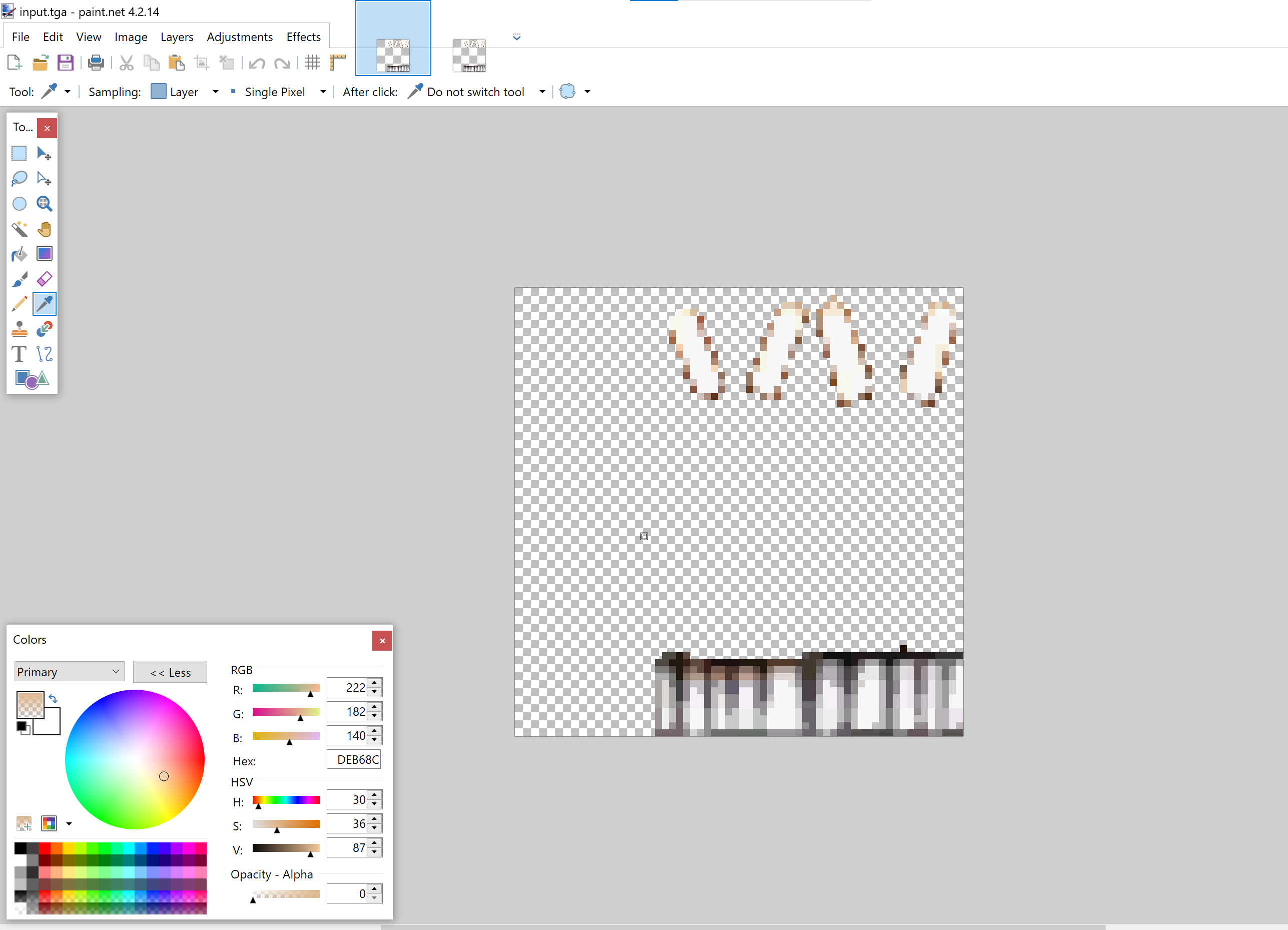
When performing a resizing operation with a pixel format that contains an alpha component the RGB component values must first be associated with (premultiplied by) the alpha component to ensure the output is correct. In your case, since the alpha component value is zero, that leads to all components becoming zero.
[R {222}, G {182}, B {140}, A{0}] = [R {222 * 0}, G {182 * 0}, B {140 * 0}, A{0}] = [R {0}, G {0}, B {0}, A{0}]Due to the GIMP setup this means that GIMP is also displaying the resized pixels that originally contained zero RGBA components as black.
Please note that the returned output from ImageSharp is absolutely the correct behavior based upon the input pixel state.
If you want to ignore the alpha component then you should use
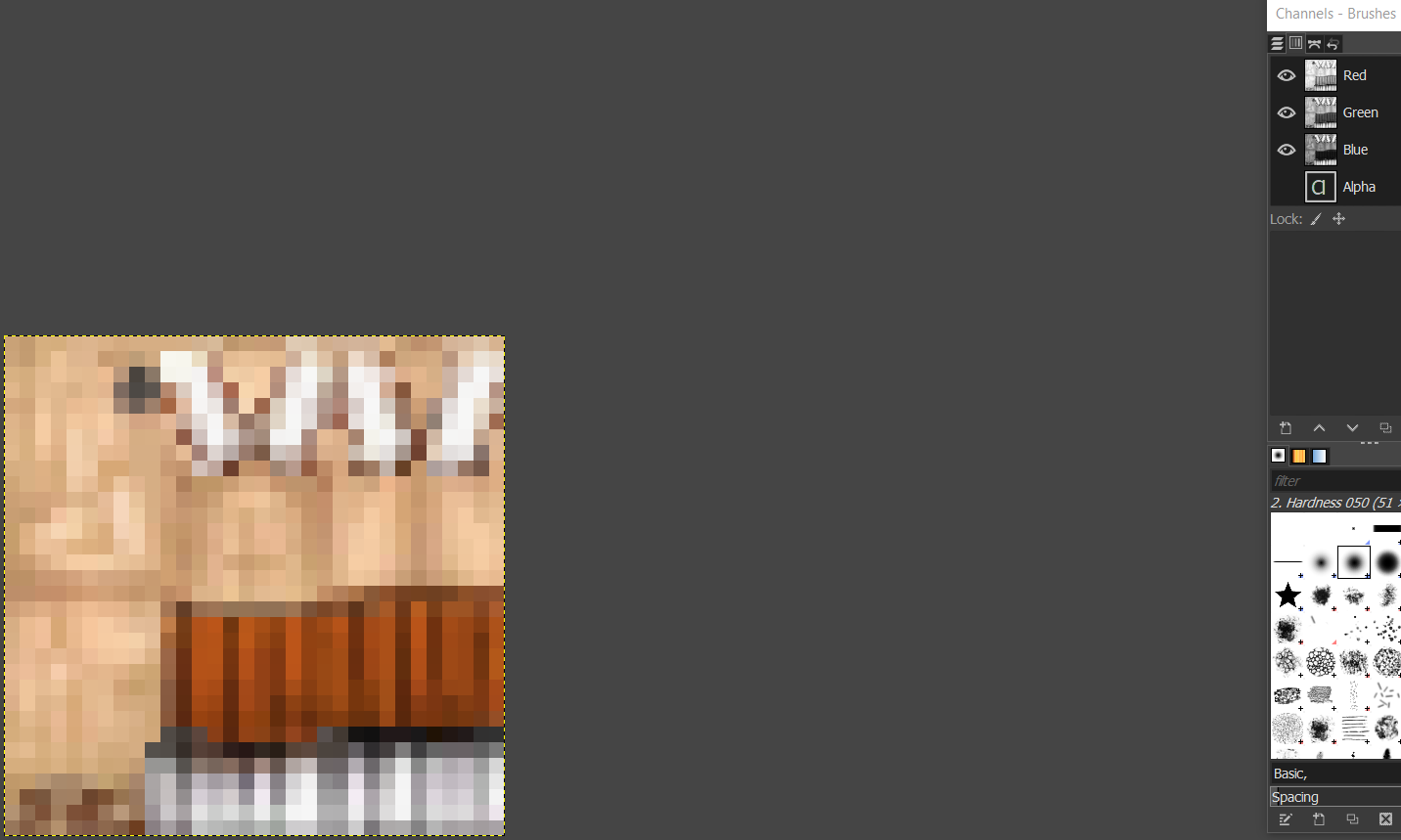
Rgb24.Hmm, I'm not sure which is correct, but GIMP seems to give a different result when resizing. I understand that due to the alpha ImageSharp is 0-ing out certain parts of the texture. However it seems that GIMP does not do this in its built-in resize function. GIMP seems to resize RGB separately from the alpha channel. GIMPs end result does not 0 out the RGB channel due to the alpha (as can be see in the third picture in the OP).
I need to do some reading on what should really be expected.
This is having an effect on the game I'm working with. The alpha channel isn't meant to mask out parts of the texture, but instead is used to give information on where the game should put player color. This is an RTS game and by player color I mean that player one's warriors would have a blue highlight where the alpha mask is white, and player 2 would have a red highlight where the mask is white for example. I still need the RGB data preserved because everything that is not masked by white alpha channel should be displayed normally. I don't think this is uncommon behavior. From what I've seen when working with texture in GIMP and Photoshop and generating mipmaps for DDS files is that the RGB data is preserved and not cancelled out by the alpha.
It seems the only way for me to do this with ImageSharp then is to create two separate images. One Rgb24, and one L8 with the alpha. Resize them separately, and then put them back together in an Rgba32 image.
The link you gave is helpful to understand the rationale in ImageSharp's behavior. It makes sense, but doesn't seem to be the desired effect for every scenario as I explained above. I'll try to understand the code of a tool like DirectXTex to see what they do for mipmap resizing/generation.
@JimBobSquarePants we may probably consider adding a new property
ResizeOptions.PremultiplyAlpha { get; set; } = true;. This would be a super cheap feature, might worth it even if it's extremely rare that users explicitly need it.Reacted by Petar Tasev@antonfirsov yep, I’ve been considering that myself.
Reacted by Anton FirszovHaving that option would be great. I guess this turned into a feature request instead.
@ptasev are you interested PR-ing this?
This is the list of things to be done:
- Extend
ResizeOptionswith the property - Extend the non-generic
ResizeProcessorwith the property (take it's value fromoptions) - Use
PixelConversionModifiers.Noneifthis.definition.PremultiplyAlpha == false:
- Add test coverage. This is the hardest thing, but I can help with the steps if needed.
- Add a test similar to this one, using the "Kaboom" image with
PremultiplyAlpha = false
- Run the test, it will fail, but should save the expected output to
tests\Images\ActualOutput\ResizeTestsin Debug runs. If you (temporarily) copy the resulting image totests\Images\External\ReferenceOutput\ResizeTeststhe test should succeed - I will do this: push the reference image to ImageSharp.Tests.Images, and update the submodules so the new reference image is visible for everyone
- Add a test similar to this one, using the "Kaboom" image with
- Extend
- changed the title
[-]Resize creates unexpected output using default settings[/-][+]Resize: Make alpha premultiplication optional[/+]on Jan 12, 2021 - changed the title
[-]Resize: Make alpha premultiplication optional[/-][+]Resize: enable opting-out for alpha premultiplication[/+]on Jan 12, 2021 Yeah, will do!
Reacted by Anton Firszov and James Jackson-South


Edit: this turned into a feature request for a
ResizeOptions.PremultiplyAlphaproperty defaulting totrue.Adding up-for-grabs, since it's easy, here are steps for a potential community PR:
#1498 (comment)
Prerequisites
DEBUGandRELEASEmodeDescription
When using Resize(int width, int height) I am getting very odd black bands in the output image. The results seems quite wrong. I am getting a different results when using GIMP's Bicubic Scale Image function.
Steps to Reproduce
I have attached sample code that results in this issue. I have included the input image in the sample, as well as the output I get on my PC for reference.
System Configuration
Input:
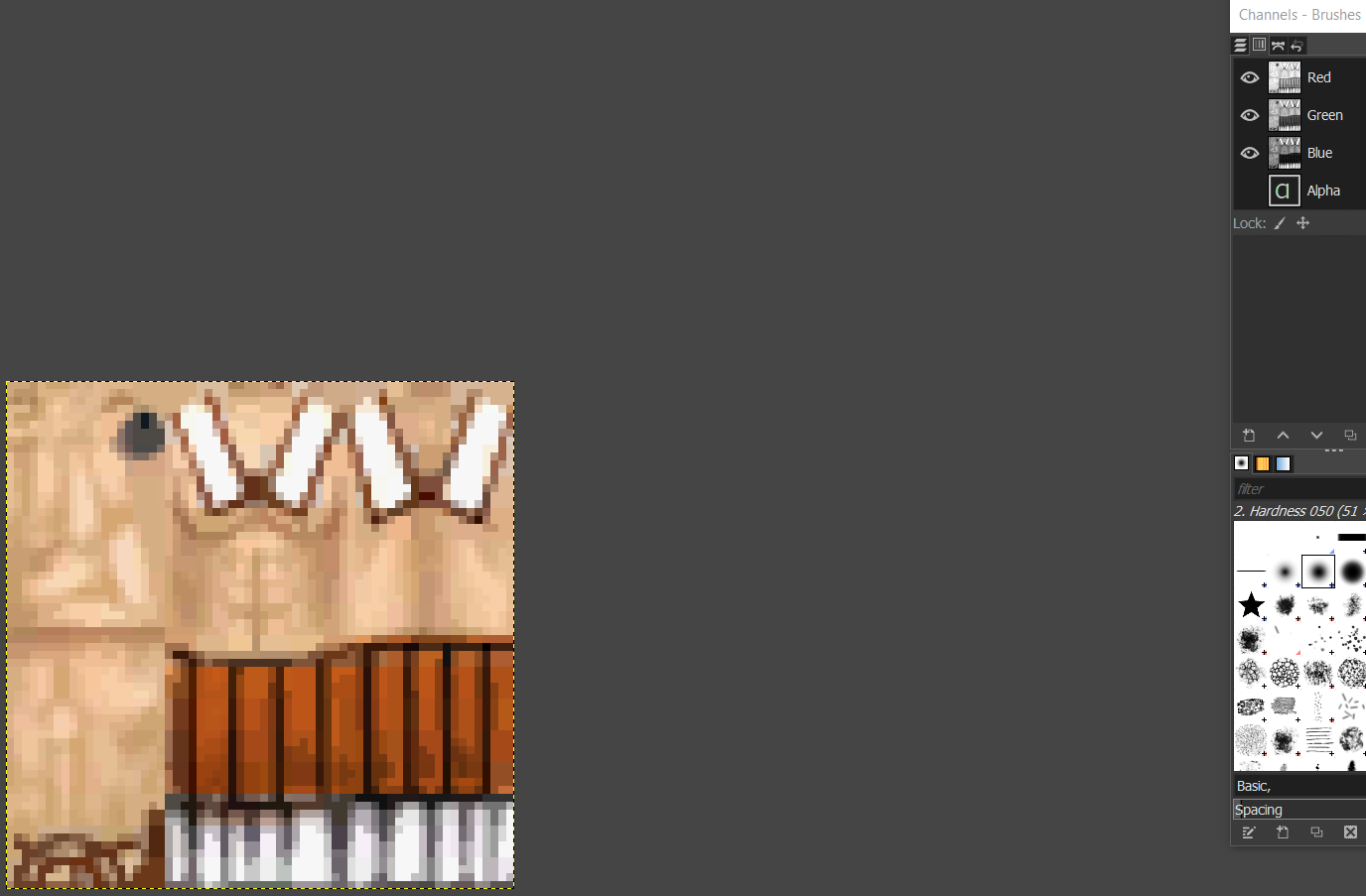
My ImageSharp output as seen in GIMP:
GIMP's bicubic scale:
ResizeBugProj.zip