




punchout takes the suck out of logging time on JIRA.
Download a pre-built binary from the latest release. See Verifying release artifacts for instructions on verifying your download.
You can also install from source using the go toolchain:
go install github.com/dhth/punchout@latestNew to punchout? Run the interactive tour:
punchout tourThe tour introduces punchout's worklog workflow, main TUI views and controls, MCP server, and configuration. It does not require a configuration file.
Create a configuration file if you do not already have one:
mkdir -p ~/.config/punchout
punchout config show-sample > ~/.config/punchout/punchout.toml
Edit the generated file with your JIRA details, then validate it and start the TUI:
punchout config validate
punchout| Command | What it does |
|---|---|
punchout |
Start the TUI |
punchout tour |
Take the interactive tour |
punchout config show-sample |
Print a sample configuration |
punchout config validate |
Validate the configuration file |
punchout mcp serve |
Start the MCP server |
punchout help |
Show all commands and flags |
Run punchout <command> --help for details about a particular command.
punchout lets you add worklogs to JIRA in two steps:
- Record one or more worklogs locally.
- Push all unsynced worklogs to JIRA.
You can do this through either the TUI or the MCP server.
punchout reads configuration from ~/.config/punchout/punchout.toml by
default. Authentication settings differ between JIRA Cloud and on-premise
installations.
# String configuration values can reference environment variables. Referenced
# variables need to be set before running punchout.

# Optional. Defaults to punchout's standard database path.
# db_path = "$SOME_ENV_VAR/punchout.db"

[jira]
# Optional. Defaults to "onpremise". Allowed values: "onpremise", "cloud".
installation_type = "onpremise"

jira_url = "https://jira.company.com"
jira_token = "$PUNCHOUT_JIRA_TOKEN"

# For cloud installations, set installation_type to "cloud", use an API token,
# and provide a username.
# jira_username = "[email protected]"

# Put whatever JQL you want to use to query issues.
jql = "assignee = currentUser() AND updatedDate >= -14d ORDER BY updatedDate DESC"

# Optional. Time difference, in minutes, between your timezone and the JIRA
# server's timezone. Defaults to 0.
# jira_time_delta_mins = 300

# Optional. Used for worklogs when you do not provide a comment.
# fallback_comment = "work"

[tui]
# Optional. Defaults to false.
# use_cache_on_startup = true

# Optional. Defaults to "gruvbox-dark-hard".
# theme = "tokyonight"

[mcp]
# Optional. Defaults to "stdio". Allowed values: "stdio", "http".
# transport = "http"

# Optional. Used when transport is "http". Defaults to 18899.
# http_port = 9999
Command-line flags override values from the configuration file. Use a different
file with --config-file-path, or inspect the resolved configuration with
--list-config; JIRA tokens are redacted from that output.
Successful JIRA issue fetches are saved to a local cache. Set
use_cache_on_startup to true to start with the most recently cached issues
instead of immediately querying JIRA. Press <ctrl+r> from the issues list to
fetch the latest issues and update the cache. If the cache is unavailable,
punchout falls back to querying JIRA.
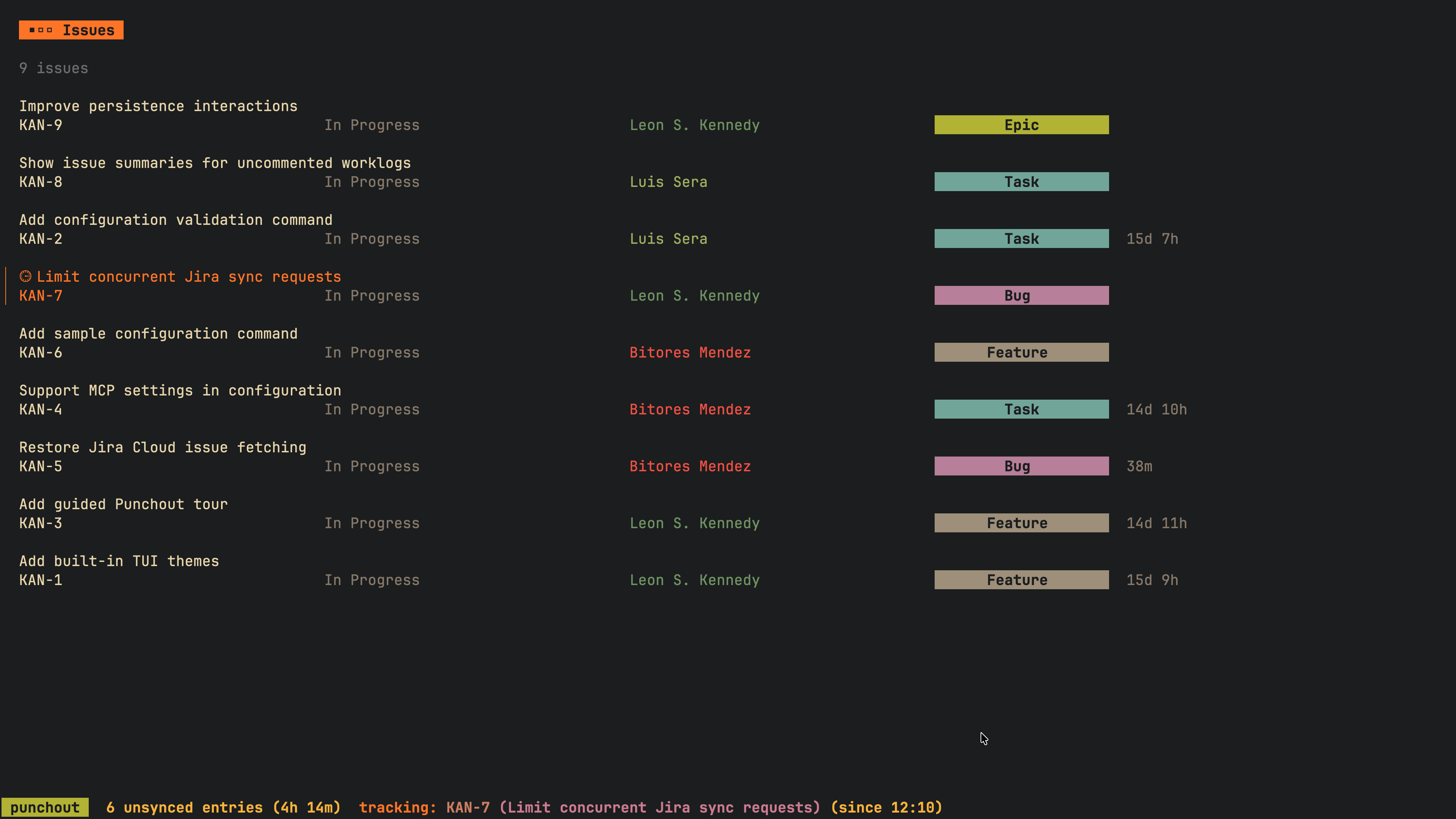
punchout's TUI lets you log time against JIRA issues and sync worklogs to
JIRA. You can track time as you work or add worklogs manually.

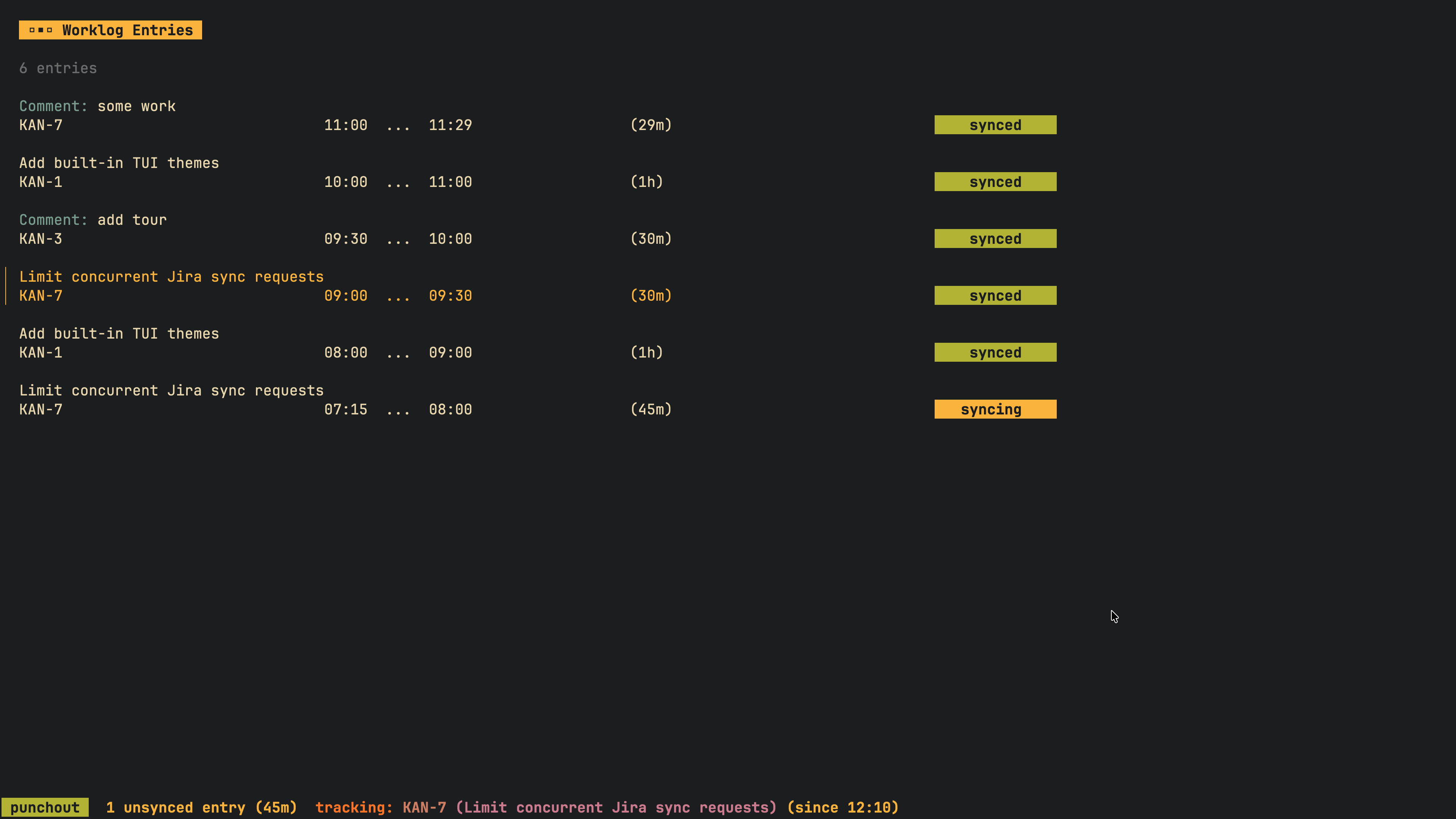
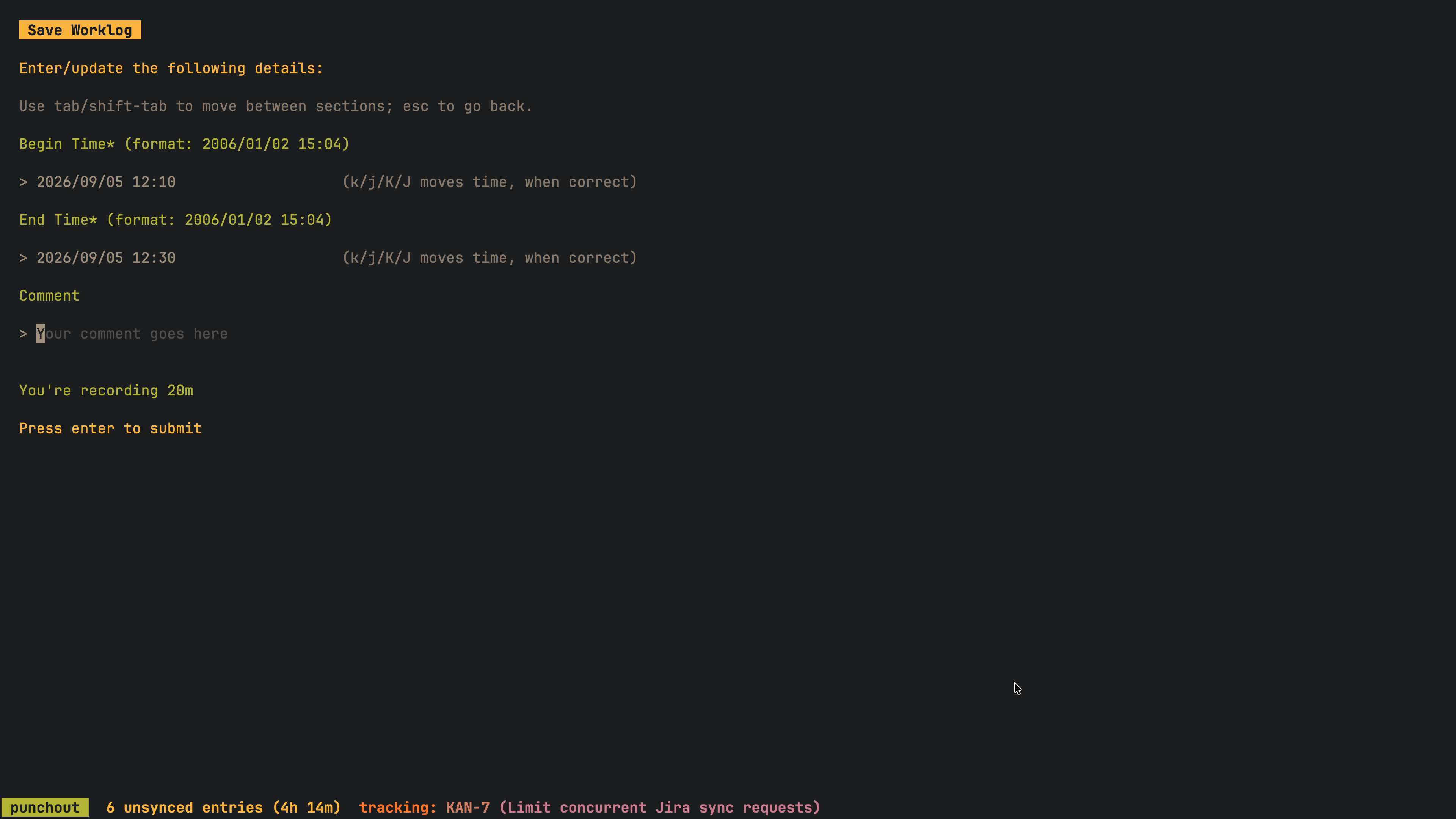
The TUI has 5 primary views:
- Issues List View — Shows you issues matching your JQL query
- Worklog List View — Shows you your worklog entries; you sync these entries to JIRA from here
- Worklog Entry/Update View — You enter/update a worklog entry from here
- Synced Worklog List View — You view the worklog entries synced to JIRA here
- Help View — Shows available keymaps (as listed below)
| Mapping | Description |
|---|---|
1 |
Switch to Issues List View |
2 |
Switch to Worklog List View |
3 |
Switch to Synced Worklog List View |
<tab> |
Go to next view/form entry |
<shift+tab> |
Go to previous view/form entry |
q/<ctrl+c> |
Go back/reset filtering/quit |
<esc> |
Cancel form/quit |
[ |
Switch to previous theme |
] |
Switch to next theme |
? |
Show help view |
| Mapping | Description |
|---|---|
k/<Up> |
Move cursor up |
j/<Down> |
Move cursor down |
h/<Left> |
Go to previous page |
l/<Right> |
Go to next page |
/ |
Start filtering |
| Mapping | Description |
|---|---|
s |
Toggle recording time on the currently selected issue; opens a form to record a comment on the second s keypress |
S |
Quick switch recording; saves a worklog entry without a comment for the currently active issue and starts recording time for another issue |
f |
Quick finish the currently active worklog |
<ctrl+s> |
Update active worklog entry (when tracking active), or add manual worklog entry (when not tracking) |
<ctrl+t> |
Go to currently tracked item |
<ctrl+x> |
Discard currently active recording |
<ctrl+b> |
Open issue in browser |
<ctrl+r> |
Fetch the latest issues from JIRA |
| Mapping | Description |
|---|---|
<ctrl+s>/u |
Update worklog entry |
<ctrl+d> |
Delete worklog entry |
s |
Sync all visible entries to JIRA |
<ctrl+r> |
Refresh list |
| Mapping | Description |
|---|---|
enter |
Save worklog entry |
k |
Move timestamp backwards by one minute |
j |
Move timestamp forwards by one minute |
K |
Move timestamp backwards by five minutes |
J |
Move timestamp forwards by five minutes |
h |
Move timestamp backwards by a day |
l |
Move timestamp forwards by a day |
ctrl+s |
Sync timestamp under cursor with the other (when applicable) |
| Mapping | Description |
|---|---|
<ctrl+r> |
Refresh list |
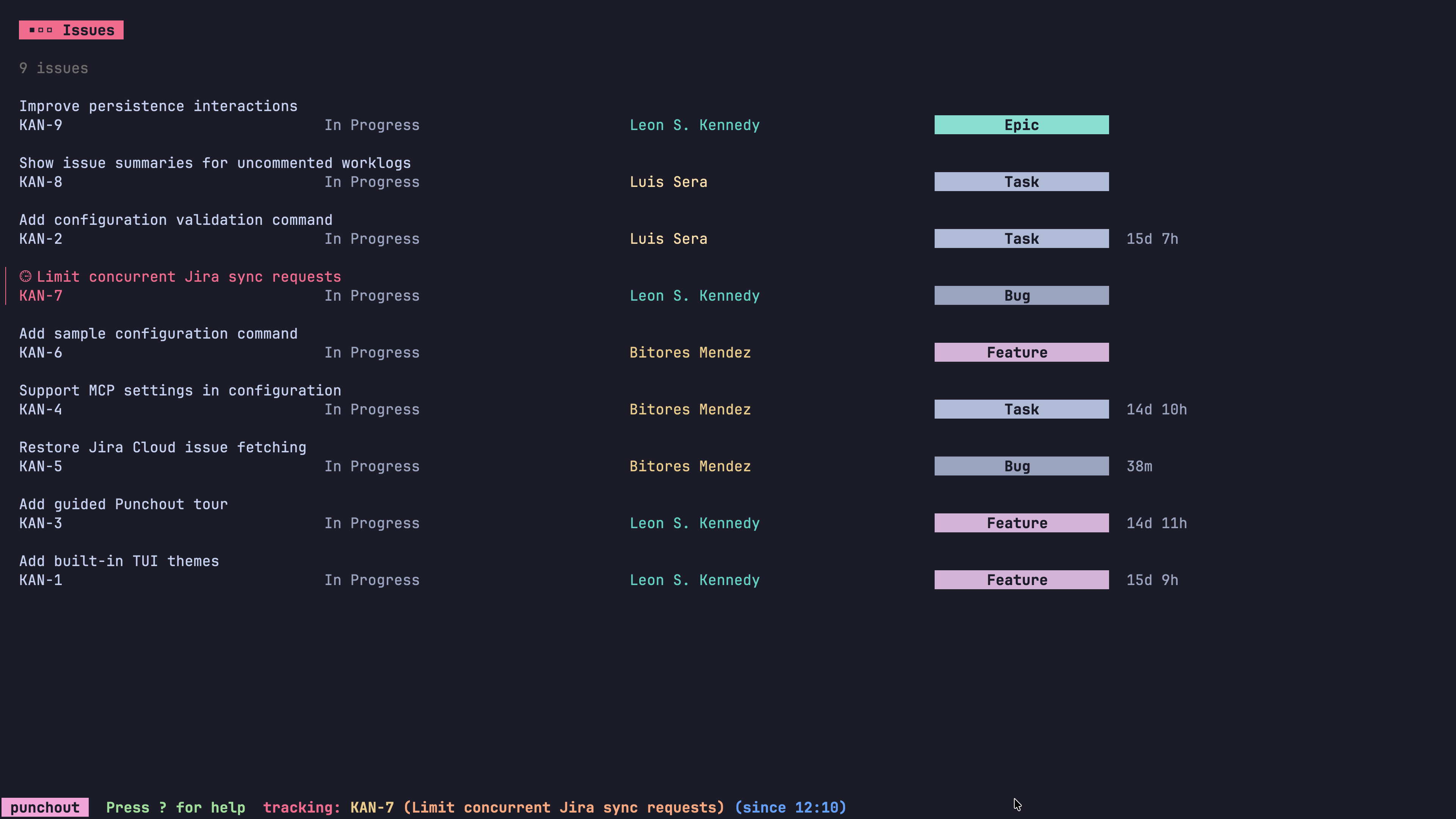
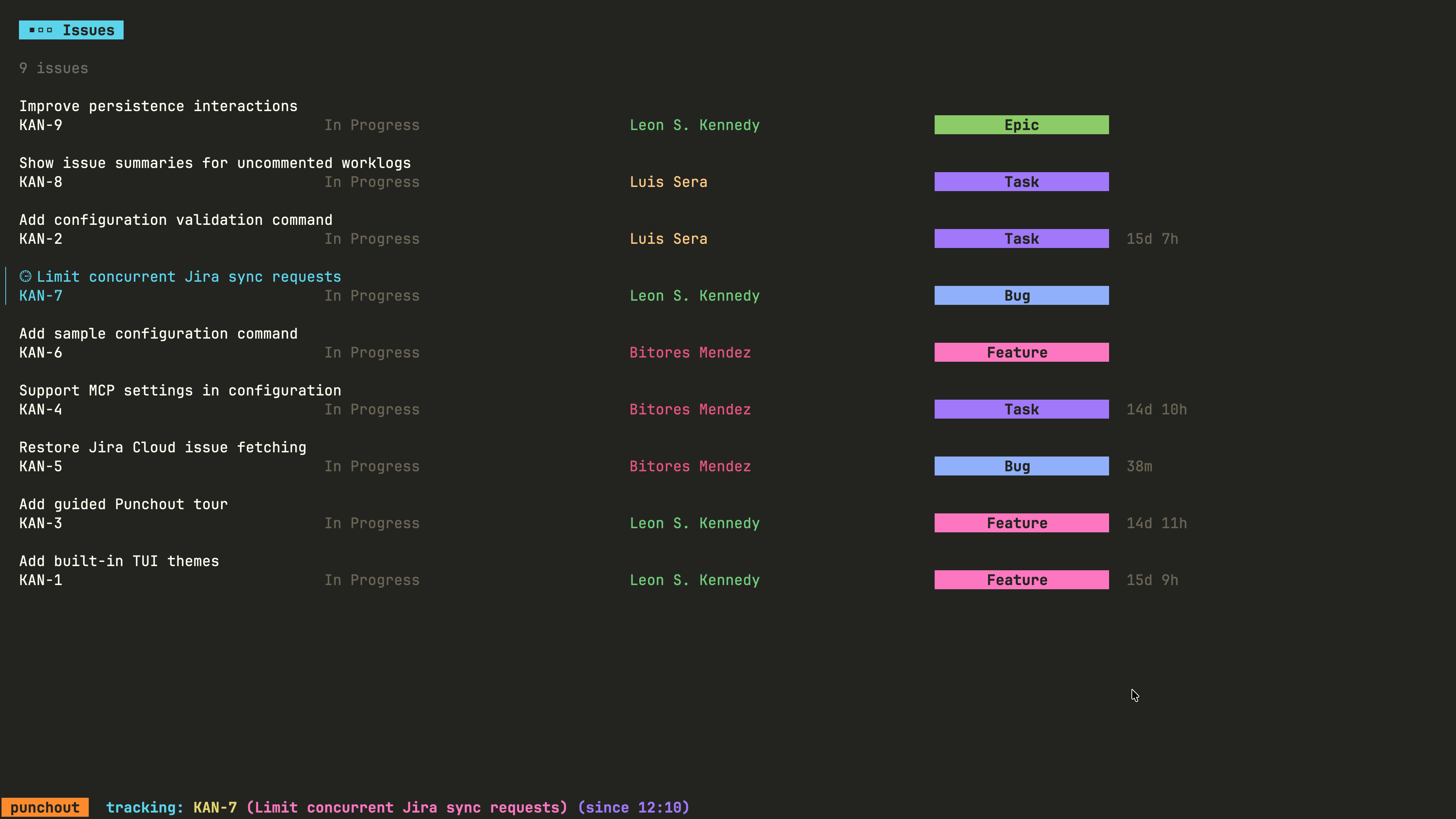
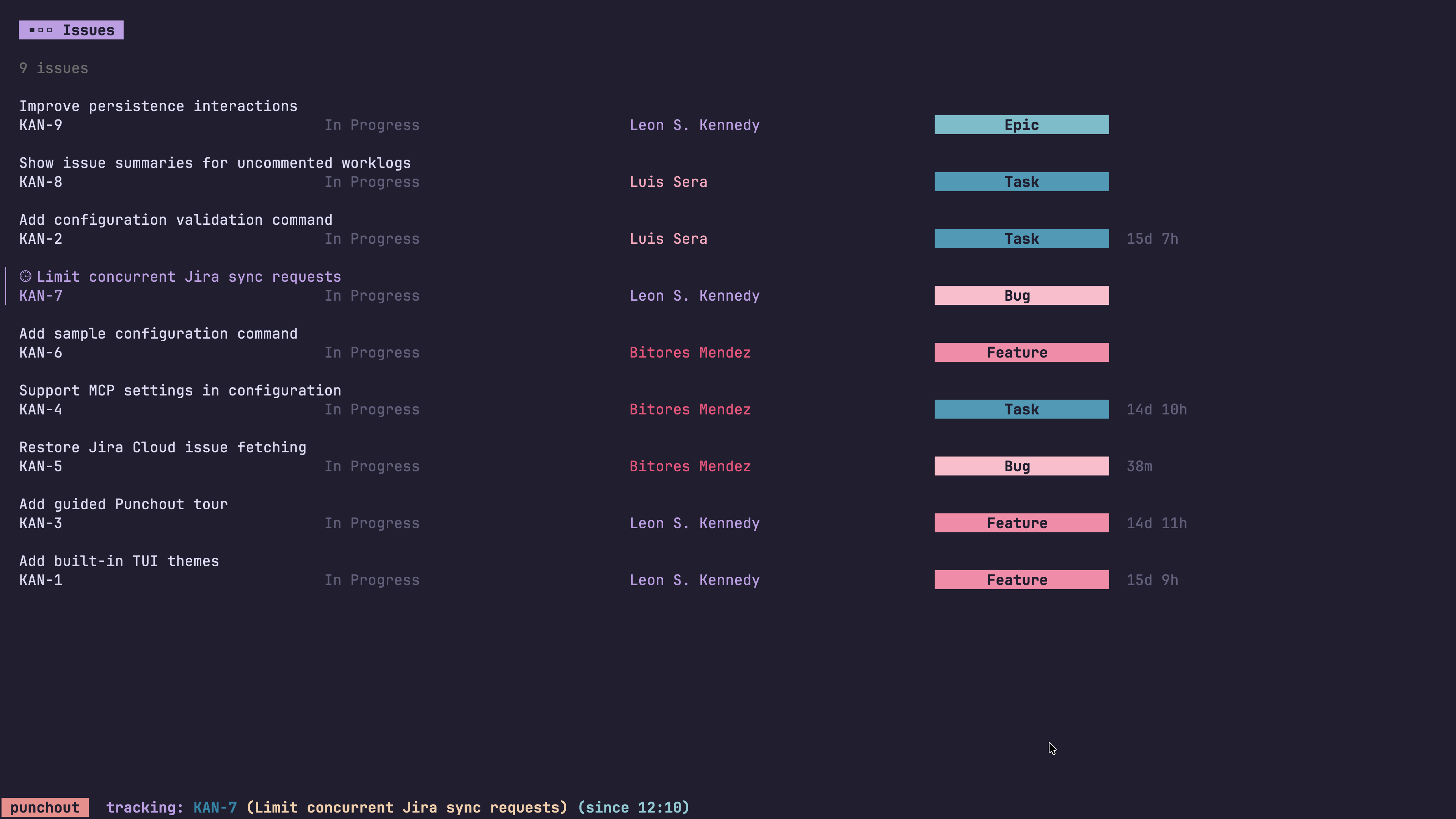
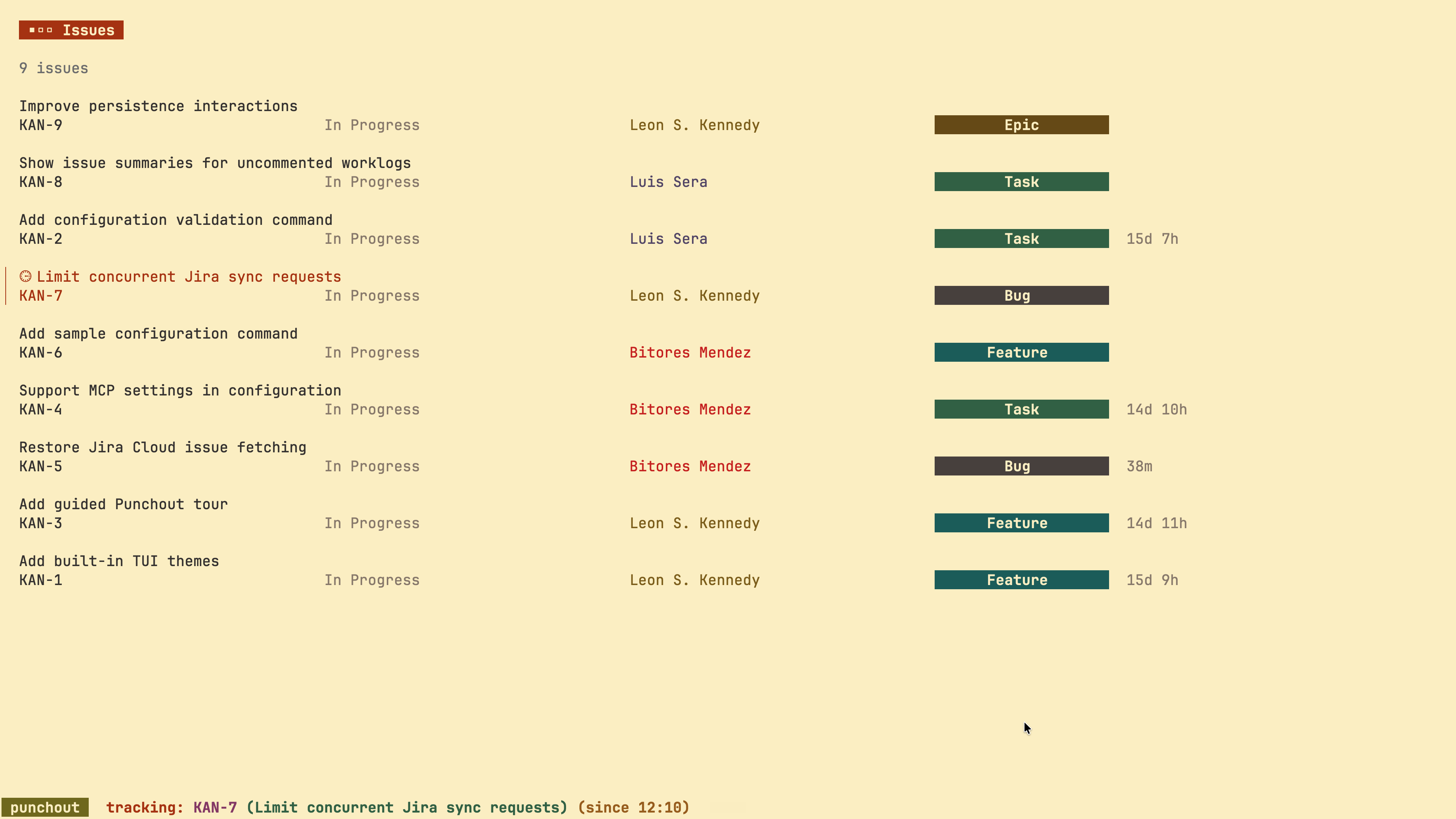
punchout's TUI comes with several built-in themes. You can see them in action
by pressing [ or ]. Here is a sampling of 4 built-in themes.
| Theme | Preview |
|---|---|
catppuccin-mocha |
 |
monokai-classic |
 |
rose-pine-moon |
 |
gruvbox-light |
 |
punchout comes with an MCP server which allows you to automate the process of
recording worklogs and syncing them to your JIRA server.
The server uses stdio by default:
punchout mcp serveIt can also use Streamable HTTP:
punchout mcp serve --transport http --http-port 18899The HTTP server listens on 127.0.0.1, exposes the MCP endpoint at /v1, and
provides a health check at /health. Transport and port can also be set in the
[mcp] section of the configuration file.
The server provides five tools:
| Tool | What it does |
|---|---|
get_jira_issues |
Return JIRA issues matching the configured JQL |
add_worklog |
Record a worklog for an issue in punchout's database |
add_multiple_worklogs |
Record multiple worklogs in punchout's database |
get_unsynced_worklogs |
Get unsynced worklogs from punchout's database |
sync_worklogs_to_jira |
Sync all unsynced worklogs to JIRA |
Here's one way the MCP server can be used:

Each release includes checksums for all artifacts. The checksum file is signed
using cosign (version
3.1.3).
Replace x.y.z below with the release version you want to verify.
-
Get the checksum and cosign signature from the release:
curl -sSLO https://github.com/dhth/punchout/releases/download/vx.y.z/punchout_x.y.z_checksums.txt
curl -sSLO https://github.com/dhth/punchout/releases/download/vx.y.z/punchout_x.y.z_checksums.txt.sigstore.json
-
Verify the checksum file's signature:
cosign verify-blob \ --bundle punchout_x.y.z_checksums.txt.sigstore.json \ --certificate-identity-regexp 'https://github\.com/dhth/punchout/\.github/workflows/.+' \ --certificate-oidc-issuer "https://token.actions.githubusercontent.com" \ punchout_x.y.z_checksums.txt -
Download the archive for your platform and validate its checksum. For example, for Linux x86-64:
curl -sSLO https://github.com/dhth/punchout/releases/download/vx.y.z/punchout_x.y.z_linux_amd64.tar.gz
sha256sum --ignore-missing -c punchout_x.y.z_checksums.txt
-
Once both checks pass, extract the archive:
tar -xzf punchout_x.y.z_linux_amd64.tar.gz
./punchout -h