
Best-in-class AI motion capture
Unmatched accuracy in body animation from a single camera source. Create natural movements ready for games, films, and virtual content.
Transform any video into professional 3D Animation with AI motion capture - no suits or sensors required





Convert simple video footage into studio-quality animations in just four easy steps using our AI motion capture technology.
Produce studio-quality 3D animations in minutes with advanced AI motion capture.
Unmatched accuracy in body animation from a single camera source. Create natural movements ready for games, films, and virtual content.
Automated lighting and camera controls that rival professional cinematographers. Get 3D renders with minimal effort.
Elevate your animations with vignettes, motion blur, auto-focus depth-of-field, and advanced tone mapping.
Export your 3D animations to leading software including Unreal, Unity, Maya, and Blender. Benefit from our extensive compatibility testing.
Custom TikTok-style videos and viral dance animations, created for you in 24 hours
Plask Motion offers three plan options: the Freemium Plan, which is free; the Standard Plan, a paid subscription with a limited number of credits and faster processing; and the Pro Plan, which offers a larger number of credits and additional benefits. Both the Standard and the Pro Plan can be paid on a monthly or annual basis.
To check the prices and details, please click here
All copyrights and intellectual property rights for animations created by subscribers in Plask belong to the users themselves. For more information about your rights as a user, please see our Terms and Conditions of Use page
Plask Motion allows you to import 3D model assets for visualization and animation in your scene. This guide will walk you through the process of importing models and explain the supported formats and requirements.
Plask Motion supports the following 3D model formats:
GLB: A binary format for 3D scenes and models using the glTF 2.0 standard.FBX (version 7100 or later): A popular format for 3D animations and models.VRM (version 0.0): A file format for 3D humanoid avatars, primarily used with VRoid Studio. It's designed for use in VR applications and is based on the glTF 2.0 standard.PMX: A file format used in MikuMikuDance (MMD), a popular 3D animation software often used for creating dance animations with anime-style characters.When using VRM files:
VRM version 0.0, as this is currently the supported version in Plask.VRM files are great for importing character models created in VRoid Studio or similar software.For PMX files:
PMX file and its textures.PMX file within the directory.PMX is ideal for users working with MikuMikuDance models or those in the anime/vocaloid community.Plask Motion goes beyond basic animation by incorporating advanced physics simulations, particularly for VRM and PMX models. This feature brings a new level of realism to your 3D characters, especially in elements like hair and clothing movement.
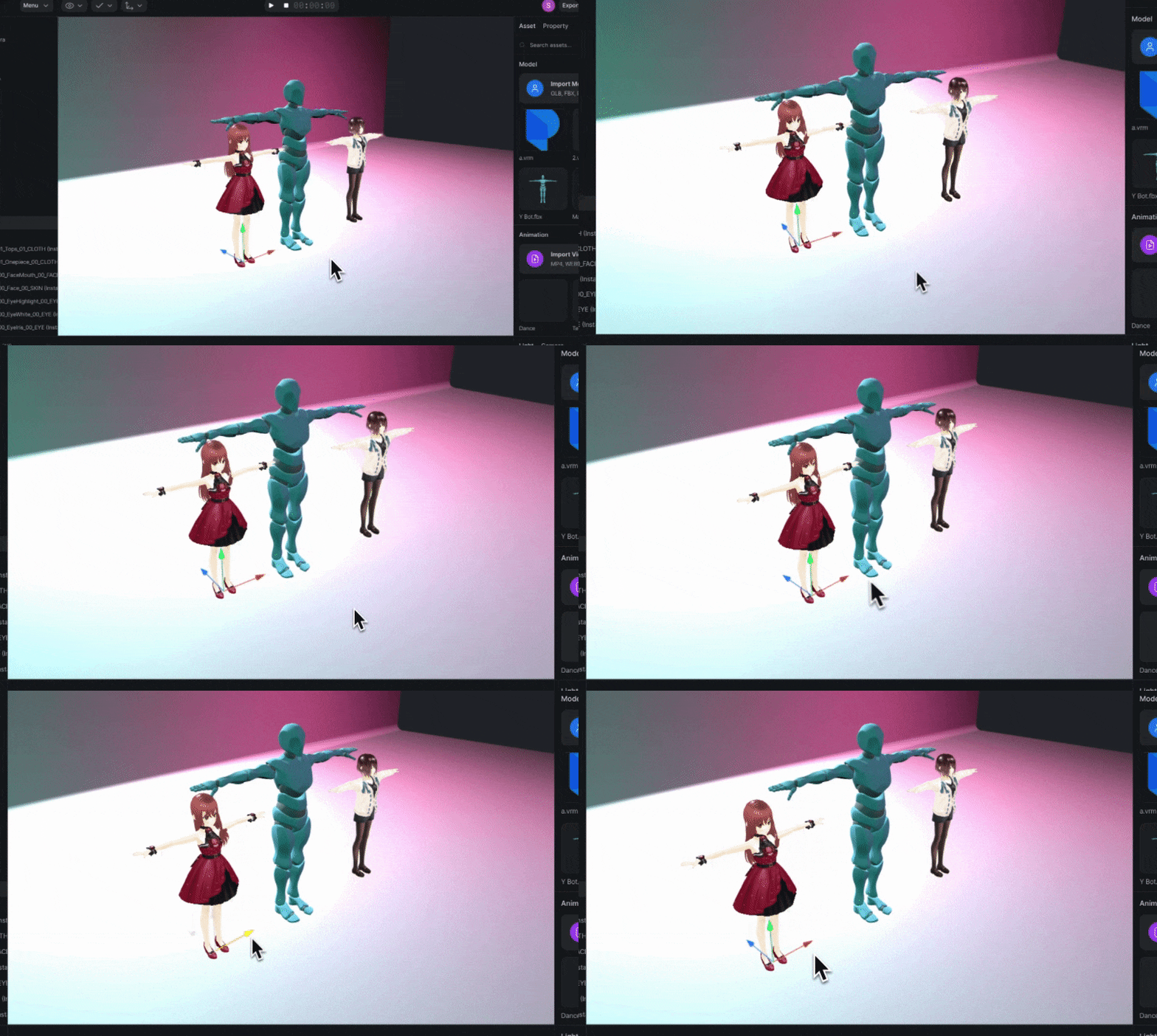
Simply drag your model file from your computer and drop it into the Viewport.
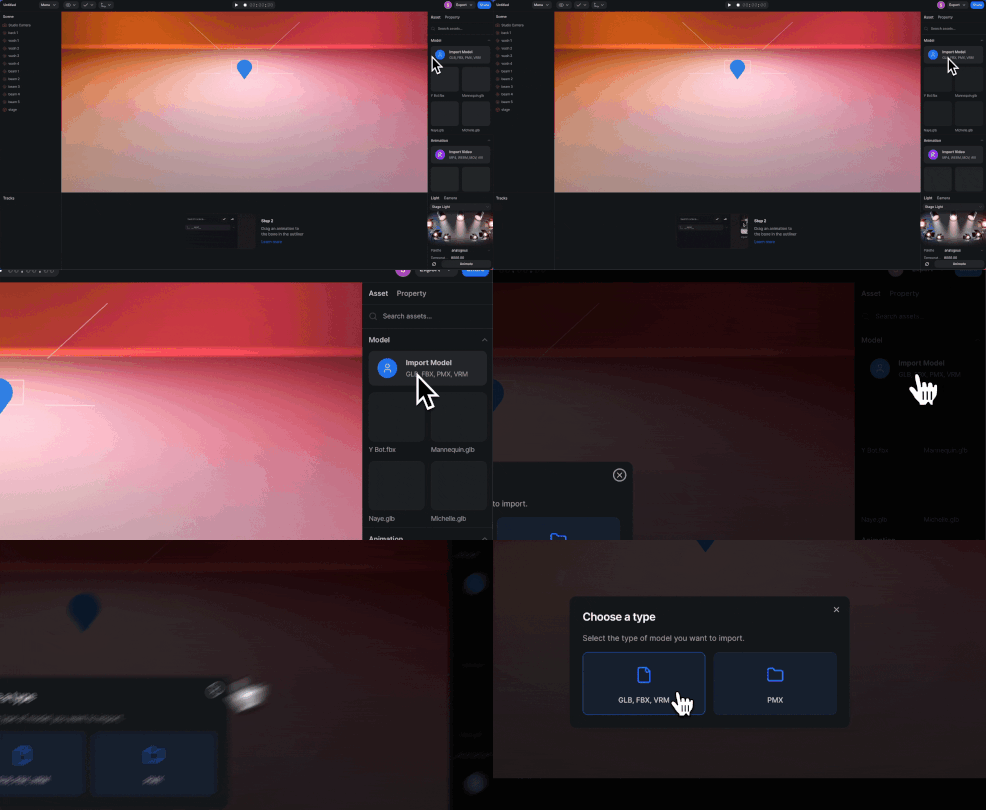
To ensure optimal performance and compatibility, please adhere to the following guidelines:
When importing PMX files:
While Plask can handle models with various bone structures, it's optimized for models with up to 52 specific bones. These include:

Note: You can have additional bones in your character, but only these 52 will be directly involved in animation retargeting. Extra bones (e.g., for accessories) won't interfere with core animations.
If you encounter issues during import:
Remember, a well-prepared model is key to smooth animation in Plask Motion. If you need further assistance, don't hesitate to contact our support team at [email protected].
If one of our default models was removed accidentally or isn't working properly (e.g. not being animated) and you want to use it again, you can download the characters from the link below and add them to Plask.
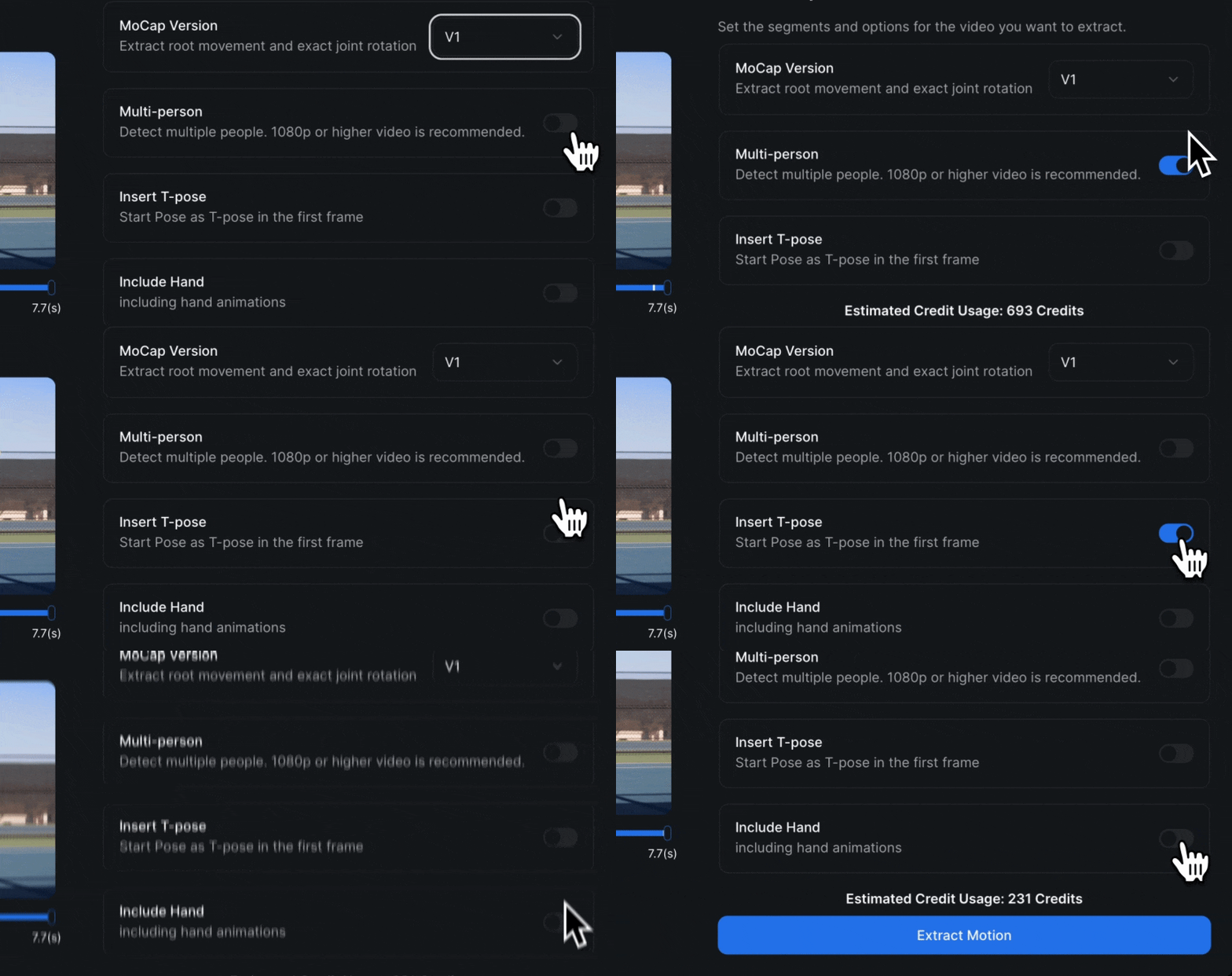
V1)V2)To cancel or change your plan you have to follow these steps:
Login to your profile.
Click on your username on the top right (a window will open)
Select "Subscription" at the top
Click on "Billing" and the payment page will be opened.
Click on the "Cancel Plan" button at the top right
If you encounter any issues while doing this please get in touch with us via chat or [email protected]
If you wish to continue subscribing to MoCap Pro before the subscription renews after a month or a year, that's great. Otherwise, be sure to cancel the subscription before it renews.
Yes, you can turn on the Hand Animation feature to capture finger movements on the motion extraction menu. (Only works with V1)
To subscribe to the Mocap Pro plan, simply follow these straightforward steps:
Upon reaching the payment page, after entering your details, the site should display the discounted amount. If, for any reason, this doesn't occur, it might be due to the site not recognizing the domain of your educational institution. No worries – we can resolve this manually on the platform once your email is subscribed to the free trial week.
Contact us at [email protected] if you need information about special academic pricing and support.
There could be two reasons why this happens:
Here's what to do:
Test with a shorter video (1 to 5 seconds). If successful, the issue may be with the original video. Share it at [email protected] for investigation.
If both videos stick at loading, try another browser for extraction. Simply open the site in another browser and attempt to extract the animation from your video again.
If, even when using another browser, the site still displays the same error, please contact us so we can address the issue with the development team.
Can't sign up for email? If this is the case for you, please follow the instructions below.
A. Email not received.
B. Verification link error: 5XX or 4XX
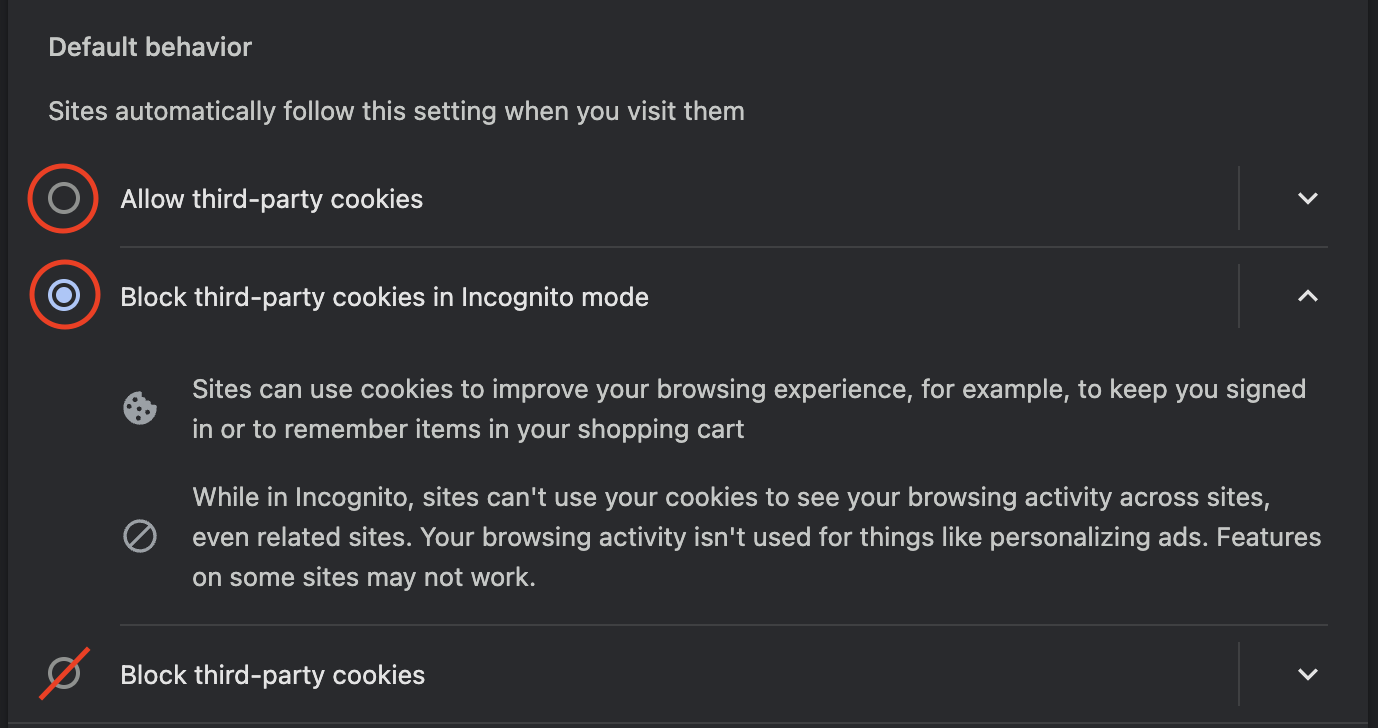
C. 403 error: access_denied in Continue with Google
If you tried signing up through Continue with Google and received a 403 error, you may already be signed up with that email.
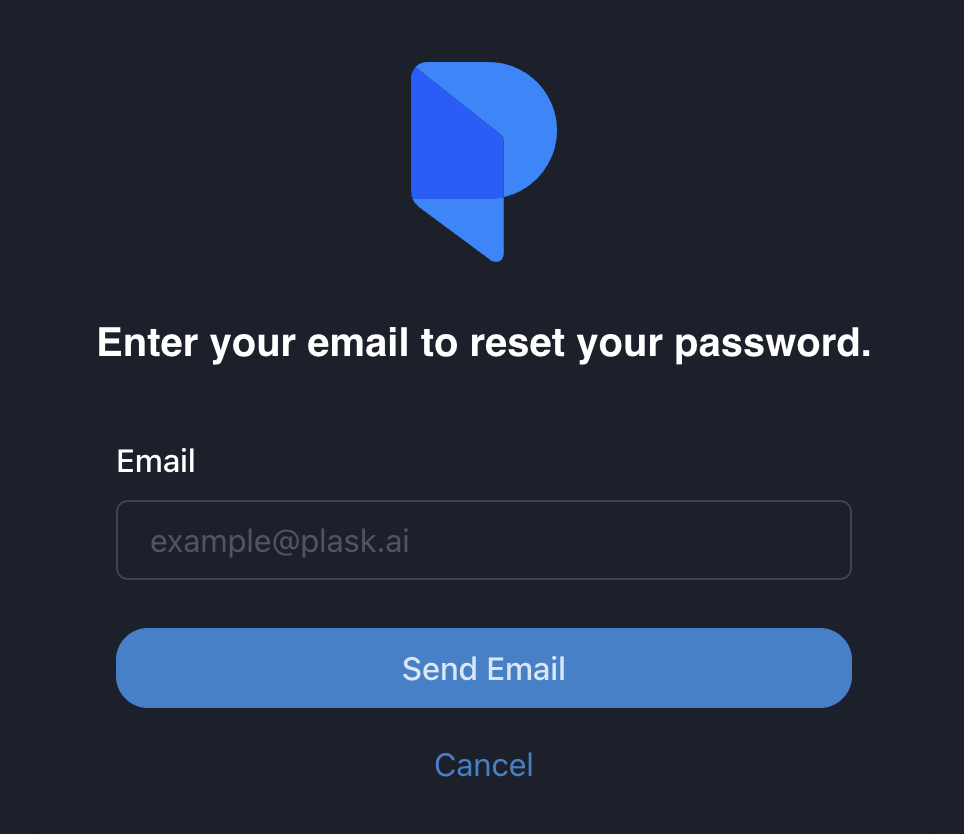
Enter the password you signed up with in a previous version or create a new account. You can also reset your password.
Learn the difference between MoCap V1 and V2.
Plask Motion has two main ways of creating animations, called V1 and V2. Think of them like different flavors of ice cream - they're both good, but slightly different:
V1 is great for smooth, flowing movements.V2 is awesome for more physically plausible, stable animations.V2 deducts the same credits as V1, but with the following additional specifications
In addition, V2 allows you to choose where to extract the person in a single-person and MoCap support for vertical video.
Whats the best way to capture motion using your camera on Plask?
Transform any video into professional 3D Animation with AI motion capture