Planning a run, hike, or bike ride? See the whole week in a single strip — know exactly when the rain passes, the wind drops, or the sun comes out. Find the perfect weather window for your activity, without scrolling through lists.
With a glance you have a feel for the week's weather and clearly know in detail when the windows of sun or other weather is happening.
— Gwh1961, App Store
Raise your wrist, know your day
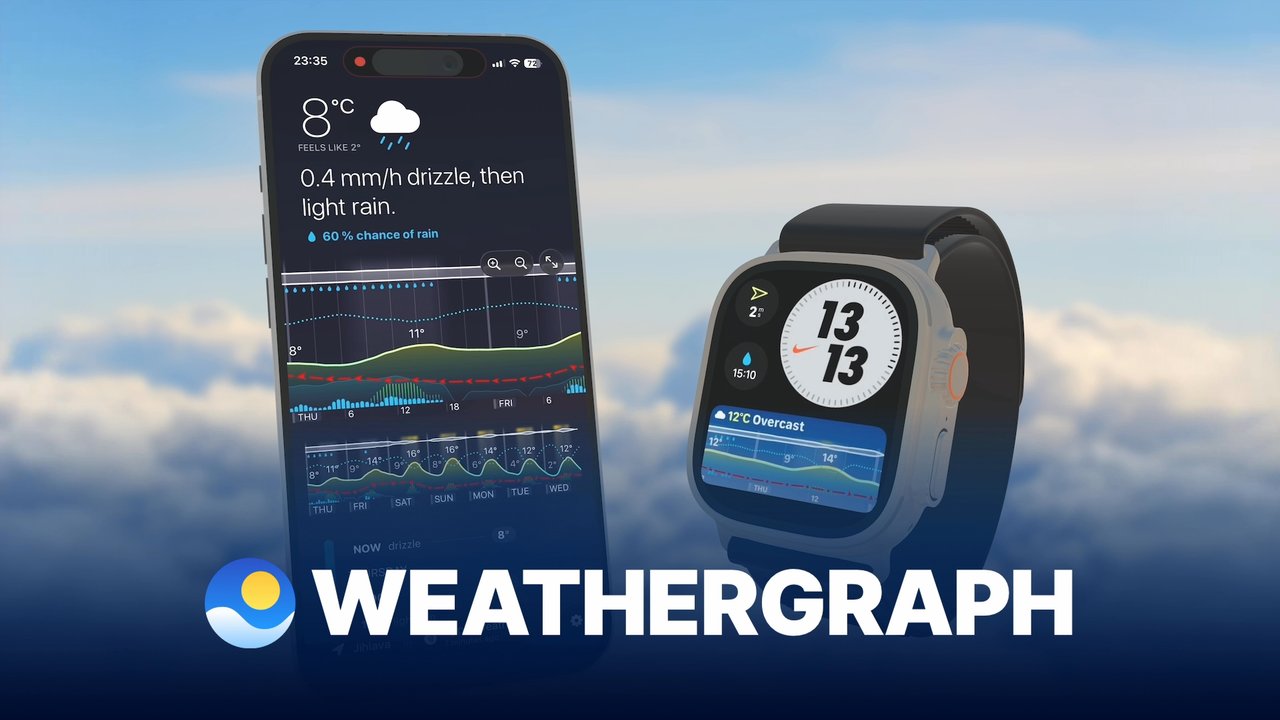
Weathergraph's large graph complications and widgets show the next hours of temperature, rain and wind at a glance — no taps required. Decide "jacket or not" or "leave now or later" in seconds. Works standalone on LTE Apple Watch.
I have a widget on my iPhone lock screen and another (using a different weather model) on my Apple Watch. Highs/lows, winds, rain, cloud cover, and more — at a glance. Using the Modular Ultra watch face, it's easy to view this widget.
— Steve277, App Store
For weather geeks and pros
Swap between models — Foreca, Apple Weather, Open-Meteo, Pirate Weather, NWS — tune the strip to your variables, and see everything from pressure to cloud layers. NWS spotters, pilots, and sailors trust Weathergraph for serious weather use. Simple at a glance, deep when you need it.
I was looking for a weather app that lets me spot patterns or weather issues before a warning comes from NOAA. Weathergraph is what I've been looking for. Once you learn the legend, it's easy to see what's happening.
— JFTColumbus, App Store
One weather app for home and travel
Users rely on Weathergraph from the US to Europe to Australia. Choose the forecast source that works best for your region — no need to guess which local app to download when traveling.
Vacation in Turkey, Greece, and Australia/New Zealand. Generally more accurate than others I have used and much easier to scan to get a sense of the week ahead.
— SoccerGary, App Store
A weather app that doesn't track you
Weathergraph never collects or stores personal data. IP masking blends your requests with thousands of others. Location fuzzing rounds your coordinates to hundreds of meters before they leave your device. Zero tracking — no accounts, no ads, no third-party trackers. Just an accurate forecast, delivered privately.
The app doesn't store your IP address, locations or personal info.
“The graph is where the real genius comes in. At a simple glance you can see temperature, precipitation, UV, humidity, pressure, clouds, wind speed and direction, and more for an entire week. The sheer amount of information you can gather visually, just at a glance, is insane. After the death of Dark Sky, I thought nothing could ever match it. Well, this app blows Dark Sky out of the water.”
★★★★★
“I have a widget on my iPhone lock screen and another (using a different weather model) on my Apple Watch. This is great as a quick and easy way to see highs/lows, winds, rain, cloud cover, and more at a glance. Using the Modular Ultra watch face, it's easy to view this widget.”
★★★★★
“Most weather apps either give you temp & current conditions, or drown you in detailed forecast data. Weathergraph takes that data and presents it in a fantastic at-a-glance display that lets you not just see but understand upcoming conditions. It's just great.”
★★★★★
“I love the alerts for rain and snow. It's exceptionally accurate with the weather and the different complications are easy to understand. A bonus is that the app doesn't store your IP address, locations or personal info. I really enjoy all of the options for watch faces.”
★★★★★
“Weathergraph allows a lot of customization of the views and themes, and things like temperature, precipitation, wind, humidity and more can be represented in the graph. I love the customization including horizontal and vertical graphs (like Dark Sky used to offer), and there are several data sources available.”
★★★★★
“Weathergraph has the most visually intuitive weather chart that lets you see the most critical information at a glance. It's the only one that has an Apple Watch widget that offers the same intuitive, information-dense graph right on your watch face. You can also configure the graph to show what's most relevant to you.”
Here's a quick guide to reading the weather chart:
How to read Weathergraph's weather chart
How to Read the Charts
Day/Night Sky and Sunshine: The chart background shows the day/night cycle and sunshine intensity—the brighter the background, the sunnier it is.
Cloudiness: The top layer shows cloud cover (percentage of sky obscured by clouds).
Sun Glow: A warm glow above the cloud layer highlights especially sunny periods.
Wind Speed and Direction: The taller the chart, the stronger the wind. Arrows indicate wind direction; double arrows indicate gusts.
Temperature: The main colored chart shows temperature (actual or "feels like," based on your preferences). The dashed line marks the freezing point (0 °C / 32 °F).
Rain/Snow and Precipitation Probability: The bar chart shows precipitation amount (blue = rain, white = snow), while the light blue area shows precipitation probability (0–100%).
Humidity or Dew Point: You can display relative humidity (RH) or dew point as a blue dotted line. This also shows the dew point comfort level in forecast details. Humidity ranges from 0–100%, where two-thirds of the chart height equals 100%. Dew point shares the same scale as temperature.
Check out the Weathergraph watchfaces page for ready-made Apple Watch watchfaces featuring Weathergraph complications, ready to install with a single tap.
Weathergraph is fully translated into 21 languages:
Arabic
Chinese (Simplified)
Chinese (Traditional)
Czech
Danish
Dutch
English
Finnish
French
German
Greek
Italian
Japanese
Korean
Norwegian Bokmål
Polish
Portuguese (Brazil)
Portuguese (Portugal)
Slovak
Spanish
Swedish
The app interface and forecast text use your selected language. Tap the gear icon at the lower right → choose Preferences to select a language, or use the system default.
With Pro, Weathergraph checks for upcoming precipitation approximately every hour using short-range nowcast radar data.
If rain, sleet, or snow is detected in the forecast window ahead, you'll see a warning on the widget—including the expected start time and precipitation type.
When no specific precipitation is detected yet but the probability reaches 33% or higher, Weathergraph displays the chance instead.
Nowcast alert showing upcoming rain with start time
Yes! The Pro version checks for upcoming rain or snow approximately every hour using short-range nowcast data, and alerts you when precipitation is on the way. Make sure Low Power mode is off on your iPhone and Apple Watch, as it disables background updates for all third-party apps.
The "dry" label comes from the dew point—not relative humidity. These two measures tell very different stories.
Why relative humidity misleads you
Relative humidity (RH) is a ratio: it compares the moisture actually in the air to the maximum that air could hold at its current temperature. The problem is that warm air can hold far more moisture than cold air. So the same absolute amount of water vapor reads as 98% RH at −1 °C, but only 40% RH at 25 °C.
What dew point actually measures
The dew point is the temperature at which air would need to cool to reach saturation. It's an absolute measure of how much water vapor is in the air—it doesn't change just because the temperature does. Cold winter air at −1 °C and 98% RH has a dew point of about −1 °C, which means only roughly 2–3 grams of water vapor per kilogram of air. That's genuinely dry—your skin and airways feel it. Heating that same air indoors to 21 °C drops the RH to around 20%, making it even drier.
Why it matters for how you feel
Your body cools itself by sweating. When the dew point is high, the air is already saturated with moisture and sweat can't evaporate efficiently—so you feel hot and sticky even if the temperature is moderate. The National Weather Service uses dew point (not RH) to classify mugginess for exactly this reason.
Here's the comfort scale Weathergraph uses:
Below 10 °C (50 °F): dry and crisp. 10–16 °C (50–60 °F): comfortable. 16–21 °C (60–70 °F): sticky and humid. Above 21 °C (70 °F): oppressive—sweat barely evaporates.
If you would like to read more about how this works, Alex has a great article about why dew point is a more useful measure of humidity, especially for runners.
These widgets show the current temperature (or precipitation) plus the min/max range for the next 24 hours—not today's calendar day.
Why? Weather APIs only provide forecasts starting from "now." If today's coldest moment was at 6 AM and it's already noon, that data is gone—we can't show you a minimum that already happened.
I tried storing past minimums from earlier forecasts, but it got confusing quickly. Imagine driving through mountains and your widget shows "today's low: -5°C" from a mountain pass you crossed at dawn, even though it's 15°C where you are now. Not helpful!
The simpler, more useful approach: show what's coming in the next 24 hours. After all, you want to know if it'll get cold tonight—not what happened while you were sleeping.
Yes! With Pro, you can save any number of named locations and switch between them with a tap. Saved locations can be renamed, reordered, and deleted from the Manage Locations screen.
One thing to keep in mind: widgets and complications always show weather for your current GPS location, regardless of which saved location is selected in the app.
This is a known iOS and watchOS bug where widgets stop updating. Technically, the widget system loses track of the file it uses to store widget data.
The reliable fix is to restart your device—either turn it off and back on, or use a force restart.
I first reported this to Apple in iOS 17 and watchOS 10. It kept reappearing in later versions, including the iOS 27 and watchOS 27 betas. In the final 27.0 releases, it seems to be gone at last. If you still encounter it, restarting your device remains the reliable fix.
Open Settings on your iPhone, go to Privacy & Security → Location Services → Weathergraph
Set the permission to Always (enables background updates and alerts) or at least While Using the App or Widgets (updates only when the system refreshes widgets)
Watch
Open Settings, scroll down and go to Privacy & Security → Location Services → Weathergraph
Set the permission to Always for background updates and alerts to work. If the options are grayed out, set the permission on your iPhone instead.
Make sure Low Power mode is off. When enabled, it disables background updates for all third-party apps, preventing Weathergraph from refreshing weather data.
If Low Power mode is already off, try restarting your device.
If the widgets still don't update, please send me the debug logs and we will look into what is happening - thank you!
Please choose Allow While Using the App in the permission dialog. Weathergraph needs your location to show accurate weather (it's never shared with third parties—see our privacy policy). If you chose "Allow Once," the app will ask again each time.
To update permissions: open Settings → scroll to Weathergraph → tap Location → select While Using the App.
The Always location permission (needed for background complication updates) gets reset during iOS or watchOS updates.
Apple likely does this to prevent apps from tracking you indefinitely, but frequent minor security updates have been triggering this reset more often than intended.
I've suggested to Apple (rdar://FB9733269) that this should only happen with major updates (e.g., 8.0, 8.1), not minor security patches—but for now, it affects all updates.
This is a rare issue in iOS 17 and watchOS 10 that appears to be fixed in iOS 18 and watchOS 11. If you're on an older version, updating your device should resolve it.
This is caused by Apple's migration to a newer watch app format—something developers have little control over. The Apple developer forum thread explains the technical details, but essentially the migration sometimes caches the wrong app extension identifier, breaking complications.
Solution: Remove all Weathergraph complications from all watch faces at once (this forces watchOS to clear its cached complication data), then add them back.
If you find a better workaround, I'd love to hear about it!
Cancel the existing subscription first: Go to Settings → [your name] → Subscriptions → select Weathergraph → cancel the subscription (see Apple's guide).
In Weathergraph: Tap the gear icon at the lower right → choose Weathergraph Pro → select the Forever option and confirm.
Developers can't issue refunds directly, but Apple's process is quick and requests are usually approved promptly.
If you have a moment, I'd appreciate a quick email at [email protected] letting me know what didn't work for you—it helps me improve Weathergraph. Thank you!
Yes. Yearly Pro Family and Pro Forever Family give you and up to five other members of your Apple Family Sharing group all Pro features on their own devices.
Yearly Pro Family renews annually. Pro Forever Family is a one-time purchase with nothing to renew. Individual Pro plans cover you and do not automatically include your family.
Tap the gear icon at the lower right → choose Weathergraph Pro to see the available family plans and current prices. Family plans help cover the weather data costs of everyone using the app, including background updates on their devices.
Tap the gear icon at the lower right → choose Weathergraph Pro → tap one of the family upgrade buttons.
Individual subscription: choose Yearly Pro Family. Apple handles the subscription change and refunds unused time on your current plan. Check Apple's confirmation screen for the price and terms.
Individual Pro Forever: eligible purchases show a one-time upgrade to Pro Forever Family, so you do not need to buy the full family plan again. Upgrade availability depends on the Forever product you originally bought.
If you only want Pro for one more family member, see the free second Forever license below. If the family upgrade you expect is missing, try Restore Purchases or email [email protected].
Yes. If you bought an individual Pro Forever plan, I am happy to give one family member a second Pro Forever license for free.
Email your proof of purchase (such as your App Store receipt) to [email protected]. You can hide unrelated purchases and payment details. I will send a redemption code for your family member to use with their own Apple Account.
Your Forever access stays yours, and their license gives them their own Forever access. This is a personal offer for you and one family member; Pro Forever Family covers your whole Apple Family Sharing group.
Apple's Family Sharing shares eligible purchases with the family group and does not offer a separate two-person plan. This is my way of making Weathergraph available for two. Thank you for supporting the app.
Yearly Pro Family: enable sharing for the Weathergraph subscription in Apple's subscription settings. See Apple's subscription-sharing guide.
Pro Forever Family or its upgrade: enable Purchase Sharing for your family and Share My Purchases for the purchaser and the family member. See Apple's purchase-sharing guide.
Each family member uses their own Apple Account. If access has not appeared on their iPhone or iPad, open Weathergraph → tap the gear icon at the lower right → choose Weathergraph Pro → tap Restore Purchases. On Mac, open Weathergraph Pro and choose Restore Purchases.
Shared access follows the family group: a member who leaves loses access to the shared plan. Turning off sharing for the purchase also ends shared access. Turning off Purchase Sharing stops sharing Forever purchases, but subscriptions can still be shared separately. A Yearly Pro Family subscription needs to remain active.
If you received a separate license through the Forever for two offer, redeem the code on your own Apple Account instead; it does not depend on Family Sharing.
After redeeming on iPhone or iPad, open Weathergraph → tap the gear icon at the lower right → choose Weathergraph Pro → tap Restore Purchases. On Mac, open Weathergraph Pro and choose Restore Purchases.
Apple Watch purchases sync automatically when near your iPhone—no need to restore on the watch.
If restore fails on Mac, try deleting and reinstalling Weathergraph.
It's complicated due to Apple's current limitations.
Live Activities can only be started when the app is open. For example, Uber can start one when you request a ride, but apps can't start them from the background.
The ideal scenario—Weathergraph automatically starting a Live Activity when rain is approaching—isn't possible under current rules.
A workaround would be sending a notification asking you to open the app, which then starts the Live Activity—but that feels too clunky.
If Apple enables background-initiated Live Activities, I'll revisit this. Until then, I'm focusing on other high-priority features.
I think we arrived at that name independently, but I am very sure I was first by a couple of years. I released Weathergraph under that name on Pebble in 2016 and on Garmin in 2017, three and four years before it reached the App Store in 2020.
Yes, many former Dark Sky users now use Weathergraph as their primary weather app. It offers similar strip-style hour-by-hour forecasts with graphs, plus more power, customization, serious Apple Watch support, and privacy focus.
The closest match to Dark Sky's own screen is the vertical layout. Tap the gear icon at the lower right → choose Preferences to change the layout. It is free and needs no subscription.
Weathergraph Pro uses premium sources including: Foreca (with nowcast radar), Apple Weather, Open-Meteo, Pirate Weather (US/Canada), and NWS (US federal data). Users can choose which source works best for their region.
Weathergraph never stores personal data, IP addresses, or exact locations. All requests are anonymized through Weathergraph's servers, and locations are rounded to protect privacy. There are no ads and no tracking.
 Weathergraph




 Try Weathergraph


