

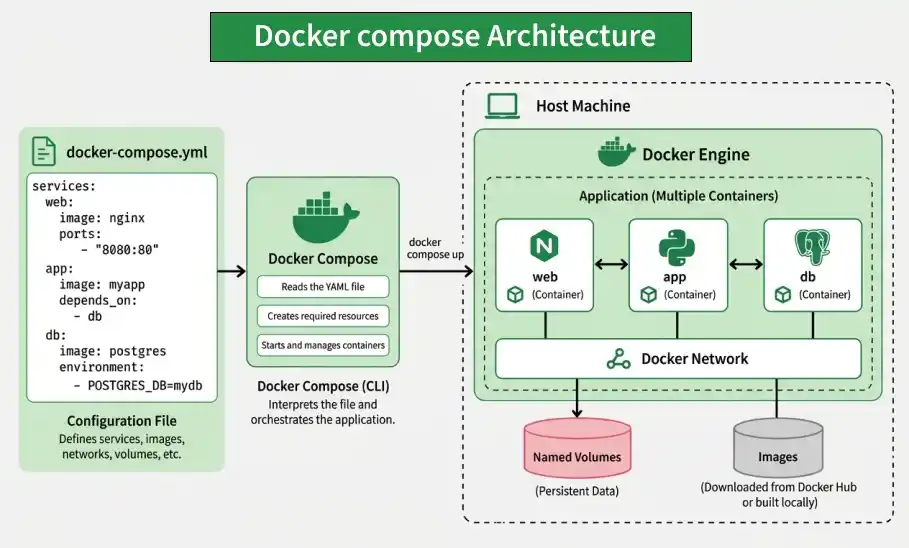
Docker Compose makes it easier to define and manage multi-container applications from a single configuration file. It helps simplify the setup, networking, and management of services such as web servers, APIs, databases, and caches.
- Define multiple services and manage them as a single application.
- Store container settings such as images, ports, volumes, networks, and environment variables in a
compose.yamlfile. - Compose automatically creates a network, allowing containers to communicate using service names instead of manually managing IP addresses.
- Start, stop, rebuild, and remove multiple services using simple Docker Compose commands.
- Eliminates the need to maintain long and repetitive
docker runcommands for each container.
Example: docker-compose.yml
Here’s a sample Compose file that defines two services, a shared network, and a volume:
version: '3.8'

services:
  web:
    image: nginx:latest
    ports:
      - "80:80"
    networks:
      - frontend
    volumes:
      - shared-volume:/usr/share/nginx/html
    depends_on:
      - app

  app:
    image: node:14
    working_dir: /app
    command: node server.js   # Specify a command
    networks:
      - frontend
    volumes:
      - shared-volume:/app/data

networks:
  frontend:
    driver: bridge

volumes:
  shared-volume:  # Remove incorrect syntax
Explanation:
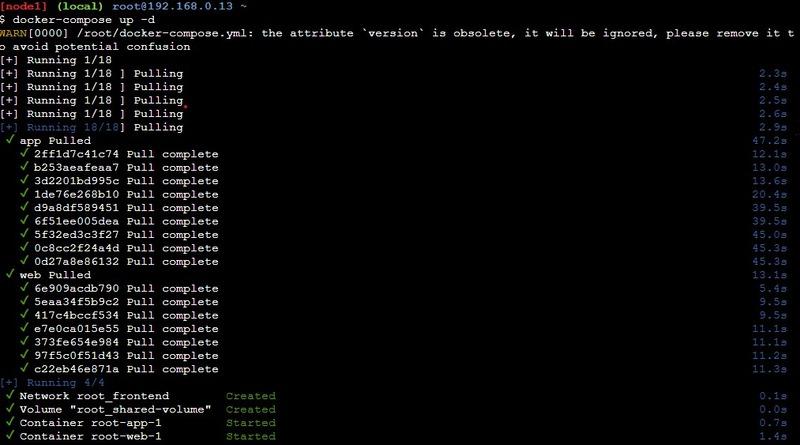
- The web service runs an Nginx container, and app runs a Node.js container.
- Both services connect through the frontend network, allowing them to communicate.
- The shared-volume volume is mounted in both containers, providing shared storage for files.
Docker Compose Services
- In Docker Compose, every component of your application operates as a separate service, with each service running a single container tailored to a specific role—such as a database, web server, or cache.
- These services are defined within the `services` section of the `docker-compose.yml` file. This section lets you configure each service individually, specifying details like the Docker image to pull, environment variables, network connections, and storage options.
- Through this setup, you can control how each part of your application interacts, ensuring smooth communication and resource management across the services.
Key Service Configuration Options
- Image: Image option defines which Docker image we are going to use by the service from the Docker Hub or any other registry.
- Build: Instead of pulling an image, you can build one locally by specifying a directory containing a Dockerfile. The build is ideal for including custom code in your application.
- Ports: This setting maps a container's internal ports to those on the host machine, enabling access to services from outside the container.
- Volumes: Volumes attach persistent storage to a service ensuring that the data remains accessible even when a container restart.
- Environment: Environment variables allow you to pass configurations or sensitive information, like database credentials or API keys, to the service.
- Depends_on: Depends_on controls the startup order of services, ensuring that certain containers are running before others begin.
Example of docker-compose.yml Configuration
Here’s a sample configuration that demonstrates how these options are used:
version: '3.8'
services:
    db:
         image: postgres:13
         environment:
             - POSTGRES_USER=user
             - POSTGRES_PASSWORD=pass
    volumes:
        - db_data:/var/lib/postgresql/data

    web:
         build: ./web
         ports:
             - "5000:5000"
   volumes:
       - web_data:/usr/src/app
   environment:
       - DATABASE_URL=postgres://user:pass@db:5432/mydb
   depends_on:
        - db

volumes:
    db_data:
    web_data:
Explanation:
- The db service runs a PostgreSQL container. It uses environment variables to set up a database username and password, and stores data on the db_data volume to ensure it’s retained.
- The web service is built from a Dockerfile in the ./web directory and exposes port 5000. The web_data volume is mounted to store application files persistently. It depends on the db service, ensuring the database is available when the web service starts.
Docker Compose Networks
By default, Docker Compose creates a single bridge network for your application. Every service defined in the docker-compose.yml file joins this network, allowing them to communicate using their service names as hostnames.
Use of Custom Networks
While the default setup works, defining custom networks provides:
- Security & Isolation: You can restrict which containers talk to each other (e.g., a database should only talk to the backend, not the public-facing frontend).
- Logical Grouping: Separate different tiers of your application (Frontend vs. Backend).
| Option | Description |
|---|---|
| Driver | Specifies the network type. bridge is standard for single-host setups; overlay is used for multi-host (Swarm) clusters. |
| Driver Options (driver_opts) | Advanced settings to fine-tune the driver (e.g., MTU settings or VLAN tagging). |
| IPAM (IP Address Management) | Defines custom subnets, IP ranges, and gateways for precise control over the network's address space. |
Example docker-compose.yml with Custom Networks
Below is an example Compose file that sets up two networks, one for database communication and another for web access.
version: '3.8'

services:
   db:
        image: postgres:13
        networks:
            - backend

   web:
         image: nginx:latest
         networks:
             - frontend
             - backend
         ports:
             - "80:80"

networks:
    frontend:
       driver: bridge

backend:
     driver: bridge
     ipam:
         config:
             - subnet: 172.16.238.0/24
Explanation:
- The db service uses then backend network, isolating it from the frontend network to limit access.
- The web service is connected to both frontend and backend networks, allowing it to communicate with the db service while remaining accessible via the frontend network.
- The backend network includes IPAM settings with a specific subnet range, ensuring custom IP address management.
Docker Compose Volumes
Volumes in Docker Compose decouple data from the container lifecycle. By defining volumes in your docker-compose.yml, you ensure that databases, logs, and user uploads remain intact even if containers are stopped, deleted, or recreated.
Key Configuration Options
- external: true: Tells Compose the volume already exists outside the current stack (created via docker volume create). Compose will use it rather than trying to create a new one.
- driver: Specifies how the volume is managed. The default is local, but other drivers allow for cloud storage (AWS EBS), network shares (NFS), or specialized hardware.
- driver_opts: Provides advanced parameters to the driver, such as defining the filesystem type or mapping a specific host path for a bind mount.
Example docker-compose.yml with Volumes
Here’s a practical example showing how to configure a volume for a PostgreSQL database, ensuring that its data is stored persistently.
version: '3.8'

services:
    db:
         image: postgres:13
         environment:
              - POSTGRES_USER=user
              - POSTGRES_PASSWORD=pass
         volumes:
             - db_data:/var/lib/postgresql/data

volumes:
    db_data:
         driver: local
         driver_opts:
             type: none
             o: bind
             device: /path/to/local/db_data
Explanation
- The db service runs a PostgreSQL container, with its data stored in the db_data volume. This setup ensures that the database information remains intact across restarts or removals of the container.
- The db_data volume is configured to use the localdriver, and it has driver options set to create a bind mount pointing to a specific path on the host system (/path/to/local/db_data). This means that all database files are saved in that designated directory on the host.
- By using volumes in this way, you can keep essential data safe and easily accessible, separate from the container itself.
Set Environment Variables in Docker Compose
Environment variables are a simple and effective way to pass configuration settings from your host operating system through Docker Compose in order to get to your services. You can set these variables directly on the service definition by using the environment section or load them from an external file.
- Inline: you may declare env vars directly in the service definition.This approach is simple and gives everything in one place.
- env_file: This option allows you to load environment variables from an external file, making it easier to manage configuration, especially when dealing with many variables.
Example docker-compose.yml Using Environment Variables
Here’s an example that demonstrates both methods of setting environment variables for a web application and a database service.
version: '3.8'

services:
    db:
         image: postgres:13
         environment:
             - POSTGRES_USER=user
             - POSTGRES_PASSWORD=pass
         volumes:      - db_data:/var/lib/postgresql/data


    web:    image: my-web-app:latest
                 build: ./web
                 environment:
                     - DATABASE_URL=postgres://user:pass@db:5432/mydb
                 env_file:
                      - .env

volumes:
    db_data:
Explanation
- In the db service, the POSTGRES_USER and POSTGRES_PASSWORD environment variables are defined inline, specifying the database credentials directly.
- The web service uses an inline variable for DATABASE_URL, which connects to the PostgreSQL database. Additionally, it loads environment variables from an external file named .env. This file can contain various settings, such as API keys, application configurations, and other sensitive information.
With a good understanding of these basic principles, developers are ready to use Docker Compose to manage and orchestrate applications that can be quite complex and involve many Docker containers.
Install Docker Compose
We can run Docker Compose on macOs, Widows, and 64-bit Linux.
- For any significant activity, Docker Compose depends on Docker Engine. Depending on your arrangement, we must ensure that Docker Engine is installed either locally or remotely.
- A desktop system such as Docker for Mac and Windows comes with Docker Compose preinstalled.
- Install Docker first as instructed in Docker installation on the Linux system before beginning the installation of Docker Compose.
Install Docker Compose on Ubuntu - A Step-By-Step Guide
Step 1: Update the package Manager
- The following scripts will install the most recent version of Docker Compose and update the package management.
sudo apt-get updateStep 2: Download the Software
- Step 1: Set up the official Docker repository.
- Step 2: Run sudo apt-get install docker-compose-plugin.
- Step 3: Verify with docker compose version.
Step 3: Apply Permissions
- Apply the Executable permissions to the software with the following commands:
sudo chmod +x /usr/local/bin/docker-composeStep 4: Verify the Download Software
- Verify the whether the docker compose is successfully installed or not with the following command:
docker compose --versionHow to Use Docker Compose?
In this project, we will create a straightforward Restfull API that will return a list of fruits. We will use a flask for this purpose. And a PHP application will request this service and show it in the browser. Both services will run in their own containers.
Step 1: Create Project Directory
- First, Create a separate directory for our complete project. Use the following command.
mkdir dockerComposeProject- Move inside the directory.
cd dockerComposeProjectStep 2: Create API
we will create a custom image that will use Python to serve our Restful API defined below. Then the service will be further configured using a Dockerfile.
- Then create a subdirectory for the service we will name it product. and move into the same.
mkdir product
cd product
- Create requirements.txt
Inside the product folder, create a file named requirements.txt and add the following dependencies:
flask
flask-restful
Step 3: Build Python api.py
- The following is the python file that helps in making an API call:
- Create a Dockerfile to define the container in which the above API will run.
from flask import Flask
from flask_restful import Resource, Api

# create a flask object
app = Flask(__name__)
api = Api(app)

# creating a class for Fruits that will hold
# the accessors
class Fruits(Resource):
    def get(self):
        # returns a dictionary with fruits
        return {
            'fruits': ['Mango', 'Pomegranate', 'Orange', 'Litchi']
        }

# adds the resources at the root route
api.add_resource(Fruits, '/')

# if this file is being executed then run the service
if __name__ == '__main__':
    # run the service
    app.run(host='0.0.0.0', port=80, debug=True)
Step 4: Create Dockerfile For Python API
FROM python:3
WORKDIR /usr/src/app
COPY requirements.txt .
RUN pip install --no-cache-dir -r requirements.txt
COPY . .
CMD ["python", "api.py"]
FROM accepts an image name and a version that the docker will download from the docker hub. The current working directory's contents can be copied to the location where the server expects the code to be by using the copy command. Moreover, the CMD command takes a list of commands to start the service once the container has been started.
Step 5: Create PHP HTML Website
Let's create a simple website using PHP that will use our API.
- Move to the parent directory and create another subdirectory for the website.
cd ..
mkdir website
cd website
index.php
<!DOCTYPE html>
<html lang="en">
<head>
   <title>Fruit Service</title>
</head>
<body>
   <h1>Welcome to India's Fruit Shop</h1>
   <ul>
       <?php
           $json = file_get_contents('http://fruit-service');
           $obj = json_decode($json);
           $fruits = $obj->fruits;
           foreach ($fruits as $fruit){
               echo "<li>$fruit</li>";
           }
       ?>
   </ul>
</body>
</html>
- Now create a compose file where we will define and configure the two services, API and the website.
- Move out of the website subdirectory using the following code.
cd ..- And then create the file name as . docker-compose.yaml
Step 6: Create Docker-compose.yaml file
- The following is the sample docker compose file code:
version: "3"

services:
  fruit-service:
    build: ./product
    volumes:
      - ./product:/usr/src/app
    ports:
      - 5001:80

  website:
    image: php:apache
    volumes:
      - ./website:/var/www/html
    ports:
      - 5000:80
    depends_on:
      - fruit-service
Note: depends_on: This option controls the startup order, but it does not wait for the application inside to be ready. If your PHP app tries to connect before the Python app has finished booting, it might fail. In production, use "healthchecks" to solve this.
Docker-compose.yaml File
A Docker Compose file defines the services, images, storage, ports, and dependencies required to run a multi-container application.
- Version and Services:
versionis optional and specifies the Compose file format. Theservicessection defines the application's services, such as the fruit API and website. - Fruit Service: The
buildproperty builds an image using the specified Dockerfile, whilevolumesmaps host storage to the container for live changes. Theportsproperty maps container port80to host port5001. - Website Service: Uses a PHP image from Docker Hub and maps the
websitesfolder containingindex.phpto/var/www/html. Theportsproperty exposes the container port, whiledepends_onspecifies the services that the website depends on.
- The folder structure after creating all the required files and directory will be as follows:

Run the application stack with Docker Compose
- Now that we have our docker-compose.yml file, we can run it.
- To start the application, enter the following command.
docker compose up -d 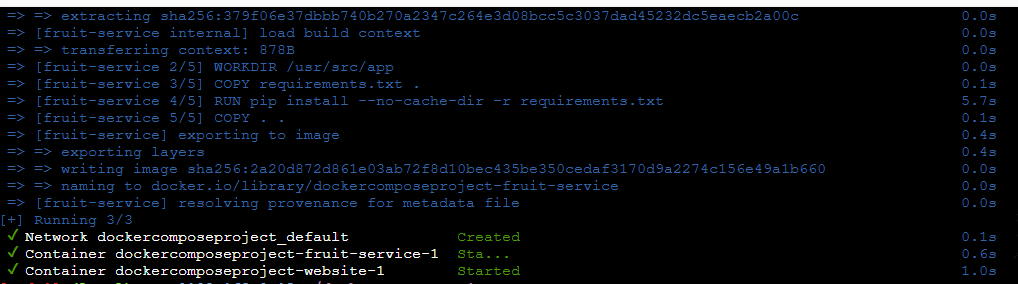
Now all the services will start and our website will be ready to be used at localhost:5000.
- Open your browser and enter localhost:5000.
Output

- To stop the application, either press CTRL + C or
docker compose stopImportant Docker Compose Commands
| Syntax | Description |
|---|---|
docker compose up -d | Starts all services defined in docker-compose.yml and creates missing containers, networks, and volumes. |
docker compose down | Stops and removes containers, networks, and other resources created by Compose. |
docker compose ps | Lists all containers in the Compose application with their current status. |
docker compose logs [service_name] | Displays logs from a specific service for monitoring and troubleshooting. |
docker compose exec [service_name] [command] | Runs a command inside a running service container. |
docker compose build | Builds or rebuilds the images defined in docker-compose.yml. |
docker compose pull | Pulls the latest images from container registries. |
docker compose start | Starts existing stopped containers without recreating them. |
docker compose stop | Stops running containers while keeping them intact. |
docker compose config | Validates and displays the Compose configuration to identify errors. |