Step 1. Download and install the sound remover
Download the installation file for your PC or Mac and install the software by following on-screen instructions.

Use Movavi Video Editor
Download and install the sound remover.
Upload your video.
Mute the track.
Export the video.
By clicking the download button, you're downloading a free version of the program.*

Movavi Video Editor is simple and fast by design, and that shows up in how it works with audio. Removing sound from a video isn't a separate skill you have to learn. The same drag-and-drop timeline you already use for trimming clips and adding effects works the same, and lets you remove audio from a video in a couple of clicks.
Maybe you're recording a new voiceover over old vlog footage, muting a track that could get flagged for copyright, or you just want a clean video file with no original sound at all. The steps look almost the same either way. In this detailed guide, you’ll learn how to remove audio from videos using two methods.
Download the installation file for your PC or Mac and install the software by following on-screen instructions.
Click Add Files to upload your footage to the project, then drag the clip down onto the timeline.
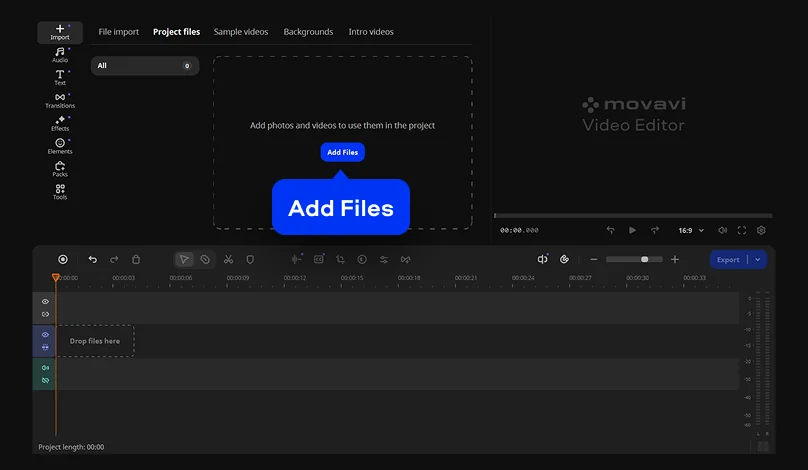
Find the Mute track icon at the left side of the timeline. Click it, and the program instantly silences that entire track. Your video clip stays exactly as it was, only the sound goes quiet.
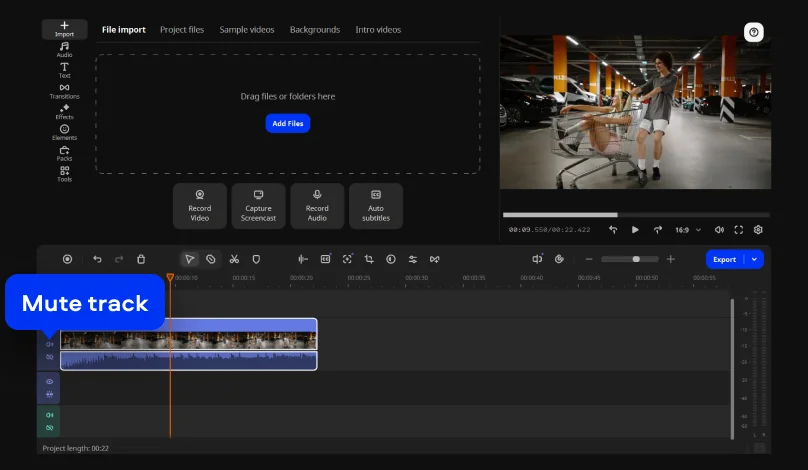
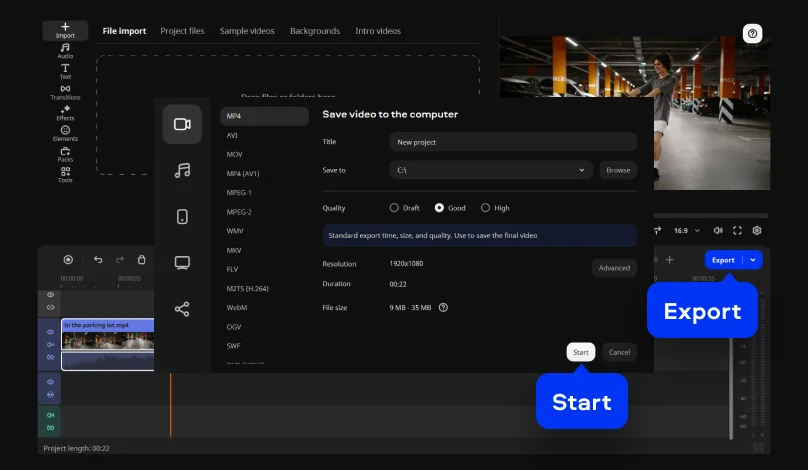
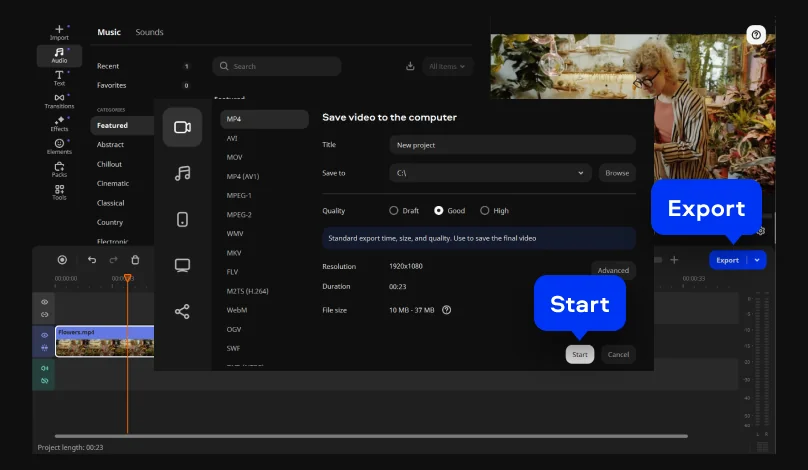
Once you're happy with the result, click the Export button, choose your preferred format and quality settings, and hit the Start button.
Download the installation file for your PC or Mac and install the software by following on-screen instructions.
To add your video file to the program, click Add Files. After the video is uploaded, drag and drop it down onto the timeline.
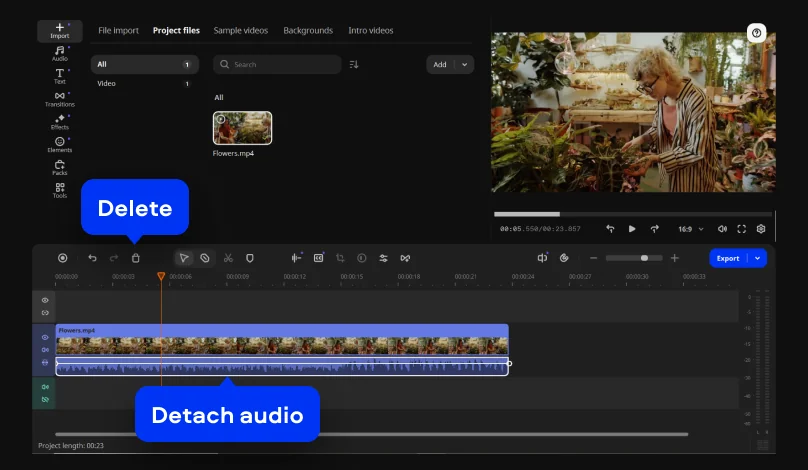
Right-click the video on the timeline and select Detach audio from the menu. This splits the sound off the clip into its own separate audio track, no longer locked to the video.
Select the separated audio clip on the timeline and delete it by simply pressing the Delete button.
Click the Export button, adjust the output settings like format and quality, and hit Start to save the finished video on your computer.
This method works when the music was added as its own track. But if the music was already part of the recording, detaching audio won't separate the two. Once voice and music are mixed into one track, pulling them apart cleanly isn't something Movavi Video Editor, or most consumer editors, can do.
That's a different job from AI audio noise removal, which clears out wind, hums, and traffic while keeping the voice clear. For a mixed track like this, you've got two real options: mute the whole clip and record a new voiceover over it, or keep voice and music on separate tracks next time you shoot.
If you often record videos of yourself talking, audio problems show up more often than picture ones. A plane flies over, a line gets muffled, the mic picks up more than you planned, and suddenly the audio is the one thing stopping you from posting. Here’s a few common situations that happen constantly:
If any of it sounds familiar, you're in good company. Millions of people across more than 190 countries are already using Movavi Video Editor to fix the exact same audio problem. And with more than 25 updates rolling out every year, the tools keep getting smarter and faster.
*The free version of Movavi Video Editor may have the following restrictions depending on the build: watermark on exported clips, 60-second video or 1/2 audio length limit, and/or some advanced features unavailable when exporting videos.

Mute or detach the audio at the clip level instead of re-encoding the whole video around it, then export using the resolution and quality settings built into the program. The visual quality carries over untouched either way.
In Movavi Video Editor, click the Mute track icon on that row of the timeline instead of removing anything. The picture, cuts, and effects all stay exactly where you left them.
Yes, as long as the music sits on its own track. Mute or delete just that track and your narration stays intact underneath it.
If voice and ambience are on separate tracks, mute or delete the voice track only. If they're mixed into a single recording, separating them cleanly isn't something most consumer video editors can promise.
Yes. You can download Movavi Video Editor for free from the official site, with a 60-second export cap and a watermark. The full version removes the length cap and the watermark entirely – you can also choose the plan that best fits your budget.
Movavi also offers a mobile app, Movavi App for iOS, for editing clips on your phone before they ever reach a computer.
Yes, it’s a desktop software available for Windows and Mac computers, so you can edit and export without needing an internet connection.



1.5M+ users already subscribed to our newsletter