

Overview
Meet Kimchi Studio - the desktop app for the Kimchi Coding agent. Run multiple agent sessions in parallel across your projects, with built-in developer tools, connectors, and desktop notifications.
Early Access FeatureThis feature is in early access. It may undergo changes based on user feedback and continued development. We recommend testing in non-production environments first and welcome your feedback to help us improve.
Kimchi Studio is a cross-platform desktop app (macOS, Windows, and Linux) that gives you a visual interface for the Kimchi Coding agent. Underneath, Studio bundles the same Kimchi harness that powers the Kimchi TUI and the VS Code extension. You get the same autonomous agent, multi-model orchestration, and tool ecosystem, in a desktop UI built for running many tasks at once.
Instead of one terminal session at a time, Studio lets you chat with an agent to set up tasks. Run them in parallel, and track them from the sessions sidebar.
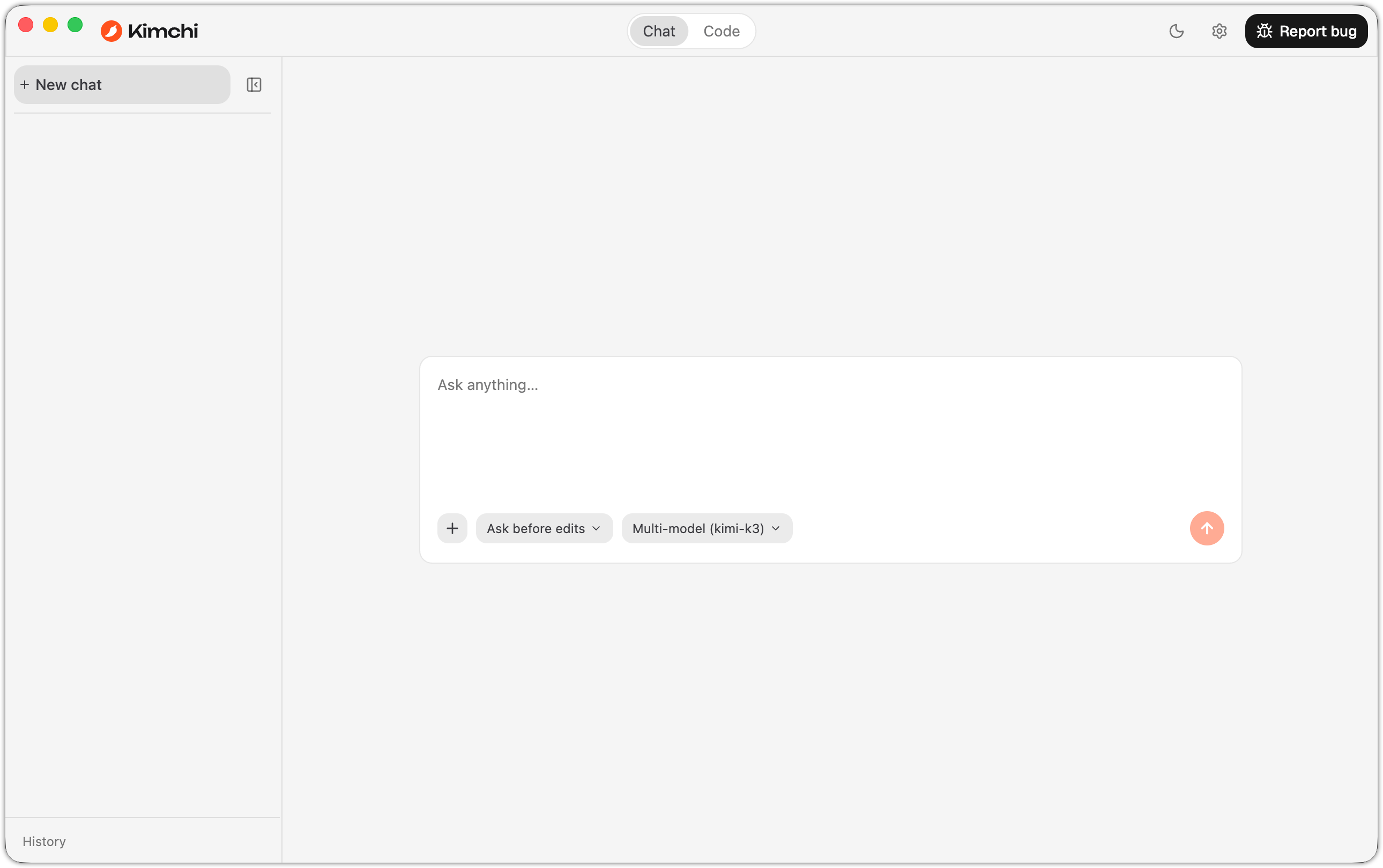
Kimchi Studio open in Chat mode.
Runs locally on your machine
Kimchi Studio is a local-first application, not a cloud workspace. The entire agent runtime runs on your machine:
- Your work happens on your disk: sessions read, write, and run commands directly against your own files. There's no "upload your codebase" step, and no hosted sandbox elsewhere.
- Commands run in your environment: the agent uses your local toolchain, the same way the Kimchi TUI does. You get the same access from the integrated terminal.
- Sessions and configuration stay local: Studio stores conversations, skills, projects, and MCP settings on your machine. It shares them with the Kimchi TUI and VS Code extension on the same computer.
The only network traffic is what the agent explicitly needs. This means LLM requests to model endpoints, and any tools you connect, such as MCP servers, connectors, and Git operations. Unlike cloud-based agentic chat apps, no remote environment does the work on your behalf.
What you can do with Studio
- Chat mode: have conversations with the agent, with tool calls, MCPs, and connectors, and access to local files. See Chat mode.
- Code mode: a split view pairing the chat or terminal UI with a developer panel. The panel holds live changes and diffs, a file explorer, an integrated terminal, and an embedded browser. See Code mode and Developer tools.
- Projects and sessions: group work by repository, and run many agent sessions in parallel. Track them on a sessions sidebar with statuses and dependencies. See Code mode.
- MCP servers and connectors: manage MCP servers and connect services like Slack, Atlassian, and Granola with one click. See MCP servers and connectors.
- Skills: manage installed skills in Settings and invoke them directly in chat. See Skills in Kimchi Studio.
- Settings: appearance, defaults, notifications, and account. See Settings.
Studio and the Kimchi harness
Because Studio runs the Kimchi harness underneath, most harness capabilities carry over: multi-model orchestration, permission modes, skills, MCP servers, and session persistence.
A few harness slash commands are not available in Studio's chat input. In particular:
/ferment: autonomous project mode.- Conversation compaction commands (for example
/compact).
These commands are fully available through the Kimchi TUI interface in Code mode, which embeds the complete Kimchi TUI experience in Studio.
Studio supports skills: harness skills appear in the chat input as /skill: commands. See Skills in Kimchi Studio for details.
The three faces of Kimchi Coding
| Interface | Best for |
|---|---|
| Kimchi Studio (this section) | Running many agent tasks in parallel with live diffs, a terminal, and a browser |
| Kimchi TUI | Terminal-native workflows, scripting, and autonomous modes like /ferment |
| VS Code extension | Working alongside your code in a side panel inside VS Code |
All three interfaces share the same harness, account, and configuration, so sessions, skills, and MCP servers behave the same everywhere.
Next steps
Updated 4 days ago