Mark chat for Experimentation
Products
- Optimizely Feature Experimentation
- Optimizely Web Experimentation
The availability of features may depend on your plan type. Reach out to your Customer Success Manager if you have any questions.
Optimizely Agent PlatformOptimizely Agent Platform is an agent orchestration platform that helps you explore complex questions, provides clear answers about the Optimizely platform, and offers instructions with links to relevant articles. Agent Platform automates tasks, surfaces insights, and guides decision-making. Agent Platform adapts its communication style to your technical expertise, helping you work smarter and complete tasks more efficiently.
Before using Mark chat in Experimentation, see Configure Feature Experimentation for Optimizely Agent Platform or Configure Web Experimentation for Optimizely Agent Platform.
Mark chat user interface
How Mark chat displays varies by entry point and conversation state. The following screenshots provide a general reference for typical layouts.
How Mark chat displays varies by entry point and conversation state. The following screenshots provide a general reference for typical layouts.
Through the Agent Platform website
When accessing through the Agent Platform website, opal.optimizely.com, Mark chat displays similar to the following:
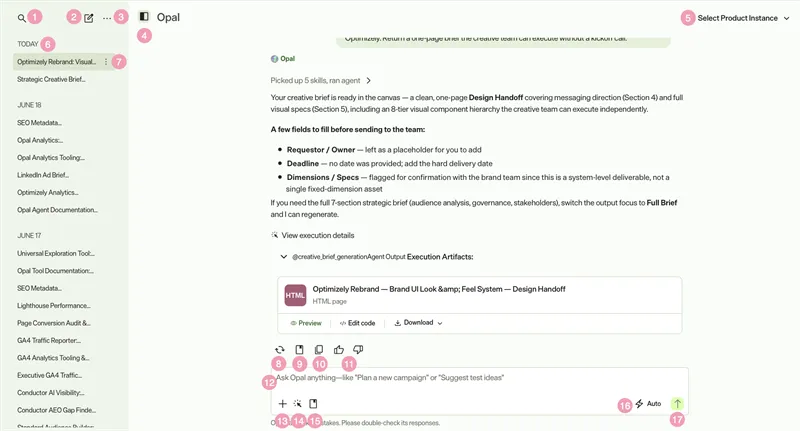
- Search Mark chat history – Search your previous chats with Mark.
- New Chat – Start a new chat. Start a new chat when switching topics to keep Mark's responses and chat thread history focused.
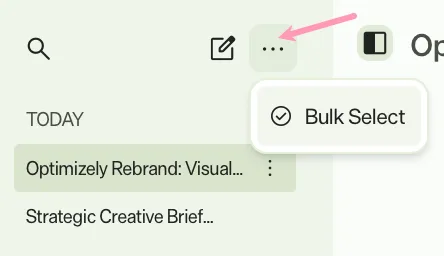
- More options – Click Bulk Select to choose multiple chat threads, then click Delete.
- Show or hide Chat history – Toggle the Chat history panel to show or hide.
- Set Product Instance – Select the Optimizely instance that Mark should refer to.
- Chat history – Go to previous chat threads with Mark.
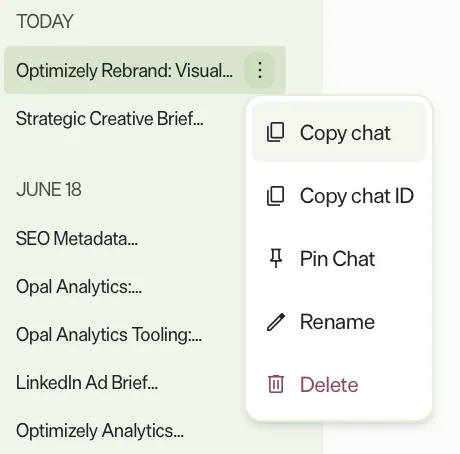
- Chat thread options – Additional options to update your chat threads, including the option to copy the chat, copy the chat ID, pin the chat to top of the sidebar, rename the thread, and delete the chat thread. You cannot retrieve deleted chats.
- Regenerate – Have Mark respond differently to the same query.
- Create skills – Create an organizationorganization or personalpersonal skill based on your conversation with Mark.
- Copy – Copy Mark's response to your clipboard.
- Give feedback on a response – Click Thumbs up if Mark's response helped. Click Thumbs down if it did not help.
- Chat with Mark
- Ideate and prompt – Ask Mark to research, brainstorm, create things, provide a summary, and so on. Mark can explain terms, walk you through configuration steps, or point you to relevant documentation. It can evolve a rough idea into something more complete, such as expanding a hypothesis or completing a concept.
- Translate content or tone – Translate text into other languages or rewrite content to fit a specific tone or audience.
- Research online – Ask Mark to search the web, summarize content, or extract key information from provided URLs.
- Sample queries
- Summarize this document into key takeaways.
- Extract the details from this timeline and present them to me as a list.
- Give me the audio text and timestamps from this file so I can copy and paste into a subtitle .mov file. Remove any "ums" and "ahs" from the text.
- Develop a test plan for a web experiment comparing two different call-to-action button designs to determine which drives more user engagement.
- Using Optimizely Feature Experimentation, set up a feature flag for the new checkout process and outline a strategy for its gradual rollout and A/B testing.
- How should we personalize content for anonymous users versus logged-in users?
- Extract the key points from this video and create a blog post to promote them.
- Undo – Press Ctrl+Z (Windows) or Cmd+Z (Mac) to undo text typed or pasted in the chat input.
- Add – Upload files and ask questions about their content, or add connectors. See Supported file types in Optimizely Agent PlatformSupported file types in Optimizely Agent Platform and Connector tools overviewConnector tools overview.
- Mention Agent – Select an agent to run.
- Use skill – Select skills to use. Enter / and select the skill.
- Response speed – Select the speed Mark takes for its response. See Chat modes in Mark chatChat modes in Mark chat.
- Submit – Submit a request to Mark. Click Stop at any time to end Mark's execution. See Stop a responseStop a response.

Messages sent while Mark is responding display as queued cards and send automatically when the current response completes. See Queue messages while Mark worksQueue messages while Mark works.
In an Optimizely product
When accessing Mark chat through an Optimizely product by clicking a button, such as Ask Mark, Mark chat displays similar to the following:
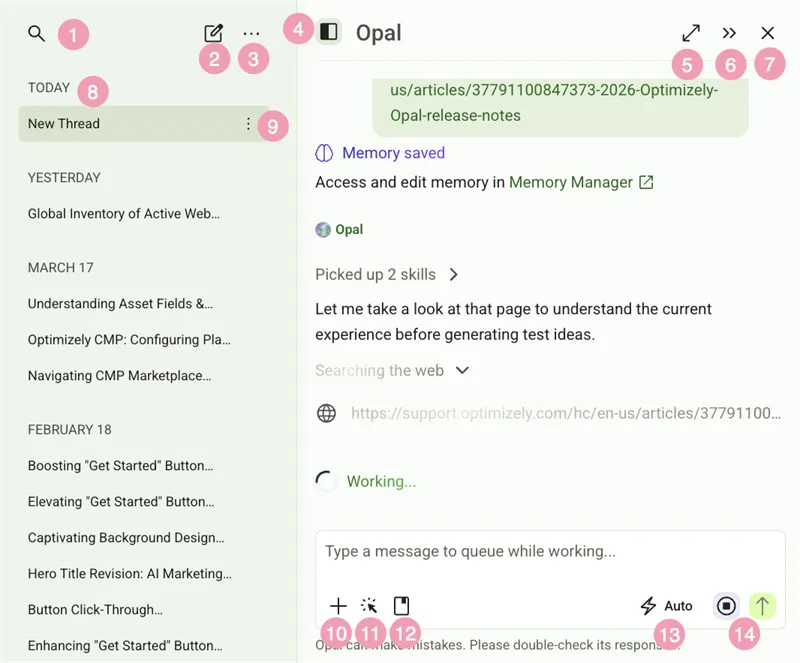
- Search Mark chat history – Search your previous chats with Mark.
- New Chat – Start a new chat thread. You should start a new chat when switching topics to keep Mark's responses focused and your chat thread history focused on the topic.
- More options – Click Bulk Select to choose multiple chat threads, then click Delete.
- Toggle sidebar – Show or hide the chat history sidebar.
- Fullscreen – Expand the Mark chat window to take up your entire browser window.
- Dock to the side – Dock the Mark chat as a panel to the side of your browser window. The icon updates to Pop it out
when docked.
- Close – Close the Mark chat window.
- Chat history – Go to previous chat threads with Mark.
- Chat thread options – Additional options to update your chat threads, including the option to copy the chat, copy the chat ID, pin the chat to top of the sidebar, rename the thread, and delete the chat thread. You cannot retrieve deleted chats.
- Add – Upload files and ask questions about their content, or add connectors. See Supported file types in Optimizely Agent PlatformSupported file types in Optimizely Agent Platform and Connector tools overviewConnector tools overview.
- Mention Agent – Select an agent to run.
- Use skill – Select skills to use. Enter / and select the skill.
- Response speed – Select the speed Mark takes for its response. See Chat modes in Mark chatChat modes in Mark chat.
- Submit – Submit a request to Mark. Click Stop at any time to end Mark's execution. See Stop a responseStop a response.
Messages sent while Mark is responding display as queued cards and send automatically when the current response completes. See Queue messages while Mark worksQueue messages while Mark works.
Note
See AI in Optimizely Experimentation: Meet your infinite workforce for a step-by-step walkthrough of Mark chat with example prompts.
Prompt engineering for Mark chat
Make the most of Optimizely Agent Platform by communicating your requests clearly and effectively. Prompt engineering involves crafting precise prompts to get the best results. You can boost Mark's ability to support your marketing and product development work with a few simple principles.
Key principles of effective prompting
- Clarity and specificity – Just like giving instructions to a human assistant, clarity and specificity are crucial for Mark chat. Avoid vague or ambiguous language. The more precise you are with your request, the more accurate and relevant Mark's response is.
- Instead of – Tell me about marketing.
- Try – Generate a list of content marketing strategies for ecommerce businesses targeting Gen Z.
- Context and background – Provide relevant context and background information to help Mark understand your request better. This can include details about your target audience, campaign objectives, brand guidelines, or specific Optimizely functionalities you want to utilize.
- Instead of – Create a campaign brief.
- Try – Create a campaign brief for a new product launch targeting millennials, with a budget of $10,000, focusing on social media channels, and aligning with our brand's sustainability values.
- Desired output format – Specify the desired format for Mark's response, such as a list, a paragraph, a table, or code. This information helps Mark structure its output in a manner that is useful to you.
- Instead of – Analyze our A/B test results.
- Try – Analyze the A/B test results for the homepage banner, comparing variations A and B, and provide a table summarizing the click-through rate, conversion rate, and statistical significance for each variation.
- Iterative refinement – Do not expect the perfect response on the first try. Prompt engineering is an iterative process. Start with a general prompt, then refine it based on Mark's initial response. Experiment with different phrasings, keywords, and levels of detail to fine-tune the output.
- Examples and demonstrations – Provide examples or demonstrations of the desired output to improve Mark's understanding. You can refer to past campaigns, content pieces, or reports as templates for Mark.
- Instead of – Write a blog post about A/B testing.
- Try – Write a blog post about A/B testing, similar in style and tone to the example provided in this link: [link to example blog post]. Focus on the benefits of A/B testing for Optimizely Experimentation users.
Tips for effective prompting
- Be clear and specific in your requests.
- Provide context and background information.
- Use examples to illustrate the desired output.
- Break down complex tasks into smaller, more manageable steps.
Example prompts for Experimentation
- Develop a test plan for a web experiment comparing two different call-to-action button designs to determine which drives more user engagement.
- Design a web experiment to test different landing page layouts for increasing conversion rates, and provide a recommended testing strategy.
- Analyze the impact of recent personalization efforts on user engagement metrics and suggest improvements.
- Using Optimizely Feature Experimentation, set up a feature flag for the new checkout process and outline a strategy for its gradual rollout and A/B testing.
- Generate a feature rollout plan for a new product launch targeting [TARGET_AUDIENCE] using feature flags.
- Write a user notification to promote our upcoming feature release on [TOPIC].
- Analyze the results of our A/B test on [EXPERIMENT_NAME] and provide recommendations for optimization.
- Evaluate the following test plan for a Feature Experimentation A/B test: [EXPERIMENT_TEST_PLAN]
Image features in Mark chat
Use Mark chat to create original images or make changes to existing ones by sending a request with a prompt and optional settings.
Create images
To generate a new image, send Mark a prompt describing what you want to create. You can also include the following optional parameters to customize the result:
- Prompt – Description of the image you want to generate. More detail leads to better results.
- Aspect ratio – Shape of the generated image. If not specified, Mark uses 1:1. Example aspect ratios:
- 1:1 (Square) – Good for profile pictures or Instagram posts.
- 4:3 (Standard landscape) – Common for older TVs or digital cameras.
- 16:9 (Widescreen landscape) – Standard for modern TVs, YouTube videos, and presentations.
- 9:16 (Vertical portrait) – Ideal for Instagram Stories, TikTok, and mobile content.
- Number of images – Total number of image variations to generate. You can request up to four. If you do not specify, Mark generates one.
Be as specific as possible in your prompt to get the best results. Include details like style, lighting, background, or mood.
Example prompt – Using the brand knowledge you have for Optimizely, create three images for a header image for a blog on Optimizely.com about Optimizely Agent Platform?
Click Edit for an image to open Mark's Image editorImage editor. Use the image editor to refine the generated image without recreating it. Select an element, draw over an area, or outline a region with a shape to edit the image.
Note
If you use Opti ID, administrators can turn off generative AI in the Opti ID Admin Center. See Turn generative AI off across Optimizely applicationsTurn generative AI off across Optimizely applications.