

Code
Code mode pairs the chat with live file changes and diffs, a terminal, and a browser, so you can watch and check the agent's work as it goes.
Code mode is Kimchi Studio's workspace for agent tasks that touch code. It's a split view: the conversation on one side, and a work panel on the other. The work panel shows what the agent is doing to your files as it happens.
Work in a project
To work on a repository, add it as a project. A project is a named group tied to a repository directory on your machine.
Click + New project on the project tab bar, then point it to a local repository directory. Studio derives the repository identity from the directory's Git remote. By default, each session in the project runs in its own Git worktree, so parallel tasks never collide.
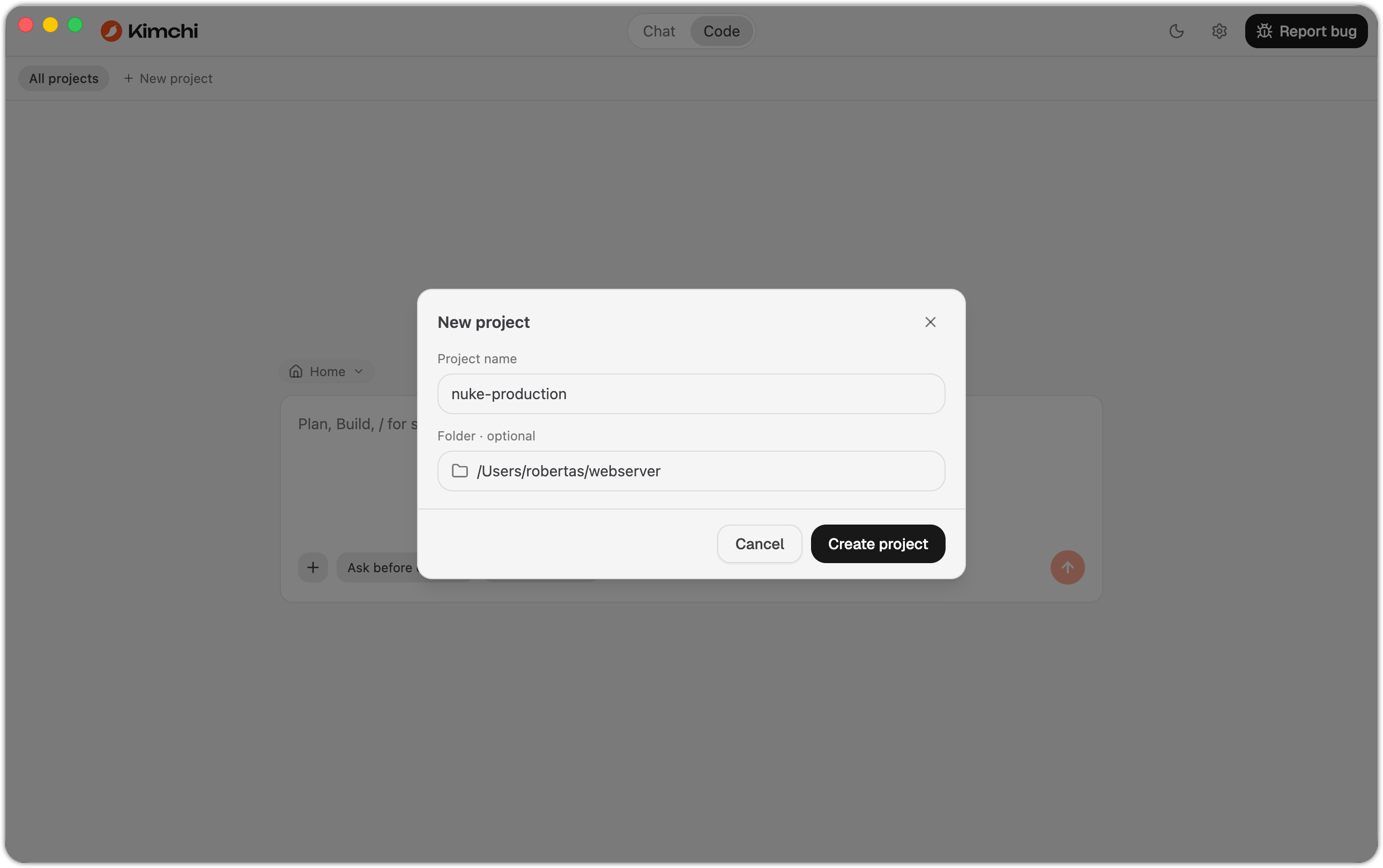
The New project dialog, naming a project and pointing it at a local repository folder.
See Projects and The Home project for the full model. To run Code mode without tying a session to a repository, use the Home project. It works in your home directory with no worktree isolation.
What the work panel shows
The work panel has three tabs:
| Tab | What it shows |
|---|---|
| Changes | The session's file tree and a diff view of every change the agent made, with per-session addition/deletion counts. |
| Terminal | An interactive shell rooted in the session's working directory. |
| Browser | An embedded browser pane, for example, to preview the app the agent is building. |
You can collapse the work panel to focus on the conversation, and expand it again at any time. Studio keeps the panel state and selected tab per session when you switch modes or chats. For details on each tool, see Developer tools.
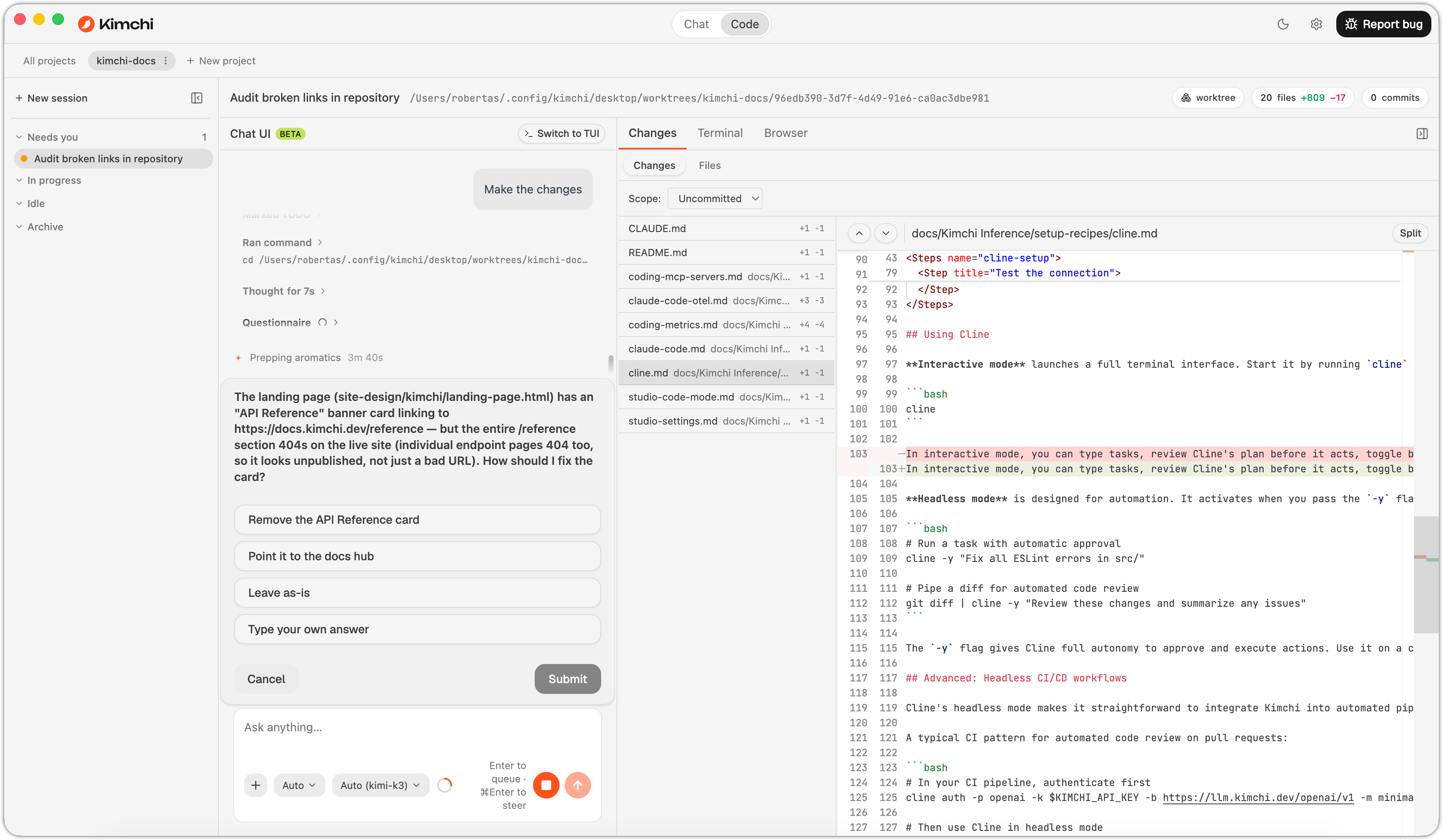
The Changes tab, showing a diff alongside a question the agent is waiting on you to answer.
Reviewing changes
The Changes tab groups everything the agent touched in this session:
- Files: browse the session's file tree and view any file with syntax highlighting.
- Changes: review each edit as a side-by-side or inline diff before you accept the work.
- Stats: the session header shows running totals for files changed, lines added, and lines removed.
Each session gets its own Git worktree. This isolates the diffs you see to that session's changes, so parallel sessions never pollute each other's view.
Chat interface vs Kimchi TUI
Code mode can render the conversation in two interfaces, selectable under Settings → Code → Interface
Chat UI
Studio's native chat (the default for new code sessions) is the same as Chat mode. It's the streamlined interface: Studio collapses the agent's work (tool calls, command output, intermediate steps) into a readable conversation. You see plans, decisions, and results without the raw execution noise. Pick this interface when you want a clean conversation with full visibility.
Kimchi TUI
The panel embeds the harness's terminal-style interface, the Kimchi TUI. It exposes the full harness feature set, including capabilities not yet available in the Chat UI:
/ferment: autonomous project mode. Break a goal into phases and let the harness execute, grade, and resume across sessions./compact: conversation compaction to free context when a session runs long.- Planning mode visibility: the full plan-mode output, expanded and inspectable rather than collapsed as in the Chat UI.
Alongside those, the Kimchi TUI handles the rest of its day-to-day commands, such as model-switching shortcuts and skills. Everything documented in the Kimchi TUI reference applies: the TUI in Code mode is the same harness with the same commands. Studio embeds it next to the work panel.
When you switch the interface for a session, Studio asks you to confirm. Studio keeps the session's conversation across the switch.
Defaults for code sessions
Choose the defaults Studio applies to new code tasks under Settings → Code:
- Permission mode: how much autonomy the agent gets before asking (see the permission mode table).
- Model: the model the agent runs on.
- Interface: Chat UI or Kimchi TUI.
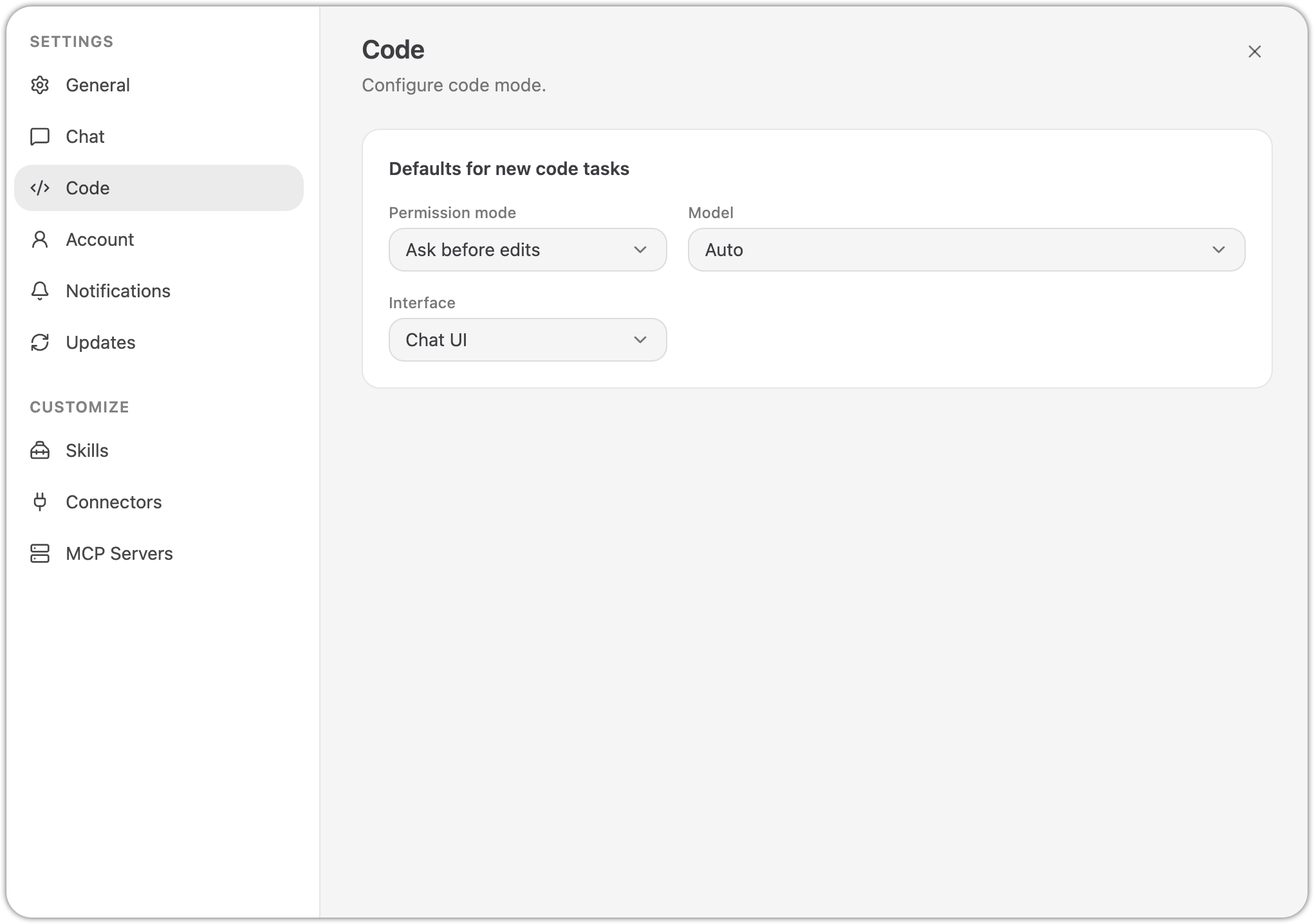
Settings → Code, where you set the default permission mode, model, and interface for new code sessions.
All three are only starting points. You can override the model and permission mode per session, and switch the conversation interface at any time.
Organize your work
Code mode handles multitasking: many agent tasks, across many repositories, running at the same time. Two concepts organize it: projects (the repositories you work on) and sessions (individual agent tasks within a project).
Projects
A project is a named grouping tied to a directory on your machine, typically a Git repository root. When you create a project, Studio derives the repository identity (for example cast-ai/kimchi-studio) from the directory's Git remote.
Projects appear as tabs in Code mode, one per project, plus All projects, which shows your sessions across every project at once. Create a project with the + New project button on the tab bar.
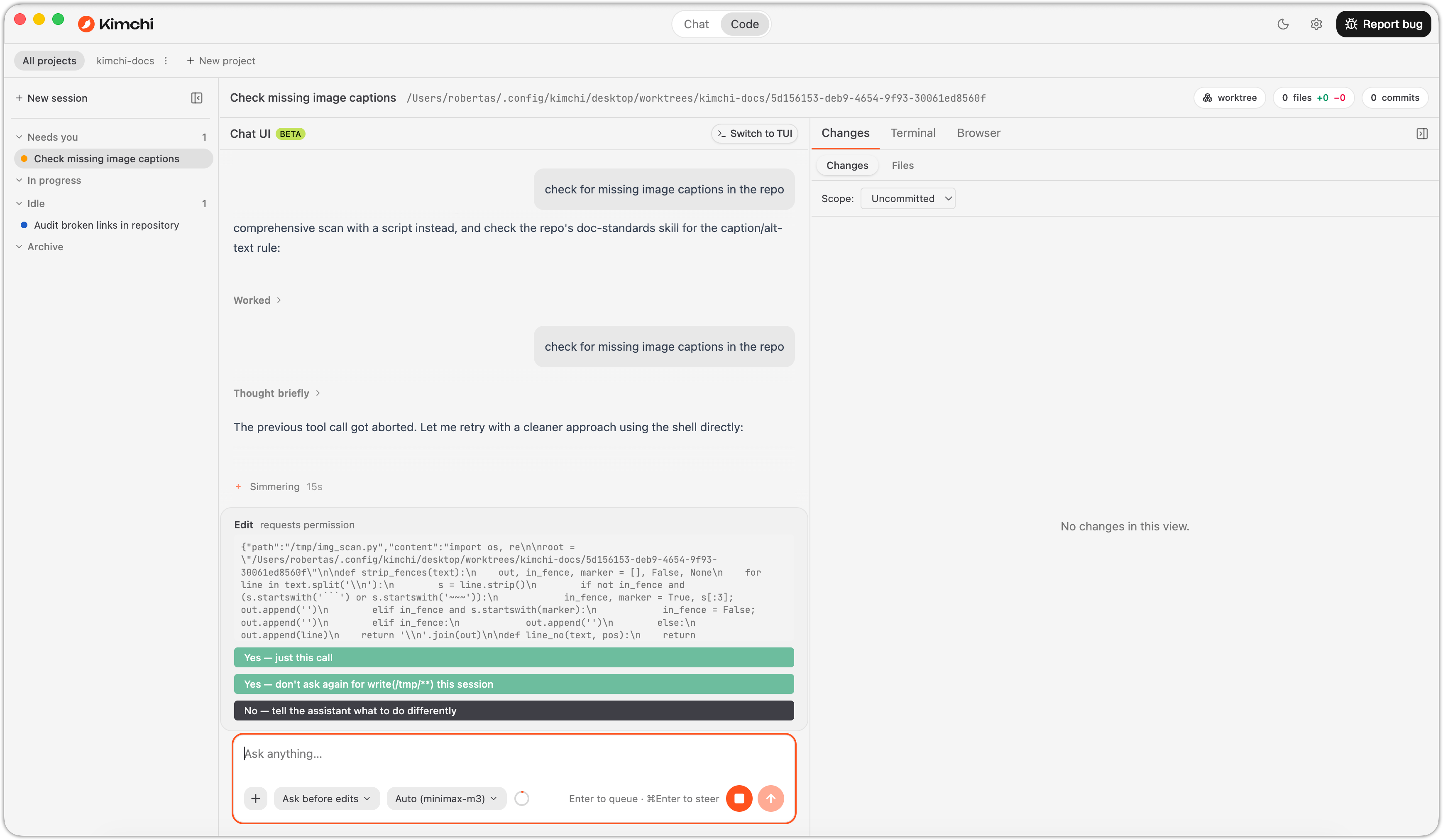
The project tab bar in Code mode, with All projects, the active project, and the + New project button.
The Home project
Studio ships with a built-in default project called Home, which appears as the first project tab (after All projects). Home is not tied to any repository; it's for ad-hoc work that doesn't belong to a codebase:
- Sessions created in Home run directly in your home directory (
~), with no Git worktree isolation. - The agent writes files to your home directory (or subdirectories it creates there). Studio does not track these changes as diffs against a repository.
Use a real project whenever the task touches an existing repository, because you get worktree isolation, scoped diffs, and review tools. Use Home for scratch work, experiments, and tasks on files that aren't part of a Git repo.
Sessions
A session is one agent task: a description, a model and permission mode, a conversation, and (for project sessions) its own working directory. Studio persists sessions to disk, fully recoverable, so you can close Studio and pick up where you left off, including prompt history.
Each session carries a status that tells you where it stands:
| Status | Meaning |
|---|---|
| Needs you | Waiting on your input or approval |
| In progress | The agent is actively working right now |
| Idle | Not currently running and not waiting on you, for example not yet started or already finished |
| Archive | Archived, kept out of your active list |
Studio flags sessions that need your attention as needs input. This happens, for example, when the agent is waiting for your approval or an answer (see Chat mode). Combined with desktop notifications, this makes it practical to run several sessions at once. Studio tells you exactly which task needs you. When a session finishes, review its changes in the work panel, then commit or open a pull request yourself from the worktree.
Worktrees
A session belonging to a project backed by a repository (any project except Home) gets its own Git worktree, rooted at the project's directory, by default. That means:
- Each parallel session works on an isolated checkout of the same repository. Sessions never step on each other's uncommitted changes.
- The work panel (file explorer, terminal, browser) is rooted in that worktree. What you inspect and run is exactly what the agent changed.
- Diffs in the Changes tab are scoped to the session's own work.
When you start a new session, a Worktree checkbox next to the branch selector lets you turn this off. Uncheck it to run the session directly on the selected branch (for example, main) instead of an isolated worktree. Do this only when you specifically want the agent working in that shared checkout. You lose the isolation above, so avoid it for parallel sessions on the same repository.
A session's files look wrong or missing. Repo project sessions run in their own worktree, not in your main checkout. Check the branch or worktree shown on the session. Sessions in the built-in Home project run directly in your home directory with no worktree.
The sessions sidebar
The sessions sidebar is the multitasking command center: a list of all your sessions, alive or recent, always within reach.
- Status at a glance: each session shows its current status: running, waiting on you, or done.
- Instant switching: click any session to jump into its conversation and work panel. The others keep running in the background.
Because each session runs on its own agent connection, multiple sessions really do run in parallel. You can have five tasks in flight and chat with any of them while the others work.
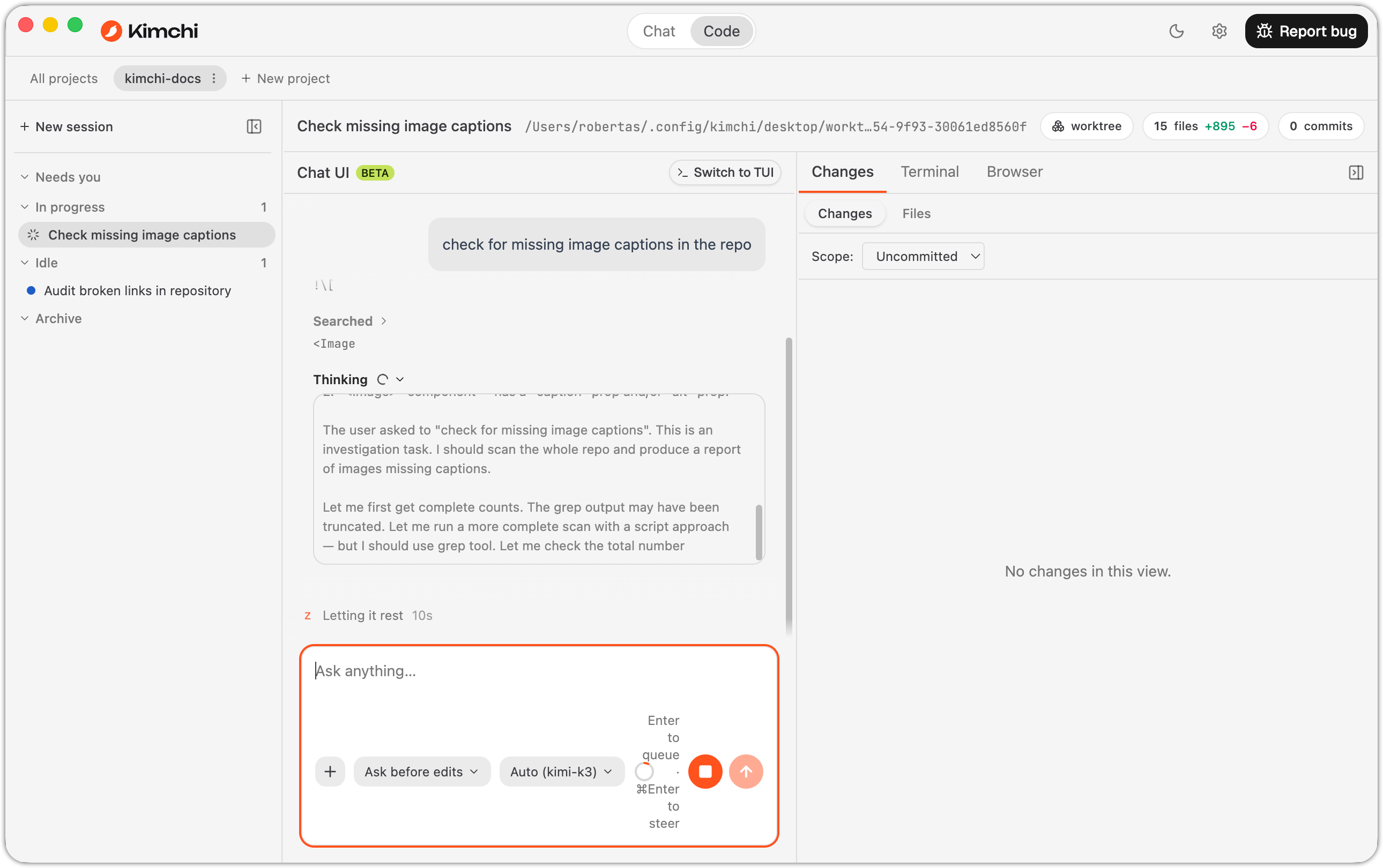
The sessions sidebar, grouped by status: one session in progress, one idle.
What's next
Updated 6 days ago