

Developer tools
Code mode's built-in tools for working alongside the agent: a file explorer with syntax-highlighted viewing, an interactive terminal, and an embedded browser.
Code mode comes with built-in developer tools so you can inspect and test the agent's work without leaving the app. All tools live in the work panel and apply to the active session.
File explorer and viewer
The Changes tab's Files view is a file explorer for the session's working directory:
- Browse the full tree of the session's worktree.
- Select any file to view it with syntax highlighting by file extension, powered by Monaco (VS Code's editor core).
- Use the toolbar to reveal the file in your file manager (Finder on macOS, Explorer on Windows).
- Use the toolbar to open the file in an external editor, to edit it.
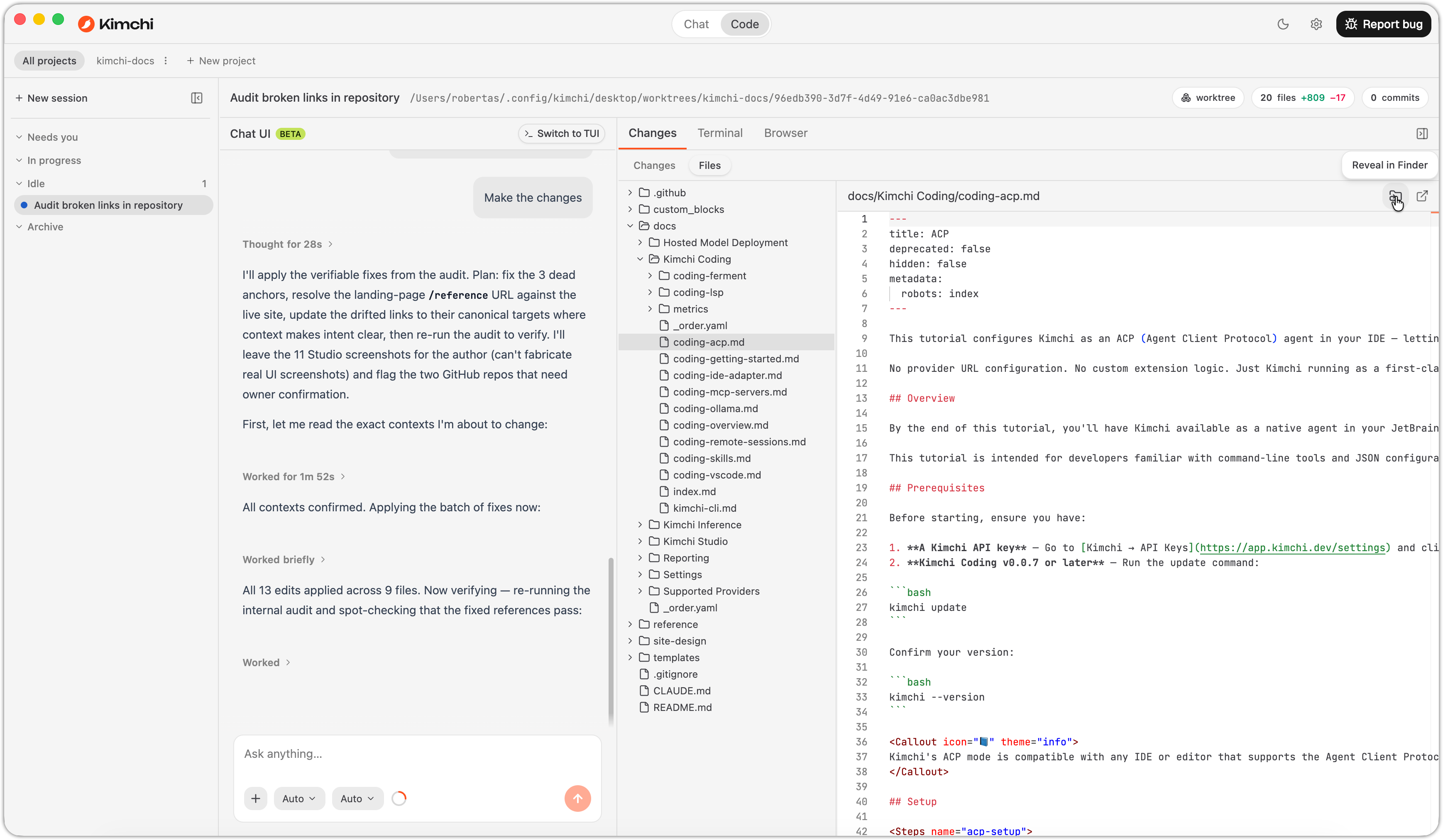
The Files view, with a file open in the syntax-highlighted viewer.
The built-in viewer only displays files; it exists for fast inspection. To edit by hand, open the file in your IDE from the toolbar. The agent's next diff view reflects your manual edits alongside its own.
Large and binary files are not rendered in the viewer. Open them in an external app instead.
Terminal
The Terminal tab is a fully interactive terminal backed by a real PTY process:
- It spawns in the session's working directory (the per-session worktree for project sessions). Commands the agent ran and commands you run by hand see exactly the same files.
- Studio keeps terminal state per session. Switching chats or tabs keeps your scrollback, so you can pick up where you left off.
- If the shell exits, typing in the terminal restarts it automatically in the same directory.
- Clickable links are detected in terminal output, so file paths and URLs printed by your tools open directly.
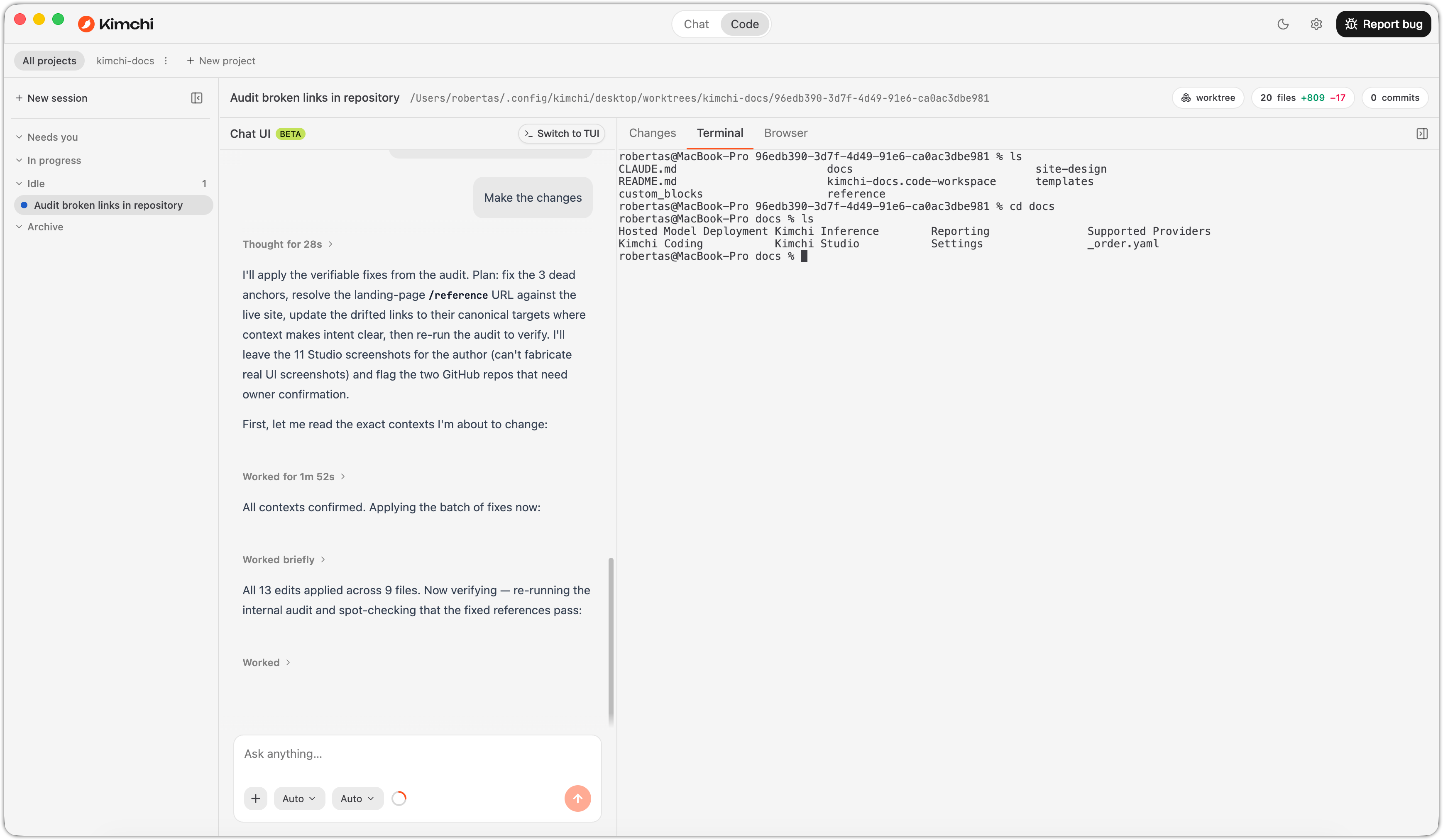
The Terminal tab, a PTY session rooted in the session's working directory.
The terminal is one per session. Background sessions keep their own terminals alive while you work elsewhere.
Browser
The Browser tab is an embedded browser pane with its own navigation controls (back, forward, reload):
- Use it to preview web apps the agent builds. Run the dev server in the Terminal tab, then open the local URL here.
- The browser view is per session; background sessions' browser views don't receive your keystrokes or events by accident.
- The pane only takes visible space while the Browser tab is active. Switching tabs or collapsing the work panel hides it cleanly.
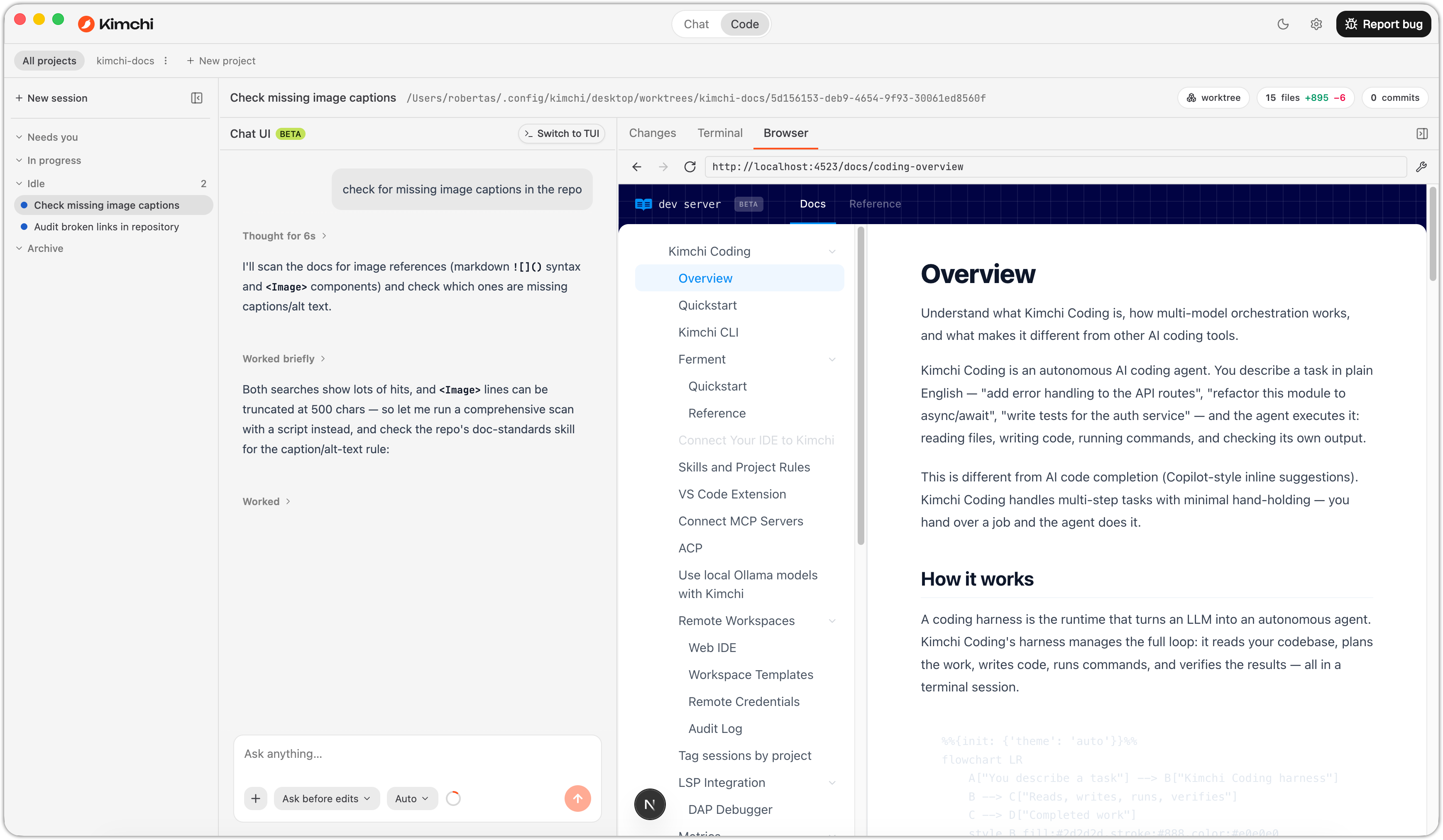
Putting it together
A typical Code mode loop:
Let the agent work
Give the agent a task. Changes stream into the Changes tab as diffs as they're made.
Inspect
Browse affected files in the file explorer, review diffs, and open anything that needs a closer look in your IDE, if you choose.
Run it
Start the app or test suite in the Terminal tab. It's the same directory as the agent, with no cd needed each time.
Preview
Open the running app in the Browser tab and paste feedback into the chat for the next iteration.
What's next
Updated 9 days ago