Index templates
An index template applies mappings, settings, and aliases to every new index whose name matches one of the template’s index patterns. Templates apply only at index creation: changing a template has no effect on indexes that already exist.
Use a template when new indexes appear on their own and need to be configured consistently, such as the daily indexes behind a log alias or the backing indexes of a data stream. The alternative—specifying settings and mappings in each Create Index request—does not apply to indexes that OpenSearch creates for you.
Creating an index template
The following request creates a template named daily_logs, applies it to any new index matching logs-2020-01-*, and adds each of those indexes to the my_logs alias:
PUT _index_template/daily_logs
{
  "index_patterns": [
    "logs-2020-01-*"
  ],
  "template": {
    "aliases": {
      "my_logs": {}
    },
    "settings": {
      "number_of_shards": 2,
      "number_of_replicas": 1
    },
    "mappings": {
      "properties": {
        "timestamp": {
          "type": "date",
          "format": "yyyy-MM-dd HH:mm:ss||yyyy-MM-dd||epoch_millis"
        },
        "value": {
          "type": "double"
        }
      }
    }
  }
}
Creating logs-2020-01-01 now produces an index with the template’s alias, settings, and mappings, and so does every other index matching the pattern:
PUT logs-2020-01-01
To view the resulting configuration, send the following request:
GET logs-2020-01-01
An index pattern cannot contain any of the following characters: :, ", +, /, \, |, ?, #, >, or <.
Settings and mappings that you specify in a Create Index request override the ones from a matching template.
Resolving conflicts between templates
When an index name matches more than one template, OpenSearch applies the template with the highest priority and ignores the others—the templates are not merged. A template without a priority is assigned 0, the lowest priority.
Give overlapping templates distinct priorities. A template whose patterns overlap those of an existing template at the same priority is rejected with 400, because OpenSearch cannot determine which one to apply.
For example, an index named logs-2020-01-02 matches both of the following templates, which disagree about number_of_shards:
PUT _index_template/template-01
{
  "index_patterns": ["logs*"],
  "priority": 5,
  "template": {
    "settings": {
      "number_of_shards": 2,
      "number_of_replicas": 2
    }
  }
}
PUT _index_template/template-02
{
  "index_patterns": ["logs-2020-01-*"],
  "priority": 10,
  "template": {
    "settings": {
      "number_of_shards": 3
    }
  }
}
Because template-02 has the higher priority, the index gets 3 primary shards and the default of 1 replica. It does not inherit number_of_replicas from template-01.
To view the template that applies to a name before you create the index, use Simulate Index Template.
Reusing configuration with component templates
A component template holds aliases, settings, or mappings that several index templates share. Instead of repeating the same mapping block in every template—which inflates the cluster state and has to be edited in every copy when it changes—define it once as a component template and reference it.
The following requests define two component templates:
PUT _component_template/component_template_1
{
  "template": {
    "mappings": {
      "properties": {
        "@timestamp": {
          "type": "date"
        }
      }
    }
  }
}
PUT _component_template/component_template_2
{
  "template": {
    "mappings": {
      "properties": {
        "ip_address": {
          "type": "ip"
        }
      }
    }
  }
}
List the component templates in composed_of to build an index template from them. OpenSearch applies them in the order you list them, and applies anything in the template’s own template block last, so the index template’s values win:
PUT _index_template/daily_logs
{
  "index_patterns": ["logs-2020-01-*"],
  "priority": 200,
  "composed_of": [
    "component_template_1",
    "component_template_2"
  ],
  "template": {
    "aliases": {
      "my_logs": {}
    },
    "settings": {
      "number_of_shards": 2,
      "number_of_replicas": 1
    },
    "mappings": {
      "properties": {
        "timestamp": {
          "type": "date",
          "format": "yyyy-MM-dd HH:mm:ss||yyyy-MM-dd||epoch_millis"
        },
        "value": {
          "type": "double"
        }
      }
    }
  },
  "version": 3,
  "_meta": {
    "description": "using component templates"
  }
}
An index created from this template has the @timestamp and ip_address fields from the component templates alongside the timestamp and value fields from the index template.
A component template takes effect only where an index template lists it in composed_of. Creating a component template does not attach it to index templates that already exist; add it to their composed_of list yourself. Updating a component template does reach every index template that already references it, but applies only to indexes created after the update. Indexes that already exist keep the configuration they were created with.
Retrieving and deleting templates
The following table lists common template requests.
| Task | Request |
|---|---|
| List all templates | GET _cat/templates or GET _index_template |
| Get one template | GET _index_template/daily_logs |
| Get templates matching a pattern | GET _index_template/daily* |
| Check whether a template exists | HEAD _index_template/daily_logs |
| Delete a template | DELETE _index_template/daily_logs |
For all template operations and their parameters, see Index template APIs.
Index templates in OpenSearch Dashboards
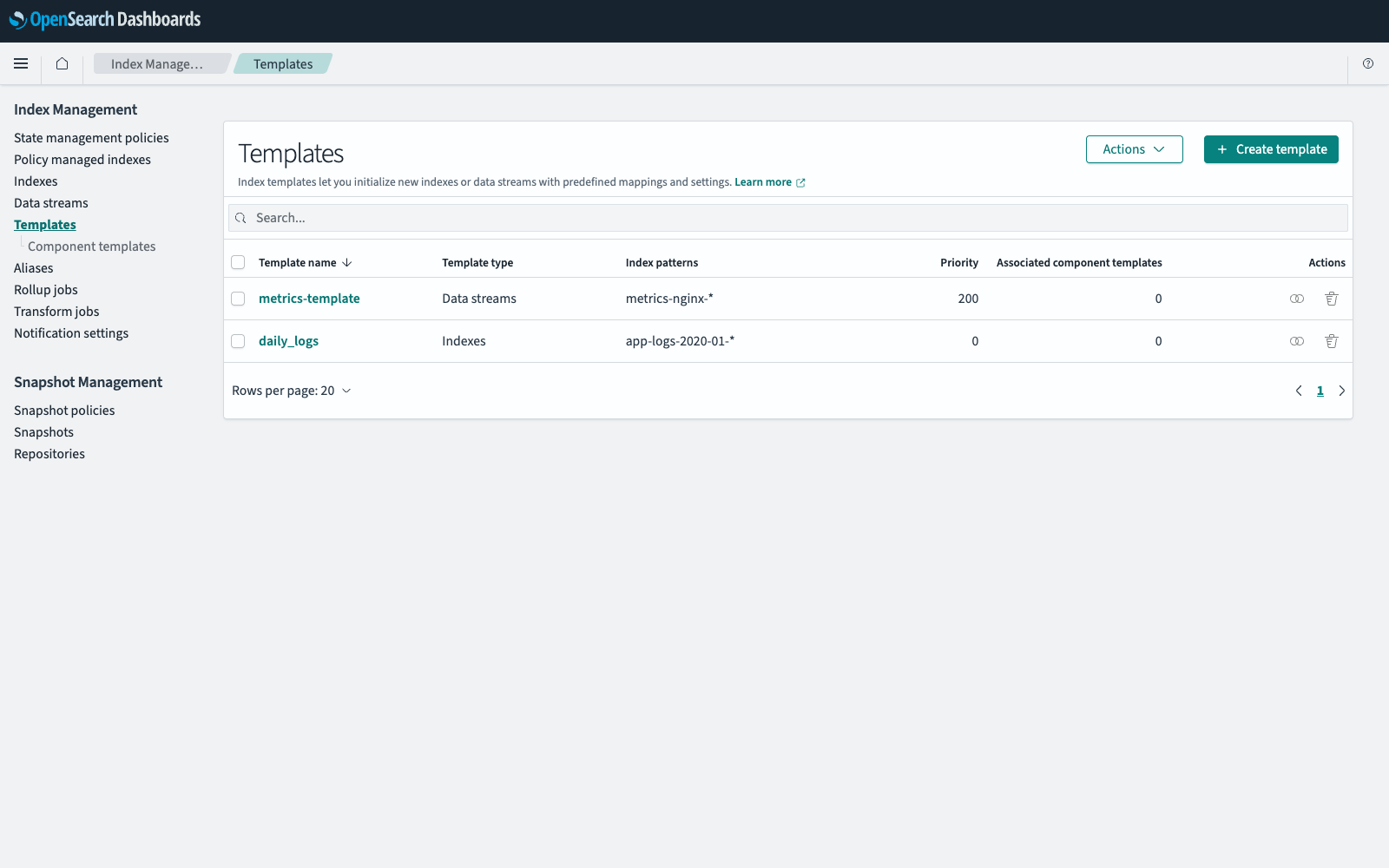
To navigate to the Index Management page, go to Management > Index Management on the top menu. Select Templates to list the index templates in your cluster; Component templates appears in the navigation once you do.
The following image shows the Templates page.
Creating an index template
- In Index Management, select Templates, and then select Create template.
-
In Template settings, do the following:
- Enter a name in Template name.
- Select a Template type. Select Data streams if the template backs a data stream, and then enter the name of the timestamp field in Time field. A data stream template requires a timestamp field.
- In Index patterns, enter the patterns that the template matches, separated by commas.
- In Priority, enter the template priority. The default is
0, the lowest priority. OpenSearch uses the priority when an index name matches more than one template. - Select Simple template to define the configuration here, or Component template to build the template from existing component templates. See Building a template from component templates.
-
In Template definition, do the following:
- In Index alias, select or enter the aliases to add each new index to.
- In Index settings, enter the number of primary shards, the number of replicas, and the refresh interval. The default refresh interval is
1s. To supply other settings as JSON, expand Advanced settings. - In Index mapping, define the fields in your documents. Select Visual editor to add fields one at a time, or JSON editor to paste an existing mapping.
- Select Create template.
To define a field in the visual editor, select Add new field, enter a name in Field name, and select a type from Field type. To define an object, select Add new object, name it, select the object type, and then select the  (plus) icon in Actions to add fields inside it.
Editing an index template
- In Index Management, select Templates.
- Select the template in the Template name column.
- On the Configuration tab, change the template settings and definition.
- To check the result before saving, select Preview template, review the configuration, and then select Close.
- Select Save.
Editing a template does not change indexes that were created from it.
Deleting an index template
- In Index Management, select Templates.
- Select the
 (trashcan) icon in the row of the template.
 - Enter
deletein the confirmation dialog, and then select Delete.
Creating an index from a template
An index inherits a template when its name matches one of the template’s index patterns:
- In Index Management, select Indexes, and then select Create Index.
- In Index name, enter a name that matches one of the template’s index patterns. For example, a template with the pattern
flight-data-*applies to an index namedflight-data-1. - Optionally, change any alias, setting, or mapping value to override the one from the template. The template values populate the form as soon as focus leaves the Index name box, and any value you replace is kept.
- Select Create.
Creating a component template
- In Index Management, select Templates > Component templates, and then select Create component template.
- Enter a name in Name and, optionally, a description of what the component template configures or when to use it.
- In each of the Index alias, Index settings, and Index mapping panels that you want the component template to define, select Use configuration and then enter the values. All three panels are optional, so a component template can define one configuration or a complete index.
- Select Create component template.
Building a template from component templates
Follow the steps in Creating an index template, and in Template settings, select Component templates as the method. Then do the following:
- In the Component template panel, select Associate component template.
- Select the component templates to include, and then select Associate.
- Optionally, select Override template definition and enter alias, settings, or mapping values that take precedence over the ones from the component templates.
- Select Create template, or Save if you are editing an existing template.
When two component templates define the same value, the one later in the list wins. Avoid associating multiple component templates that configure the same thing, unless you have checked that their values do not conflict.
Editing a component template
- In Index Management, select Templates > Component templates.
- Select the component template in the Name column.
- Turn Use configuration on or off for Index alias, Index settings, or Index mapping, and add, change, or remove values in the configurations that are turned on.
- Select Apply changes.
The new configuration applies to every index template that uses this component template. Indexes that already exist do not change.
Deleting a component template
- In Index Management, select Templates > Component templates.
- Select the (trashcan) icon in the row of the component template.
- In the confirmation dialog, select Unlink index templates and delete, and then select Apply changes.
Deleting a component template removes it from every index template that used it, with the following results:
- Values that came from the component template are removed from those index templates.
- A value that an index template overrode remains in the index template.
- A value that an index template did not override becomes undefined in the index template.
- Indexes created from those templates are unchanged.