Index transforms
Whereas index rollup jobs let you reduce data granularity by rolling up old data into condensed indexes, transform jobs let you create a different, summarized view of your data centered around certain fields, so you can visualize or analyze the data in different ways.
For example, suppose that you have airline data that’s scattered across multiple fields and categories, and you want to view a summary of the data that’s organized by airline, quarter, and then price. You can use a transform job to create a new, summarized index that’s organized by those specific categories.
Create a transform job in either of the following ways:
- In OpenSearch Dashboards, which shows the fields of the source index with sample data, previews the transformed fields as you select them, and lists the jobs you have created with their status. See Creating a transform job.
- Using the Transforms APIs, which take the whole job configuration as JSON, so you can store it in version control and replicate it across clusters.
Configuring a transform job
A transform job reads from a source index and writes summarized documents to a target index. To transform only part of the source index, add a filter written in query DSL.
The job configuration has two parts:
- Groups place documents into buckets in the target index. Each group names a
source_fieldin the source index and thetarget_fieldto write it to, so grouping theDestAirportIDfield of the sample flight data into aDestAirportID_termstarget field produces one bucket per airport. If you omittarget_field, it takes the name of the source field. OpenSearch Dashboards appends the name of the grouping, as inDestAirportID_terms. Transform jobs support thehistogram,date_histogram, andtermsbucket aggregations. - Aggregations calculate a value for each bucket, such as a
sum_of_total_ticket_pricefield that adds up the ticket prices in it. Thesum,avg,max,min,value_count,percentiles, andscripted_metricmetric aggregations are supported.
You cannot change the groups or aggregations of a job after you create it.
A job runs at the transform execution interval that you set. A continuous job runs at each interval and transforms the buckets that changed since the last run, including buckets that new data was added to. A job that is not continuous runs once, after the first interval elapses. The number of pages processed per run trades speed against memory: a larger number processes more data per search request and can exceed the memory limits of the cluster.
Example: Transforming the sample flight data
This example summarizes the OpenSearch Dashboards sample flight data by carrier and destination airport. To add the data, go to the OpenSearch Dashboards home page, select Try our sample data, and then select Add data in Sample flight data.
The following job groups the Carrier and DestAirportID fields and adds up the ticket prices in each bucket:
PUT _plugins/_transform/sample_flight_job
{
  "transform": {
    "enabled": true,
    "schedule": {
      "interval": {
        "period": 1,
        "unit": "Minutes",
        "start_time": 1602100553
      }
    },
    "description": "Sample flight transform job",
    "source_index": "opensearch_dashboards_sample_data_flights",
    "target_index": "finished_flight_job",
    "page_size": 1000,
    "groups": [
      {
        "terms": {
          "source_field": "Carrier",
          "target_field": "Carrier_terms"
        }
      },
      {
        "terms": {
          "source_field": "DestAirportID",
          "target_field": "DestAirportID_terms"
        }
      }
    ],
    "aggregations": {
      "sum_of_total_ticket_price": {
        "sum": {
          "field": "AvgTicketPrice"
        }
      }
    }
  }
}
The job runs after the first interval elapses. To check its progress, use the Explain API:
GET _plugins/_transform/sample_flight_job/_explain
Searching the transformed index
After the transform job finishes, search the target index with the _search API. Each document in the target index contains the grouped fields, the aggregated values, the ID of the job that wrote it in transform._id, and the number of source documents in the bucket, reported in both _doc_count and transform._doc_count.
The following request returns the buckets of the transformed flight index in which DestAirportID_terms is SFO:
GET finished_flight_job/_search
{
  "query": {
    "match": {
      "DestAirportID_terms" : "SFO"
    }
  }
}
Response
{
  "took" : 3,
  "timed_out" : false,
  "_shards" : {
    "total" : 1,
    "successful" : 1,
    "skipped" : 0,
    "failed" : 0
  },
  "hits" : {
    "total" : {
      "value" : 4,
      "relation" : "eq"
    },
    "max_score" : 1.0,
    "hits" : [
      {
        "_index" : "finished_flight_job",
        "_id" : "ifSaM4kOvFxWHw84UpfMRQ",
        "_score" : 1.0,
        "_source" : {
          "transform._id" : "sample_flight_job",
          "_doc_count" : 10,
          "transform._doc_count" : 10,
          "Carrier_terms" : "BeatsWest",
          "DestAirportID_terms" : "SFO",
          "sum_of_total_ticket_price" : 7012.053009033203
        }
      },
      {
        "_index" : "finished_flight_job",
        "_id" : "uBoQr4Q393MMLHCzz1DQPQ",
        "_score" : 1.0,
        "_source" : {
          "transform._id" : "sample_flight_job",
          "_doc_count" : 14,
          "transform._doc_count" : 14,
          "Carrier_terms" : "Logstash Airways",
          "DestAirportID_terms" : "SFO",
          "sum_of_total_ticket_price" : 9678.005126953125
        }
      },
      {
        "_index" : "finished_flight_job",
        "_id" : "1pi8feMm2fDwop05MkC6qA",
        "_score" : 1.0,
        "_source" : {
          "transform._id" : "sample_flight_job",
          "_doc_count" : 14,
          "transform._doc_count" : 14,
          "Carrier_terms" : "OpenSearch Dashboards Airlines",
          "DestAirportID_terms" : "SFO",
          "sum_of_total_ticket_price" : 9238.96060180664
        }
      },
      {
        "_index" : "finished_flight_job",
        "_id" : "56d2npFptOKeHZEt6BlohA",
        "_score" : 1.0,
        "_source" : {
          "transform._id" : "sample_flight_job",
          "_doc_count" : 11,
          "transform._doc_count" : 11,
          "Carrier_terms" : "OpenSearch-Air",
          "DestAirportID_terms" : "SFO",
          "sum_of_total_ticket_price" : 6317.92561340332
        }
      }
    ]
  }
}
Index codec considerations
For index codec considerations, see Index codecs.
Index transforms in OpenSearch Dashboards
To navigate to the Index Management page, go to Management > Index Management on the top menu. Select Transform jobs to list the transform jobs in your cluster with their source index, target index, and status. Select a job to view its configuration and the results of its runs. To act on a job, select the checkbox next to it and then select Enable, Disable, or Actions > Delete.
The following image shows the Transform jobs page.
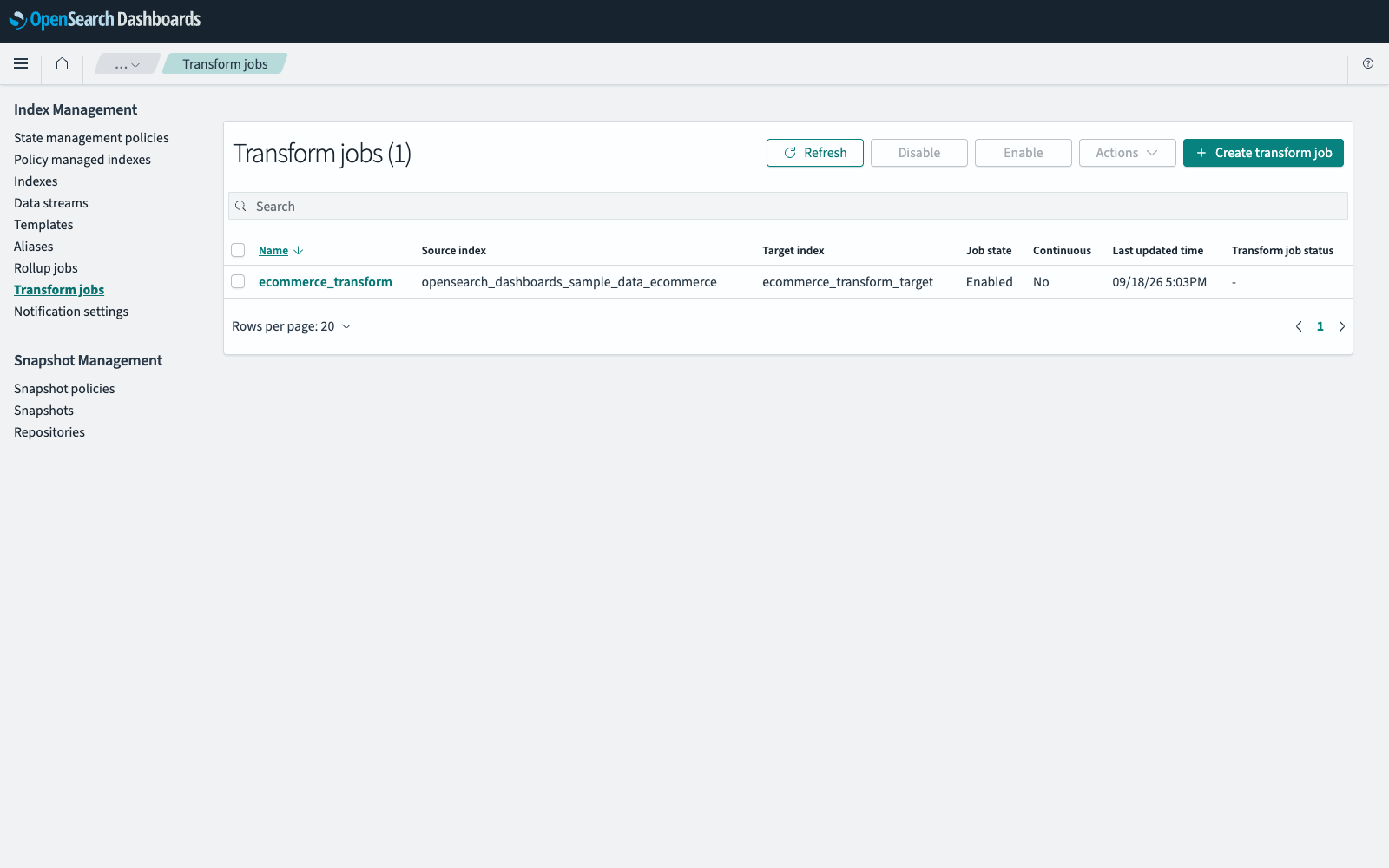
If your cluster has no data to transform, add the sample flight data from the OpenSearch Dashboards home page and transform that. For more information, see Add sample data.
Creating a transform job
- In Index Management, select Transform jobs, and then select Create transform job.
- Enter a Name for the job and, optionally, a description.
- In Source index, select the index to transform.
-
Optionally, in Source index filter, select Edit data filter, enter a query DSL query that selects the documents to transform, and then select Save. For example, the following filter selects the flights whose tickets cost at least $1,000:
{ "bool": { "filter": [ { "range": { "AvgTicketPrice": { "gte": "1000" }}} ] } } - In Target index, select an existing index or enter a name for a new one.
- Select Next.
-
In Define transforms, select the fields to summarize:
- Select the N columns hidden link and select the fields that you want in the target index. To start from an empty table, select Hide all and then add the fields one at a time.
- For each field in Original fields with sample data, select the
 (plus) icon, and then select a grouping or an aggregation. The result is added to Transformed fields preview based on sample data.
- Select Next.
-
In Specify schedule, do the following:
- To run the job on its schedule rather than only when it is started by hand, keep Job enabled by default selected.
- To transform the buckets that change after each run, select Yes in Continuous.
- In Transform execution interval, enter an interval and select Minute(s), Hour(s), or Day(s).
- Optionally, expand Advanced and enter the number of Pages per execution. A larger number runs faster and uses more memory.
- Select Next, review the configuration, and then select Create transform job. To change a panel, select Edit in that panel.